

Service menu
Device info, diagnostics, updates and registration code behind the service PIN.
The service menu is for the person who looks after the device. Employees do not need it.
Opening it
- Tap the top-left corner of the screen five times within 3 seconds. The corner is invisible.
- Enter the service PIN and tap “OK”.
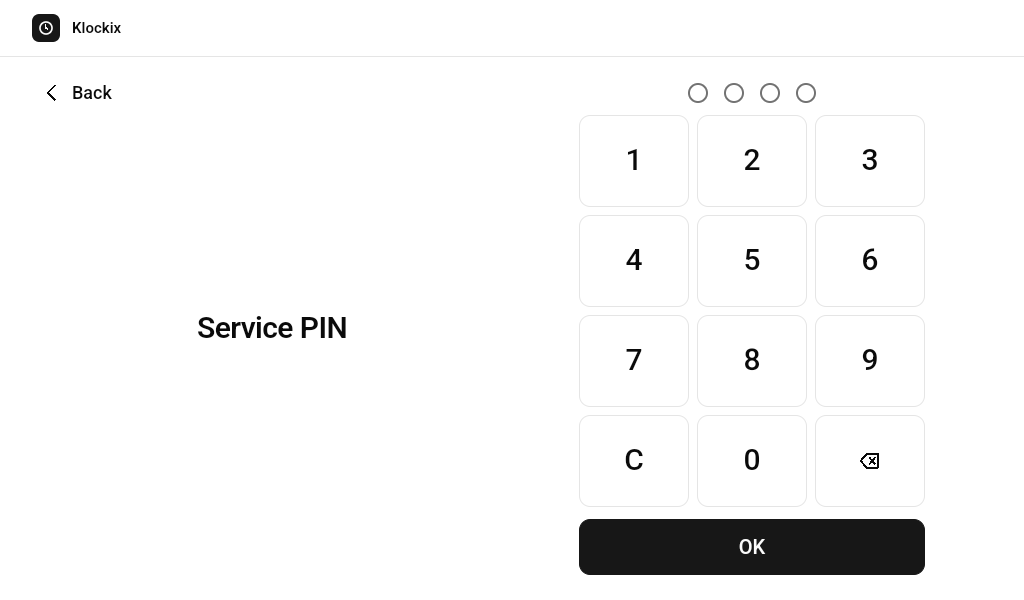
- A device connected to the Fleet Console uses the service PIN from the console. It applies to all devices of the account (Configuration).
- A directly connected device uses the PIN from the setup.
- Before the setup has finished, the menu opens without a PIN. It then only offers device info, network, language, update, restart and factory reset.
- During start, loading, connection test and update the corner does not react.
- After 5 wrong PINs the entry is locked for 60 seconds, then twice as long each time, at most 15 minutes (SVC-02).
- If the PIN prompt is not touched for 60 seconds, it closes and the device shows the previous screen again. This also applies during the lock. The unlocked service menu stays open.
Forgotten PIN: see Factory reset.
Entries
At the top are device name, state and channel. Which entries appear depends on the device.
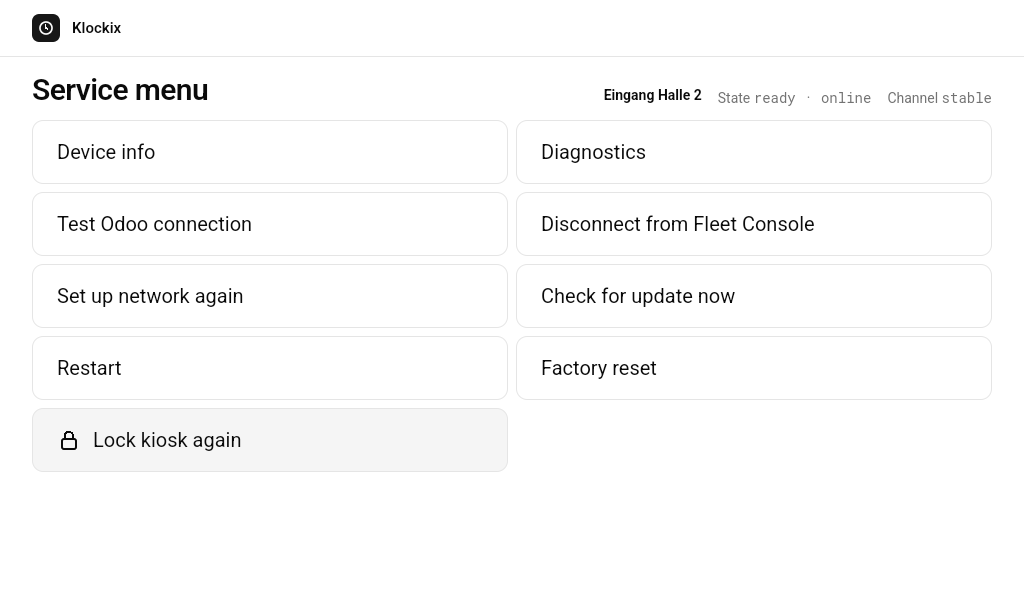
| Entry | When | What it does |
|---|---|---|
| “Device info” | always | notices and technical data, see below |
| “Diagnostics” | after setup | opt-in, diagnostics package, log, see below |
| “Test Odoo connection” | in operation | connection test with the stored connection |
| “Edit Odoo connection” | connected directly to Odoo | change the access, see below |
| “Re-confirm certificate” | connected directly to Odoo, after a certificate change | confirm the new fingerprint |
| “Enter registration code” | connected directly to Odoo or disconnected from the console | link to the Fleet Console |
| “Disconnect from Fleet Console” | connected to the Fleet Console | detach the device from the console |
| “Set up network again” | always | Wi-Fi list and internet check |
| “Language” | connected directly and before setup | Deutsch, English, Español, Français, Italiano or Nederlands |
| “Check for update now” | always | look for an update, see Updates |
| “Restart” | always | restarts the device, which takes about a minute |
| “Factory reset” | always | deletes all data, see Factory reset |
| “Developer” | only lab devices of Klockix | Android settings |
“Lock kiosk again” closes the menu.
Device info
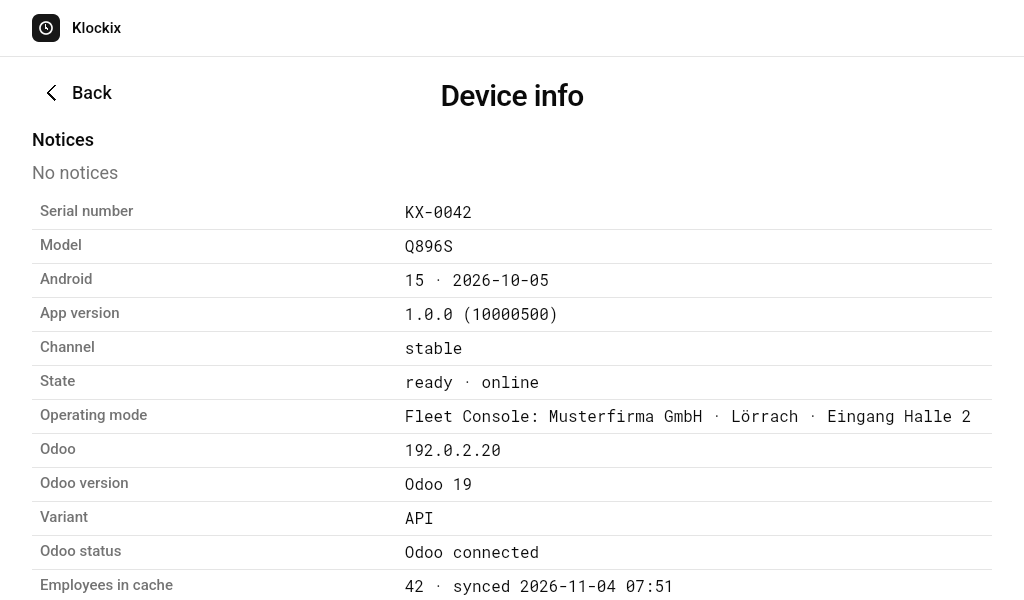
At the top are the “Notices”: active faults with their code, otherwise “No notices”. What each notice means is under Troubleshooting.
Below follow serial number, model, Android version, app version, channel, state, operating mode, Odoo server and version, Odoo status, employees in cache, network, clock, queue, badge reader, configuration, Fleet Console, free storage, uptime, diagnostics opt-in and crash reporting. The device info never shows credentials, names or badge IDs.
Diagnostics
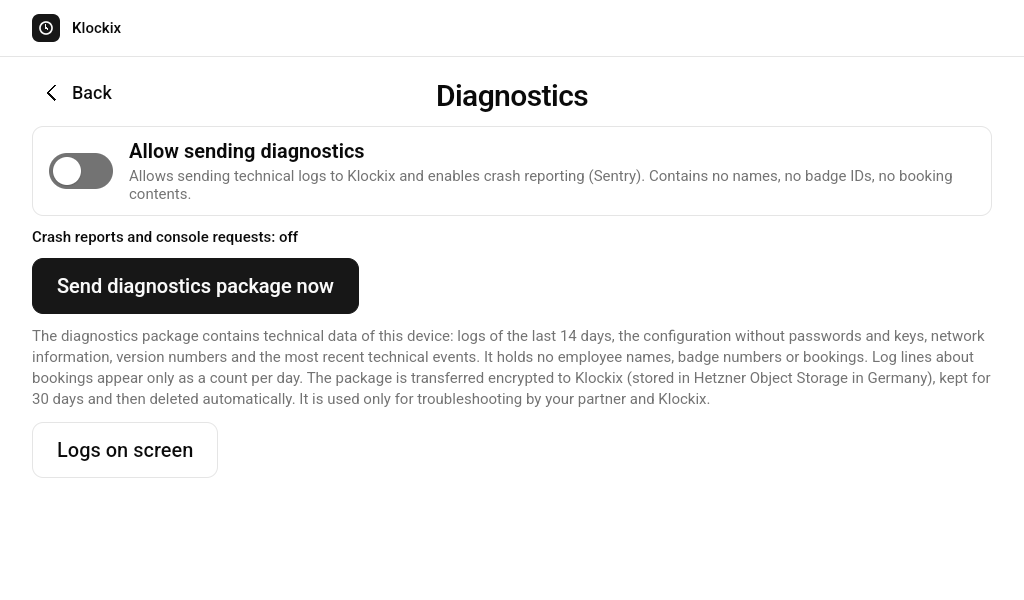
- “Allow sending diagnostics” is the opt-in on the device. It works together with the switch “Allow diagnostics” in the Fleet Console: if either is on, the device sends crash reports and the console may request diagnostics packages. The line “Crash reports and console requests: on” shows the effective state.
- “Send diagnostics package now” also works without the opt-in. The tap is the consent for exactly this package. The privacy notice is shown below the button (Privacy).
- A device connected to the Fleet Console sends the package to Klockix and shows “Sent, package …” with a short ID. Give this ID to the partner.
- A directly connected device saves the package and shows “Saved to Download/…”. Only the newest package stays in the “Download” folder. A technician connects the device to a computer over USB and copies the file.
- If it fails, the device shows “Not sent” or “Not saved”, with a code where possible.
- “Logs on screen” shows the last 200 lines of the device log, newest first. Badge IDs appear in it only as pseudonyms.
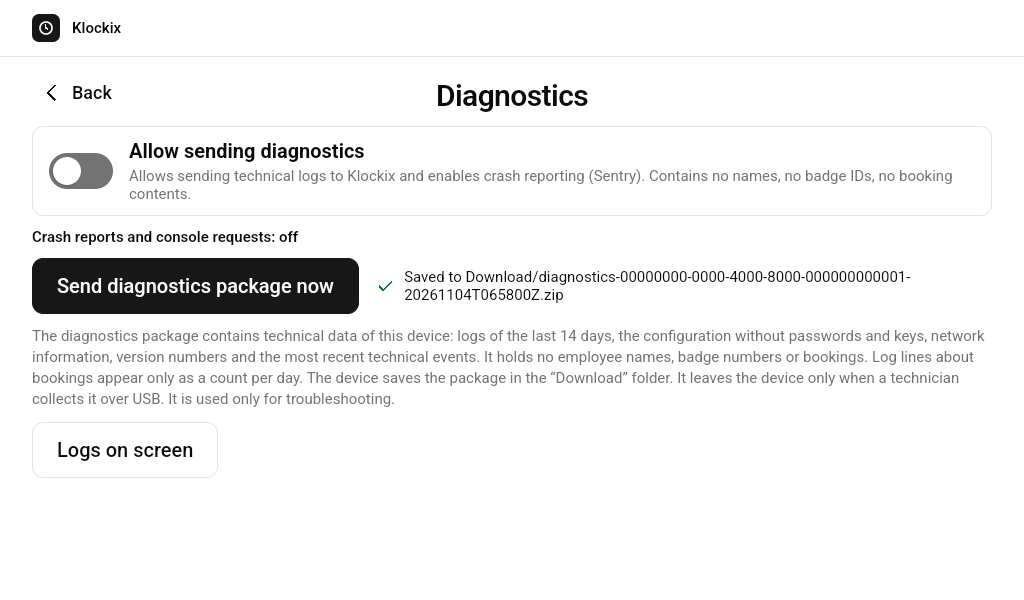
If the Fleet Console requests a package although diagnostics are allowed nowhere, the device refuses (SVC-05).
Odoo connection
“Test Odoo connection” checks the stored connection with the steps of the setup. A device connected to the Fleet Console reports the result to the console.
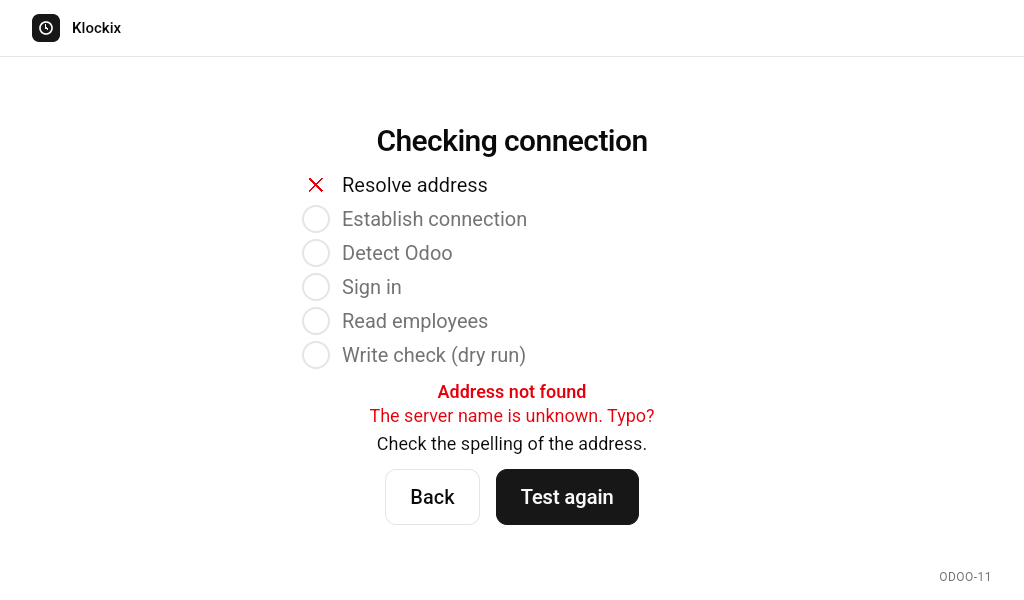
“Edit Odoo connection” exists only on directly connected devices. For devices connected to the Fleet Console, the partner changes the connection in the console.
- Tap “Edit Odoo connection”. The device shows the setup steps with the stored values.
- Change the values. The stored API key reads “saved, not shown”. Whoever changes hosting, sign-in or address enters the key or kiosk link again.
- Wait for the test and tap “Done”. Only then does the device save.
If the new connection leads to another Odoo while bookings are still waiting, the device asks first. It then sends the waiting bookings to the previous connection for up to one minute. Whatever is still waiting after that is lost. A new address for the same Odoo, for example after a server move, does not trigger this question.
“Re-confirm certificate” appears when your own server shows a new certificate (ODOO-14). The device shows the new fingerprint as during setup.
Linking to the Fleet Console
A device connected directly to Odoo or disconnected from the console can be linked with a registration code.
- Tap “Enter registration code”.
- Continue as under Connecting to the Fleet Console.
After that, configuration and Odoo access come from the console. The local Odoo connection, the local service PIN and the recovery code are deleted. If bookings are still waiting, the device refuses and asks to restore the network first.
Disconnecting from the Fleet Console
- Tap “Disconnect from Fleet Console”.
- Read the notice: “The Odoo credentials belong to the company account and will be deleted from the device. The device must then be set up again.”
- Tap “Yes, continue”.
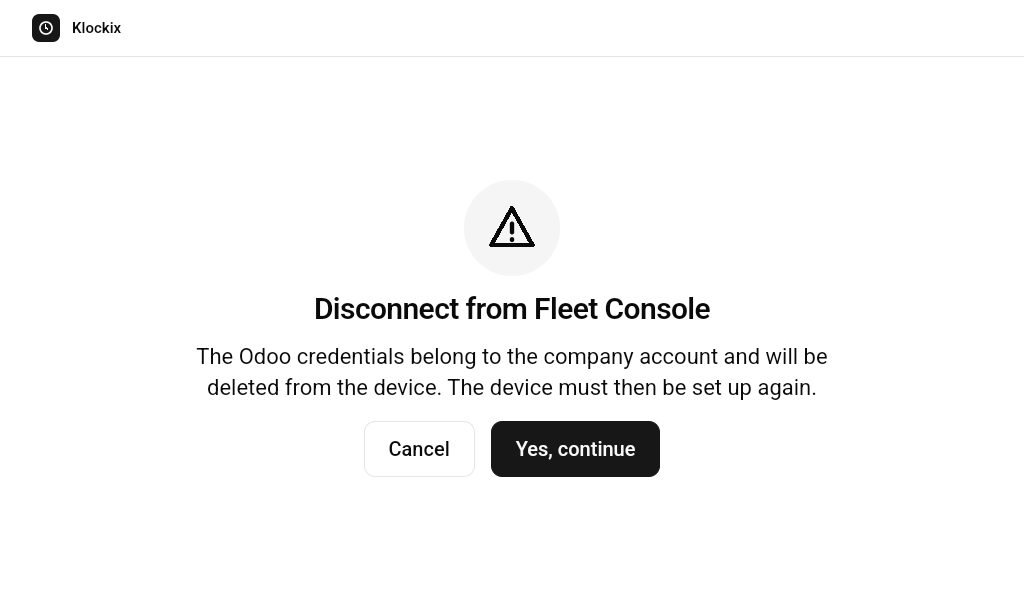
If bookings are still waiting, the device first tries to send them. If that fails, it asks a second time: “Disconnect anyway, … bookings will be lost”. After disconnecting, the device deletes configuration, Odoo access and employee list and shows the setup path. The network stays set up.
Updates
Updates arrive by themselves, also on directly connected devices. The device looks for a new version shortly after start and then every 6 hours, and downloads it in the background.
It installs only when nobody uses the device:
- outside the operating hours after 2 minutes without a touch, otherwise after 10 minutes,
- on directly connected devices between 10 pm and 5 am after 2 minutes, otherwise after 10 minutes,
- never while bookings are waiting or the service menu is open.
During the installation the device shows “Installing update” and accepts no badges. After about a minute it restarts.
In the first 5 minutes the device checks the new version. If it does not run stably, the device returns to the previous version by itself (UPD-04). The device info then shows this, and the Fleet Console reports it to the partner. If a device does not come back at all after an update, follow the steps under Troubleshooting.
The channel is shown at the top of the service menu. Customer devices always run on stable, only Klockix changes the channel.
Check for update now
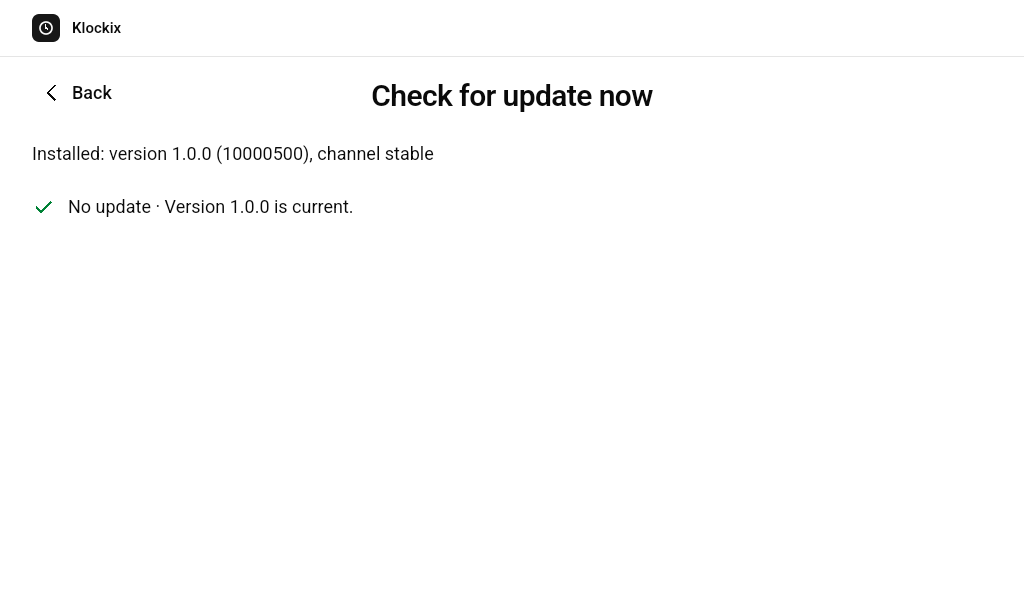
“Check for update now” shows the installed version and checks at once:
- “Checking for updates…”, then “Version … available, downloading” with progress.
- “Update ready, will be installed when the device is idle” with “Install now”. The installation then starts one minute after leaving the service menu. If someone books or touches the device in that minute, it waits for a full quarter hour.
- “No update”: the installed version is current (UPD-06).
Update codes
| Code | Meaning | Result |
|---|---|---|
| UPD-01 | download failed | new attempt at the next check |
| UPD-02 | signature or checksum invalid | not installed |
| UPD-03 | installation failed, with Android status, see below | the previous version keeps running |
| UPD-04 | new version did not run stably | previous version active again |
| UPD-05 | not enough free storage, at least 200 MB | no download until space is free |
| UPD-06 | no newer version | nothing to do |
For UPD-03 the text names the Android status:
| Status | Meaning |
|---|---|
STATUS_FAILURE | general installation failure |
STATUS_FAILURE_ABORTED | installation aborted |
STATUS_FAILURE_BLOCKED | blocked by the system |
STATUS_FAILURE_CONFLICT | does not match the installed app, for example because of another signature |
STATUS_FAILURE_INCOMPATIBLE | does not match the Android version of the device |
STATUS_FAILURE_INVALID | package file invalid |
STATUS_FAILURE_STORAGE | not enough storage |
STATUS_PENDING_USER_ACTION | Android asks for a confirmation the device does not give |
STATUS_TIMEOUT | no answer from Android within 3 minutes |
STATUS_INTERRUPTED | interrupted three times, for example by a power cut |
STATUS_NOT_SUPPORTED | this device does not install updates itself |
In every case the previous version keeps running. Inform Klockix support.
The device info shows the last outcome of an update in the line “Update”, for example “Version 1.2.0 was not stable, version 1.1.0 is active again.” or “Update failed. Please contact service.”