

Notifications
Alert types, settings, the bell and email.
On the device a fault appears on screen only when clocking in is not possible, for instance “Clocking in is currently not possible”. Everything else is in the service menu. The console reports faults as alerts: in the list “Open alerts”, in the bell and by email. The partner gets every alert of its customers, the customer according to its settings.
Alerts
| Alert | Opens when |
|---|---|
| Device offline (over 10 minutes) | the device has not reported for 10 minutes. While an update installs, the console waits up to 15 minutes with this. |
| Odoo authentication failed | Odoo rejects the device's sign-in. |
| Odoo unreachable | the device fails to reach Odoo several times in a row. |
| Odoo API key expiring soon | the API key expires within 14 days. |
| Odoo API key expired | the API key has expired. |
| Odoo rights missing, Odoo module missing | the technical user lacks rights or the app “Attendances” is missing. |
| Kiosk link invalid, Odoo kiosk answers unexpectedly | Odoo does not know the kiosk link or answers unexpectedly. |
| Clock not synchronised | the device clock has not been synchronised for 5 minutes, or the device reports this itself. |
| Bookings are queuing up | bookings have not reached Odoo for at least 30 minutes. |
| Update failed | an update fails and the device goes back to the previous version. |
| Configuration invalid, storage almost full | the device rejects a configuration or has hardly any storage left. |
The times for offline, API key and queuing bookings are defaults; you change them under “Thresholds”. An alert closes by itself as soon as its cause is gone. The bell reports that.
Open alerts
“Notifications” lists the open alerts with device, site, since when and the last notice. Below is the “History (30 days)” with the duration of every resolved alert.
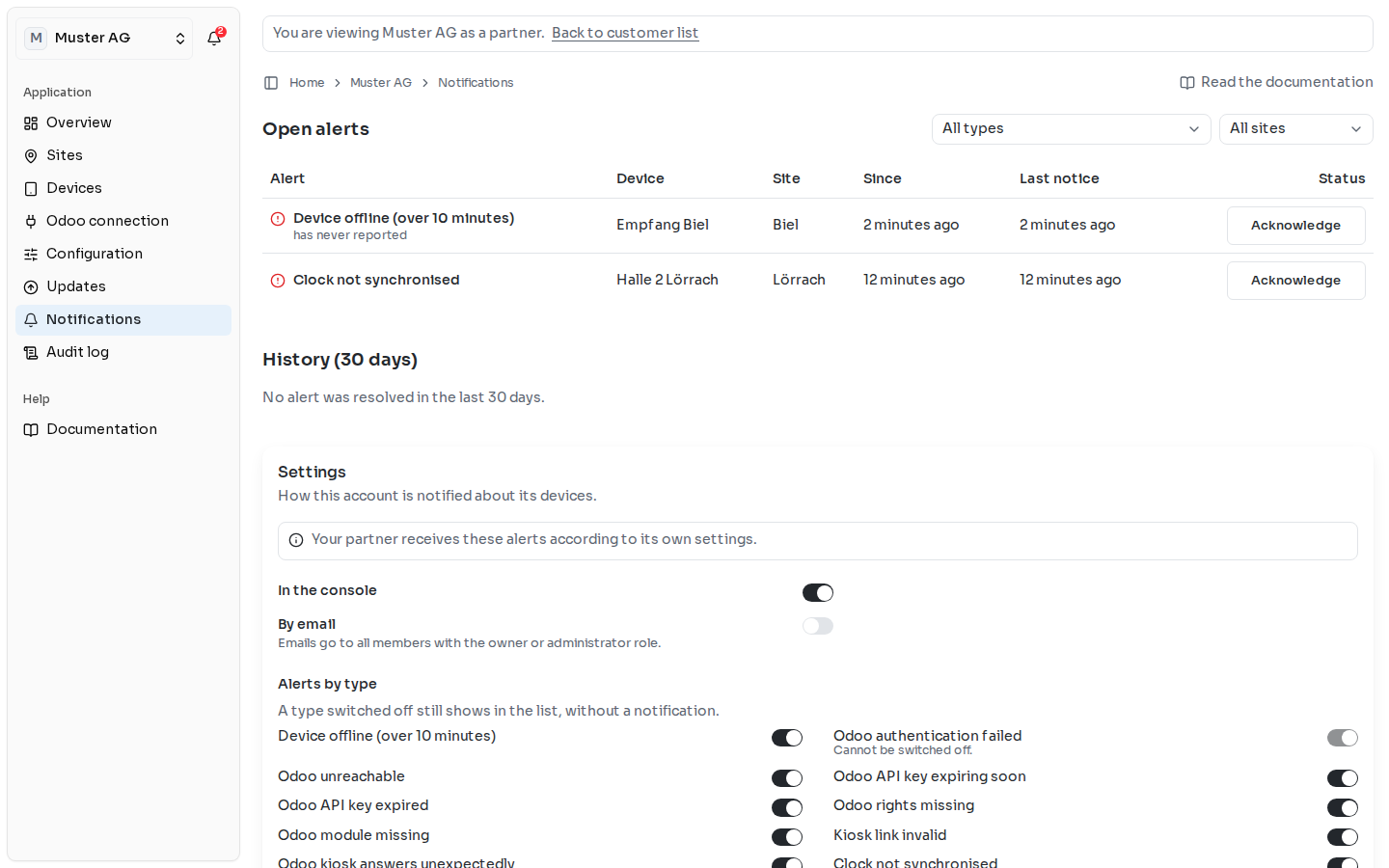
- “Acknowledge” stops the reminders. The alert stays open until its cause is fixed.
- “Mark resolved” exists only for “Update failed” and “Odoo API key expiring soon”. It closes the alert by hand.
If an alert stays open, the console reminds again after 24 hours. As a partner you see the alerts of all customers under “Notifications (partner)”, with the column “Customer”.
The bell
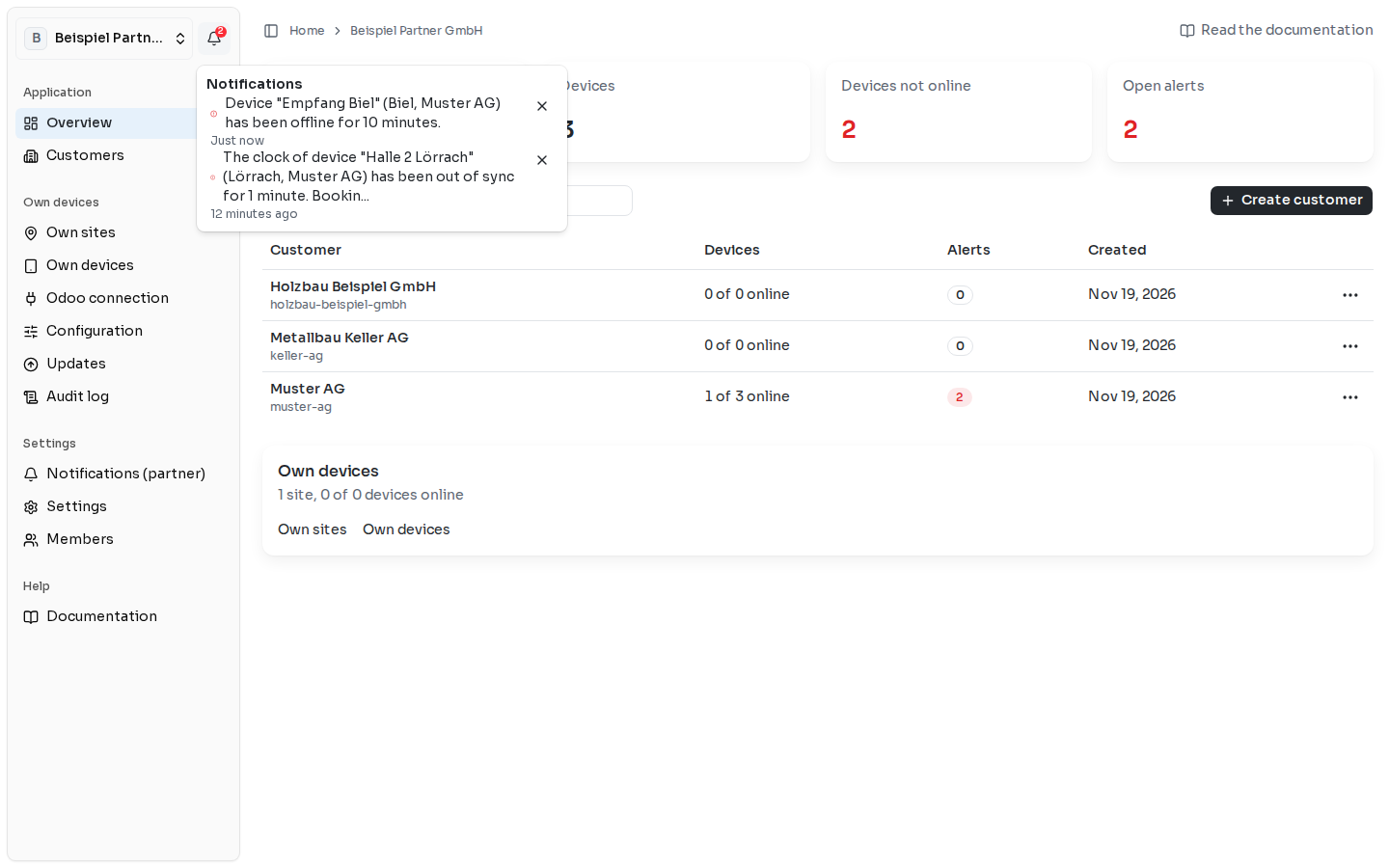
At the top right the bell shows new alerts and when they are resolved. Clicking an entry opens the device. The texts are in the account's language. Entries disappear after 30 days.
Settings
The card “Settings” on the page “Notifications” decides how the account is informed.
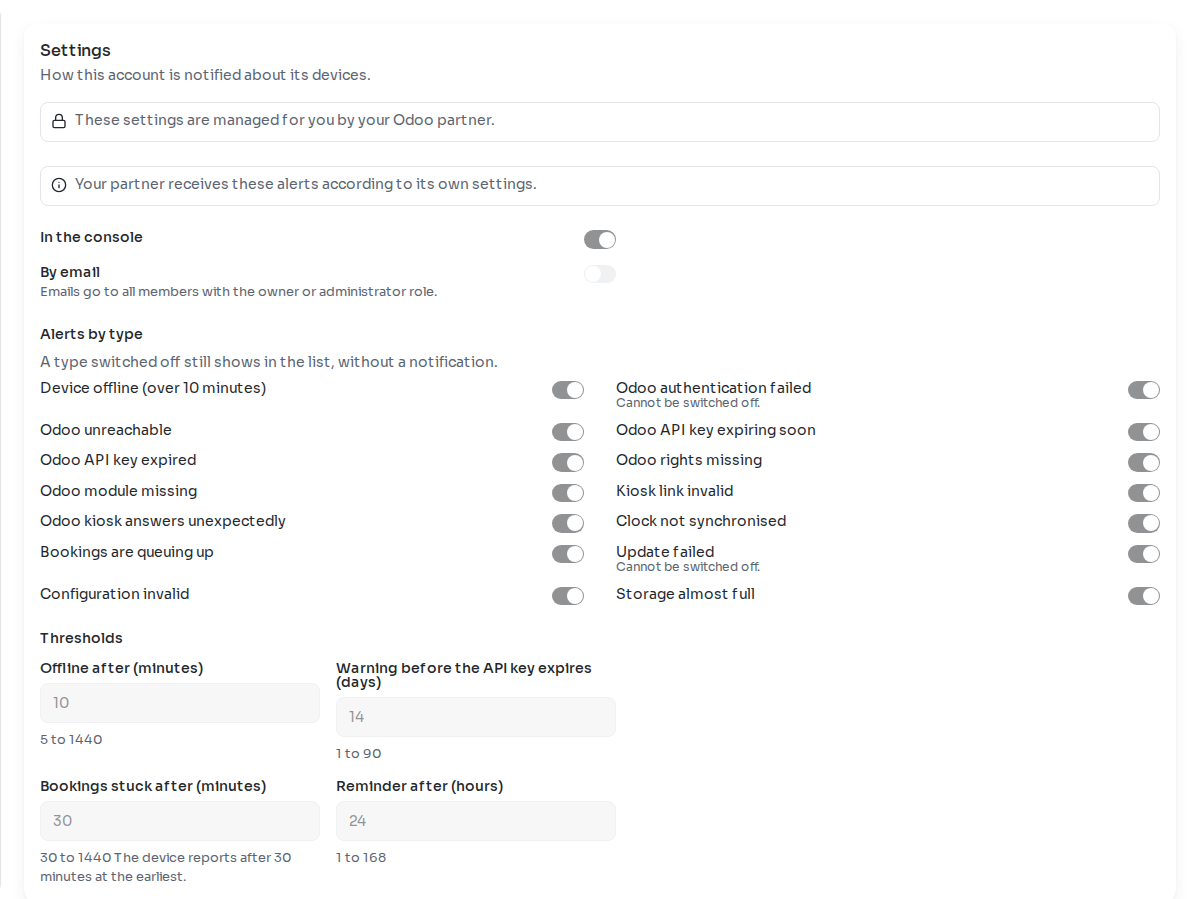
- “In the console” and “By email” switch the channels on or off. Emails go to all members with the owner or administrator role.
- Under “Alerts by type” you switch off single types. A type switched off still shows in the list, without a notification. “Update failed” and “Odoo authentication failed” cannot be switched off.
- Under “Thresholds” you set when an alert opens: “Offline after (minutes)”, “Warning before the API key expires (days)”, “Bookings stuck after (minutes)” and “Reminder after (hours)”.
For a customer with a partner, the partner sets this. The customer sees the card read only and the sentence “Your partner receives these alerts according to its own settings.” At first a customer with a partner gets alerts in the console only; the partner switches email on if needed. A direct customer gets emails from the start for every type it does not switch off.
Partner notifications
Your partner account has the card “Partner notifications”. In the console you always get alerts. By email you get every type at first except “Clock not synchronised”. You switch the email on or off and switch single types off for email. “Daily digest at 07:00 instead of single emails” sends one email a day. If your partner account has devices of its own, set them in the card “Own devices”.
Who may do what
All members of the account and owners and administrators of the partner may acknowledge. “Mark resolved” is for owners and administrators of the account or its partner. The partner changes the settings, and for a direct customer its owners and administrators do. Members do not see the settings.