Troubleshooting the console
Device offline, Odoo errors, configuration not applied, forgotten PIN.
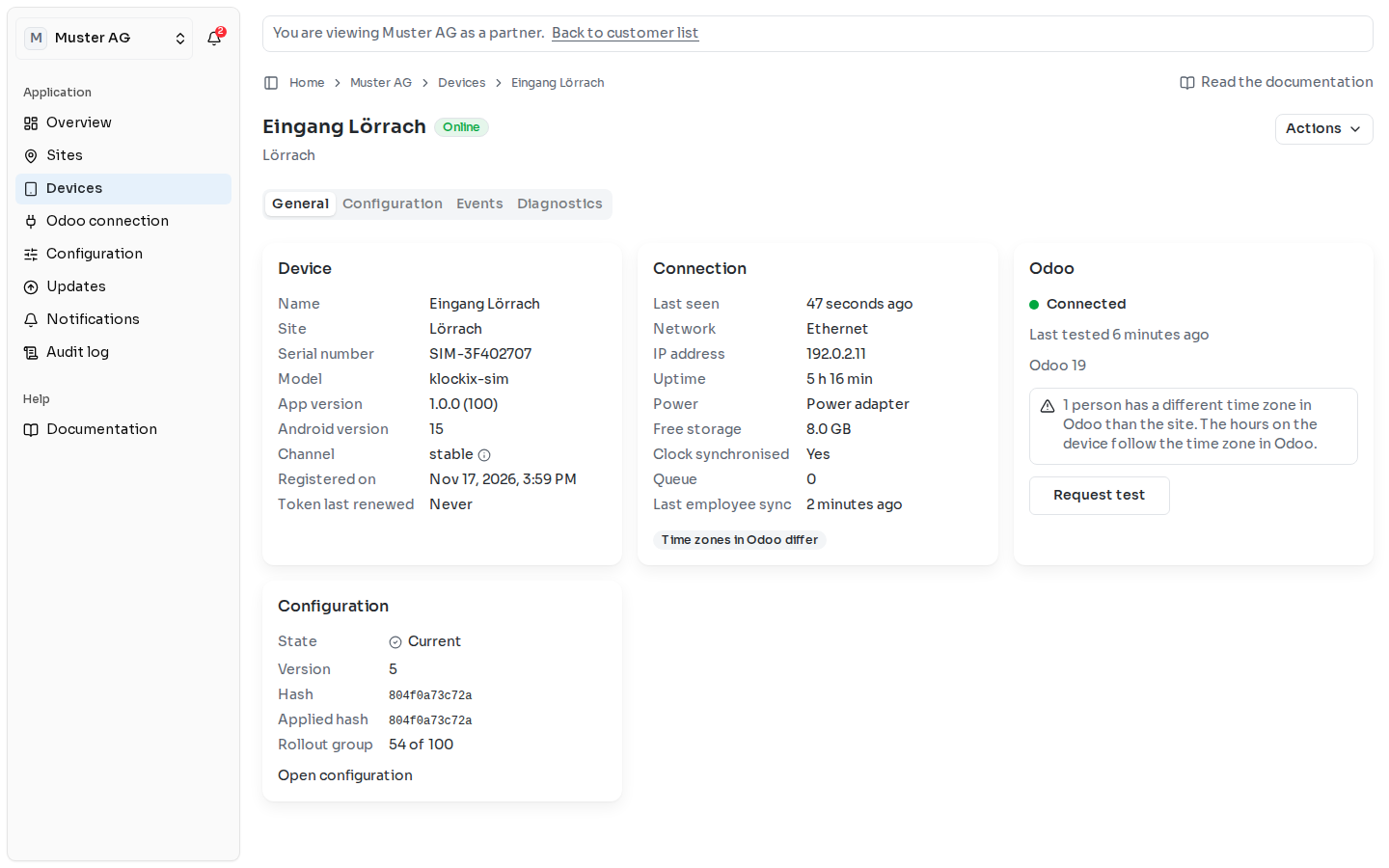
Most answers are in the device details: the card “Connection” with the last report, the card “Odoo” with the last test and the tab “Events”.
Device offline
A device counts as offline when it has not reported for 10 minutes. Clocking goes on as long as it reaches Odoo. If it does not reach Odoo either, it stores bookings with an API key and transfers them later. With a kiosk link it does not book then.
- Open the device. If the update state shows an update running, wait 10 minutes.
- If several devices of one site are offline, the cause is usually network or power on site. Have switch, PoE supply and router checked.
- If only one device is offline, ask someone on site to look at the display. If it is dark, power is missing: check the PoE port or the adapter. If it is on, it is the network.
- On Wi-Fi: has the password changed, is there a new router, or does the Wi-Fi ask for a sign-in in a browser? Choose the Wi-Fi again in the device's service menu under “Network” (Service menu).
- On a cable: try another port or another cable.
- Disconnect the device from power for 30 seconds. After the start it reports within 2 minutes.
The alert “Device offline (over 10 minutes)” closes by itself with the first report. If a device stays away for more than a day, replace it: register a new device and disconnect the old one.
Odoo errors
Codes show in the console test, in the device's card “Odoo” and in the events. Each code leads to its explanation under Error codes.
| Code | Meaning | What to do |
|---|---|---|
| ODOO-11 | Address not found | Check the Odoo URL. |
| ODOO-12 | Server not responding | Is the server running? Does the firewall let the devices through? |
| ODOO-13, ODOO-14 | Invalid or changed certificate | Renew the certificate, or check the new fingerprint and store it. |
| ODOO-16 | Version not supported | Klockix supports Odoo 17 to 20. |
| ODOO-17 | Database not found | Enter the name of the database. |
| ODOO-18 | Proxy asks for sign-in | Open the Odoo address without password protection. |
| ODOO-20 | Sign-in failed | Check login and API key. Odoo shows a key only when it is created. |
| ODOO-21, ODOO-22 | API key expiring or invalid | Create a new key and enter it (below). |
| ODOO-23 | API blocked on this plan | Use the kiosk link. |
| ODOO-24, ODOO-26 | No permission, booking not allowed | Give the technical user “Employees: Officer” and “Attendances: Administrator”. |
| ODOO-25 | Attendances not installed | Install the app “Attendances” in Odoo. |
| ODOO-27, ODOO-28 | Kiosk link invalid or unknown | Copy the link in Odoo again and enter it. |
| ODOO-29 | Multiple companies | Enter the company ID. |
| ODOO-36 | Clocking in is currently not possible | The device has no Odoo connection. Set one up. |
This is how you enter a new API key:
- Create a new API key in Odoo as the technical user (guide).
- Open “Odoo connection” in the console and click “Replace” next to the API key.
- Paste the new key and click “Save”.
- Wait until the status shows “Connected” again, within two minutes. The alert closes by itself.
- Delete the old key in Odoo.
Bookings that waited in the meantime reach Odoo with their original time.
Configuration not applied
After saving, the device list shows “Pending” for up to two minutes. “Not applied” means: the device is online and has not applied the new configuration after 10 minutes.
- Check that the device is online. A device that was offline applies the configuration as soon as it is back.
- In the device, click “Fetch configuration now” under “Actions”.
- Look for “Configuration rejected” under “Events”. Then the device rejected a value and works on with the previous configuration (FLEET-03). Check the values changed last, such as the logo (FLEET-04).
- If that does not help, invite Klockix support and request a diagnostics package.
Service PIN forgotten
For a device in the Fleet Console:
- Set a new PIN under “Configuration” in the card “Service PIN”.
- The device applies it on its next heartbeat, within two minutes when it has network. If it is offline, the new PIN waits until it is back.
- Open the service menu with the new PIN.
A device set up directly with Odoo, without the Fleet Console, showed an eight-digit recovery code during setup. Enter it in the service menu instead of the PIN, then set a new PIN. If this code is lost as well, a technician has to set the device up again. Waiting bookings are lost on the way (Resetting the device).
After 5 wrong entries the device locks the service menu for 60 seconds, and for longer after further failed attempts (SVC-02). The console shows this as the event “Service menu locked”.
Locked fields as a customer
If you see locked fields with “These settings are managed for you by your Odoo partner.” as a customer, your partner changes these values (Configuration). Tell them what you need. Renaming devices and acknowledging alerts you can do yourself.
Messages on the device
What the device itself shows, such as “Clocking in is currently not possible”, is explained in troubleshooting on the device.
For Klockix: jobs
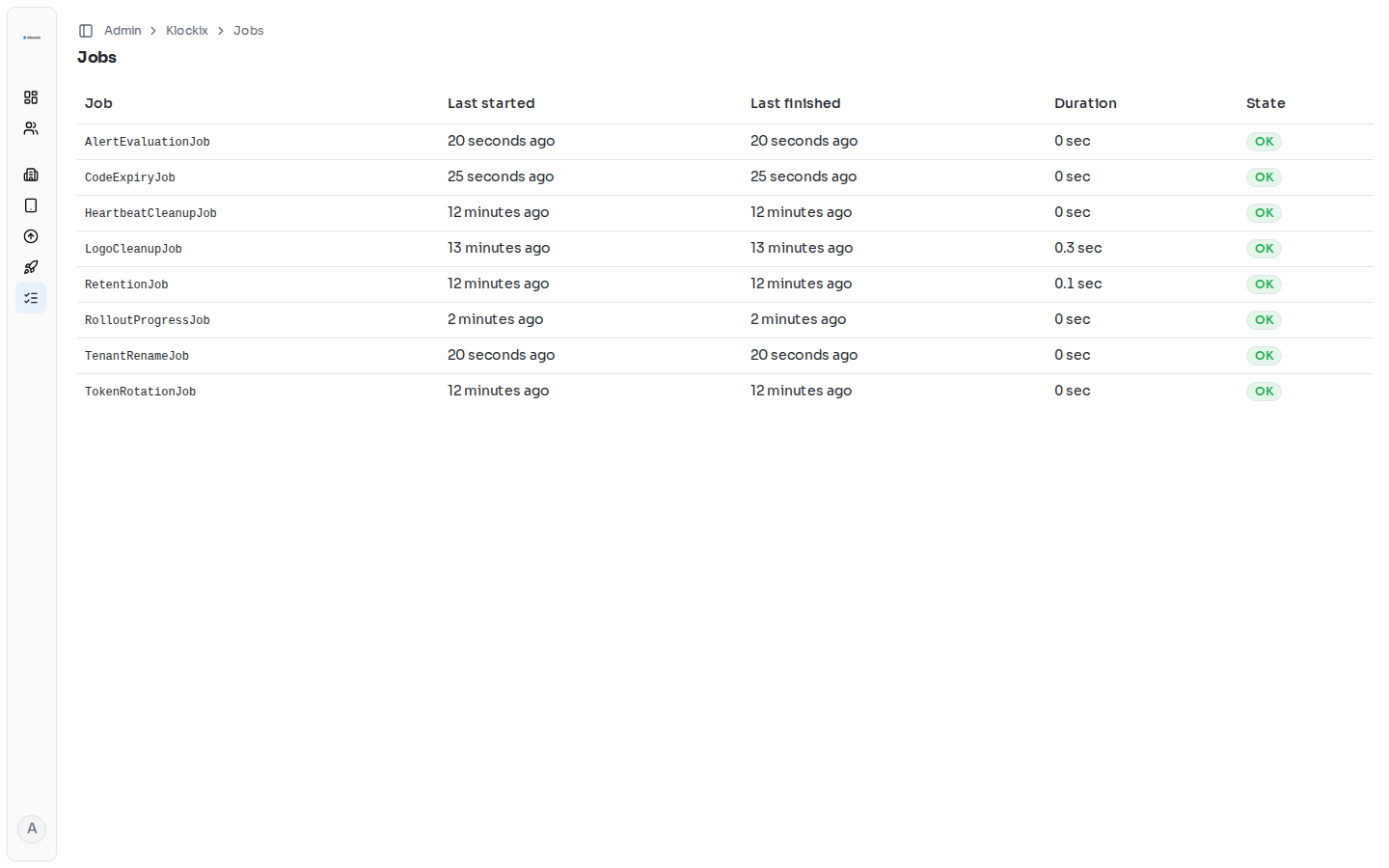
In the admin area, “Jobs” lists the cloud's background tasks with last start and end, duration and state. From three errors in a row an error report goes to Sentry.