

Guide for Odoo 17
Prepare Odoo 17 step by step, with an API key or the kiosk link.
This page gives the click paths of Odoo 17 in English. Background on rights, expiry and badges is on the pages Technical user and API key, Kiosk link and Badge ID, PIN and time zone.
Who this is for
| Hosting | API key | Kiosk link |
|---|---|---|
| Own server | yes, recommended | yes, without name selection on the device |
| Odoo.sh | yes, recommended | yes, without name selection on the device |
| Odoo Online | no | only until Odoo moves the database |
Odoo Online no longer offers Odoo 17 and moves remaining databases to a newer version by itself. Odoo has stopped supporting version 17 since autumn 2026. After an upgrade the device detects the new version by itself.
Before you start
- The Attendances app is installed.
- You have an Odoo login with administrator rights.
- You know the address of Odoo. If the server holds several databases, also the database name. Odoo 17 needs it for the API key when Odoo does not name it itself (ODOO-17).
Way A: API key
Creating the technical user
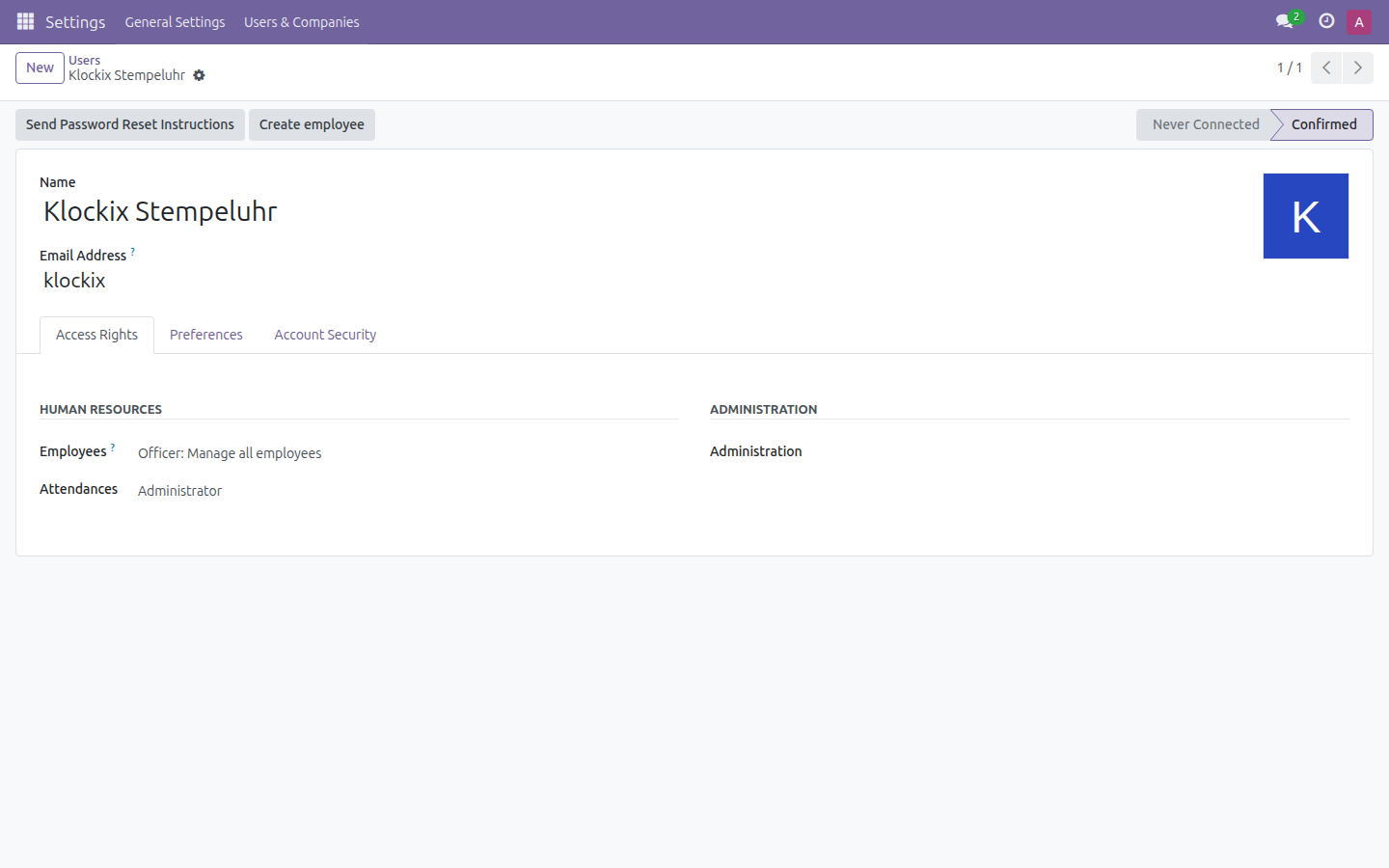
- Open “Settings” → “Users & Companies” → “Users” and click “New”.
- Enter a “Name”, for example
Klockix Time Clock, and the login under “Email Address”, for example[email protected]. - On the “Access Rights” tab, in the section “Human Resources”, set “Employees” to “Officer: Manage all employees” and “Attendances” to “Administrator”.
- Choose nothing under “Administration” and save.
- With several companies, allow under “Multi Companies” all companies whose employees clock in at the device.
Setting a password
- In the user form, click the gear next to the name at the top left and choose “Change Password”.
- Enter a new password and confirm with “Change Password”.
Generating the API key
- Sign in with the login and this password in a private browser window.
- Click the profile picture at the top right and choose “My Profile”. The window “Change My Preferences” opens.
- Open the “Account Security” tab and click “New API Key” under “API Keys” at the bottom.
- In the window “Security Control”, enter the password and click “Confirm Password”.
- Under “Name your key”, enter
Klockixand click “Generate key”. Odoo 17 does not ask for a duration. - Copy the key at once, click “Done!” and sign out.
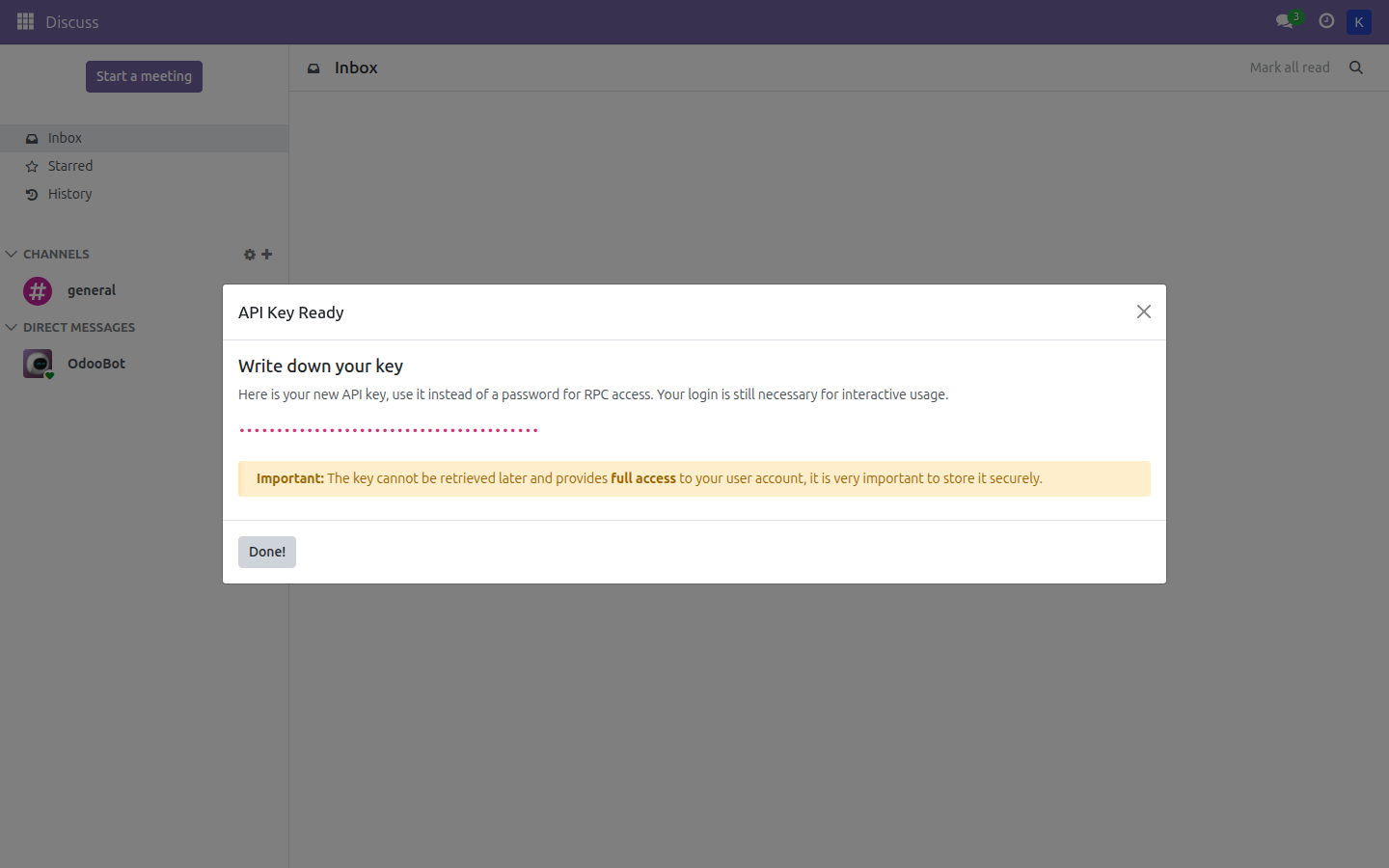
For a device connected to the Fleet Console the partner enters the key in the console. For a directly connected device it goes into the field “API key” on the device.
Expiry and replacement
- API keys do not expire in Odoo 17. So there is no reminder before an expiry.
- To replace a key, generate a new one as above and enter it. Then delete the old key on the “Account Security” tab of the technical user.
Way B: kiosk link
- Open “Attendances” → “Configuration”. In Odoo 17 this menu item leads straight to the settings.
- Scroll to the section “Kiosk Settings”.
- At “Attendance Kiosk Url”, click “Copy”.
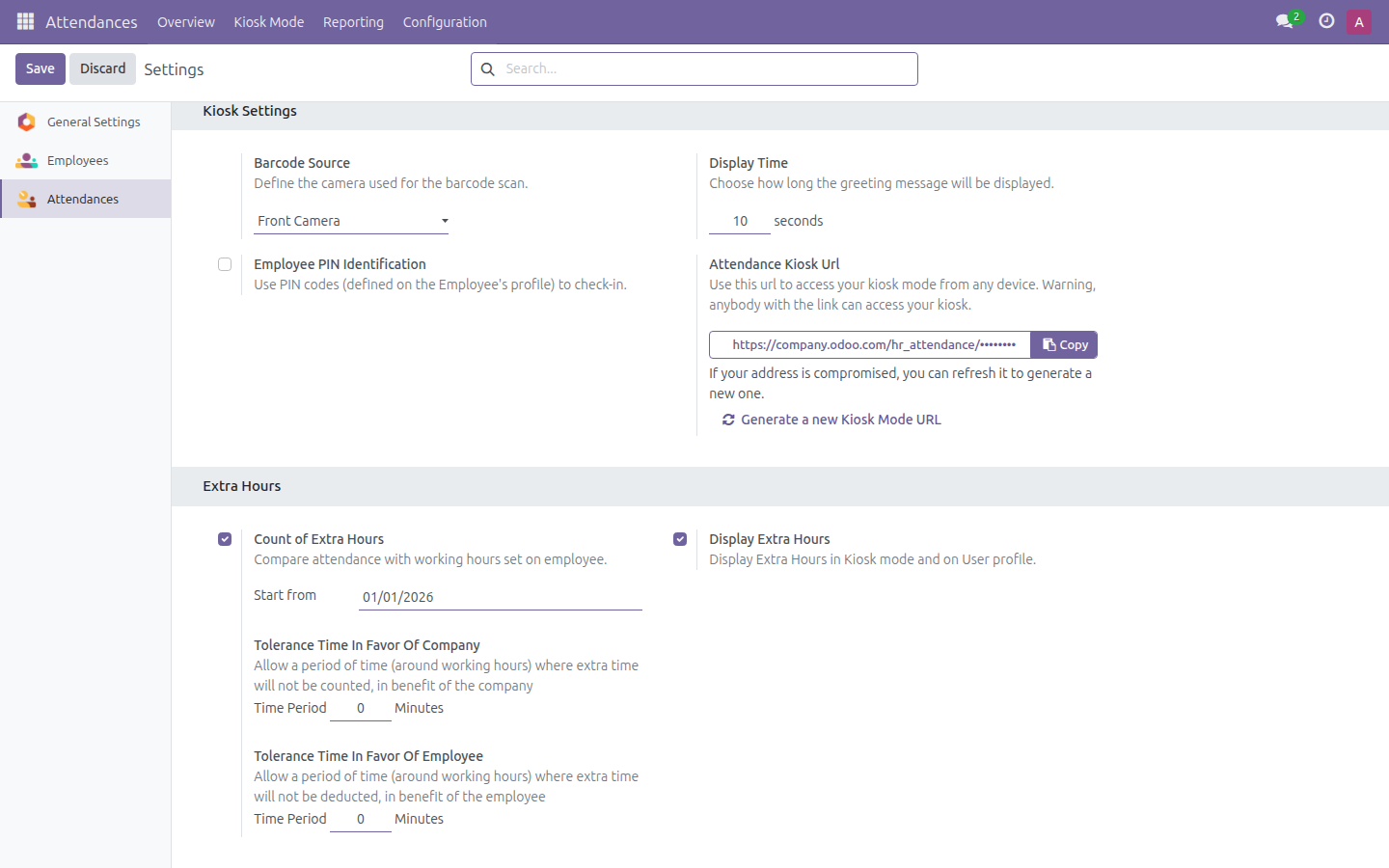
- “Generate a new Kiosk Mode URL” makes the old link invalid at once. Devices with the old link then show ODOO-28.
- The link is valid for one company. With several companies each has its own link.
- With Odoo 17 the device offers no name selection without a badge. Every person needs a badge ID.
- On your own server Odoo must recognise the database from the address: exactly one database or a set
dbfilter. Otherwise the kiosk link does not work.
Badge ID, PIN and time zone
- Open “Employees” and choose the person.
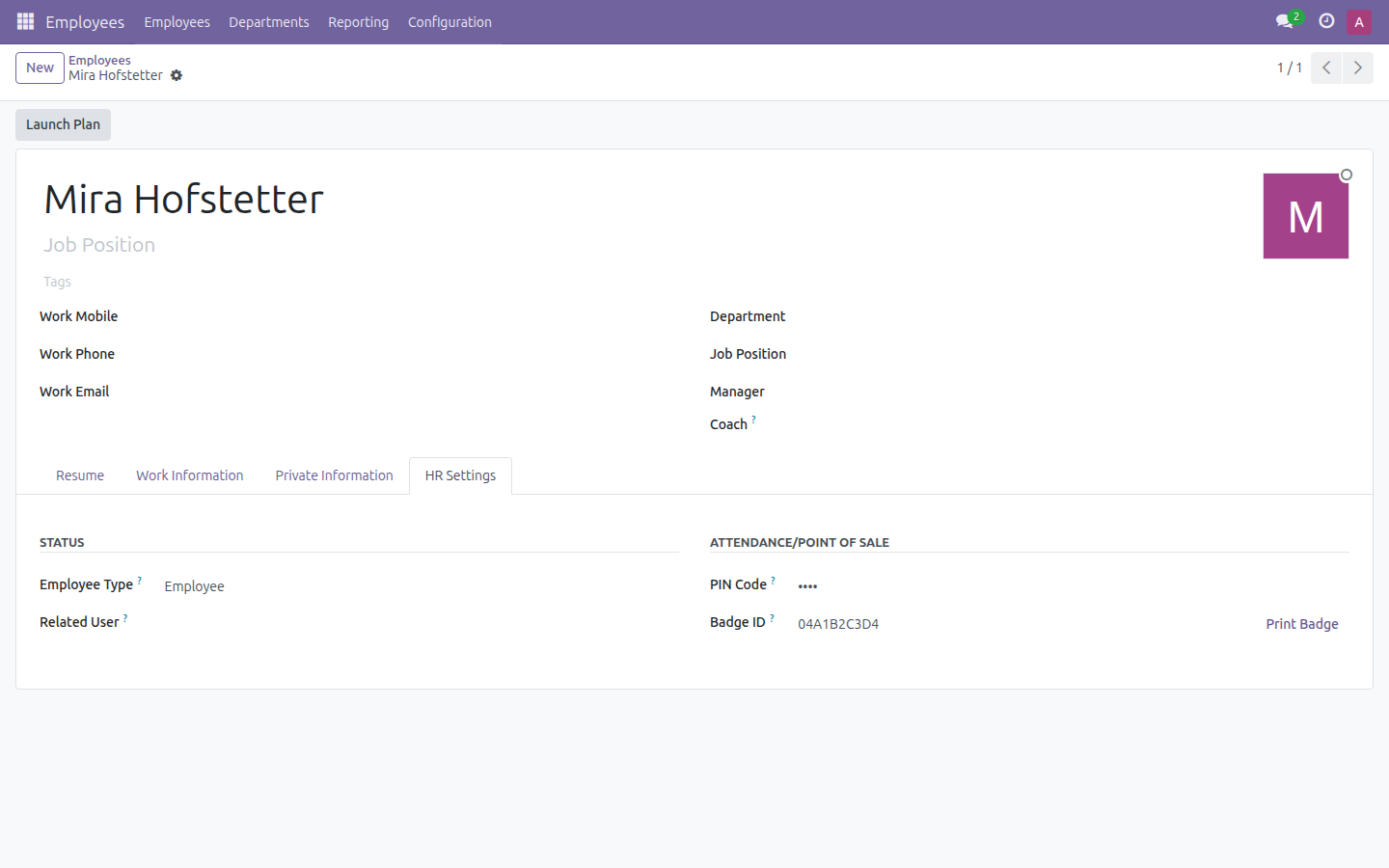
- On the “HR Settings” tab, under “Attendance/Point of Sale”, click into the field “Badge ID” and hold the badge to the USB reader.
- For the selection without a badge, enter a PIN under “PIN Code”. With Odoo 17 the device uses the PIN only with an API key.
- On the “Work Information” tab, under “Schedule”, set “Timezone” to the time zone of the site, for example “Europe/Berlin”.
- Save.
What is special about Odoo 17
- API keys have no expiry date.
- With the kiosk link there is no name selection on the device.
- Odoo 17 has no “Automatic Check-Out”. A forgotten attendance stays open until someone closes it in Odoo.
- Odoo 17 rejects the check-out of a night shift across the clock change when it creates extra hours (Shift across the clock change).
Common error codes
- ODOO-17: database not found. Enter the database name.
- ODOO-20: user or API key wrong.
- ODOO-24 and ODOO-26: the technical user lacks rights.
- ODOO-25: the Attendances app is not installed.
- ODOO-28: the kiosk link was generated anew.
- ODOO-31: Odoo rejected a booking.
- ODOO-35: with the kiosk link Odoo is not reachable, nothing was recorded.