

Connecting to the network
Use a network cable or choose a Wi-Fi network and enter its password.
After the language choice the device looks for a network cable for two seconds. With a cable it goes straight to the internet check, otherwise to the Wi-Fi list.
Network cable
A cable takes precedence over Wi-Fi, also later in operation. A Wi-Fi network that was set up then stays saved as a backup. If the cable is plugged in while the Wi-Fi list is open, the device continues by itself.
Wi-Fi
- In “Choose Wi-Fi”, tap the network. The list is sorted by signal strength.
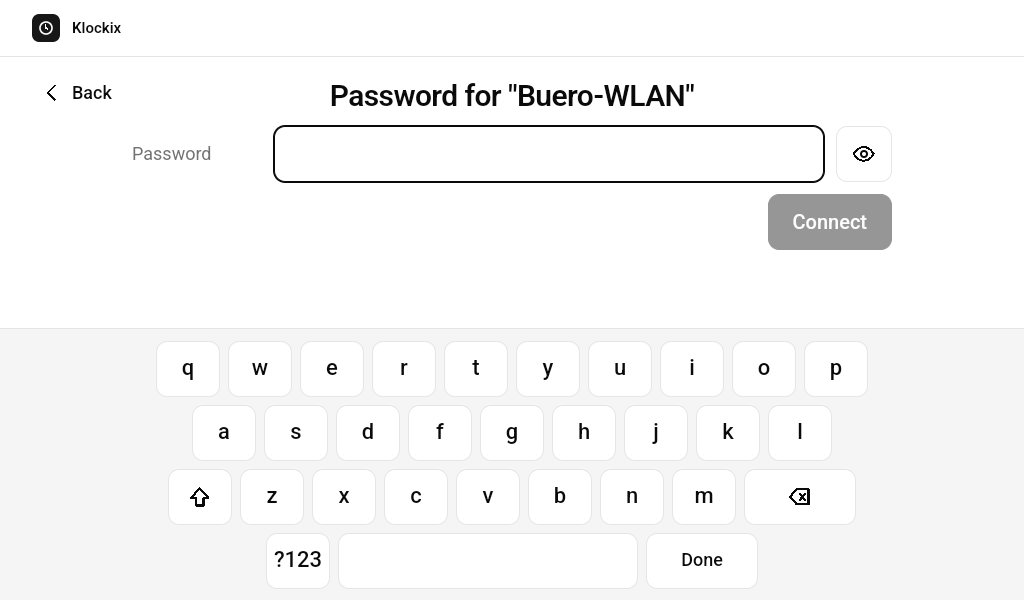
- Enter the password. “Show password” reveals it.
- Tap “Connect”.
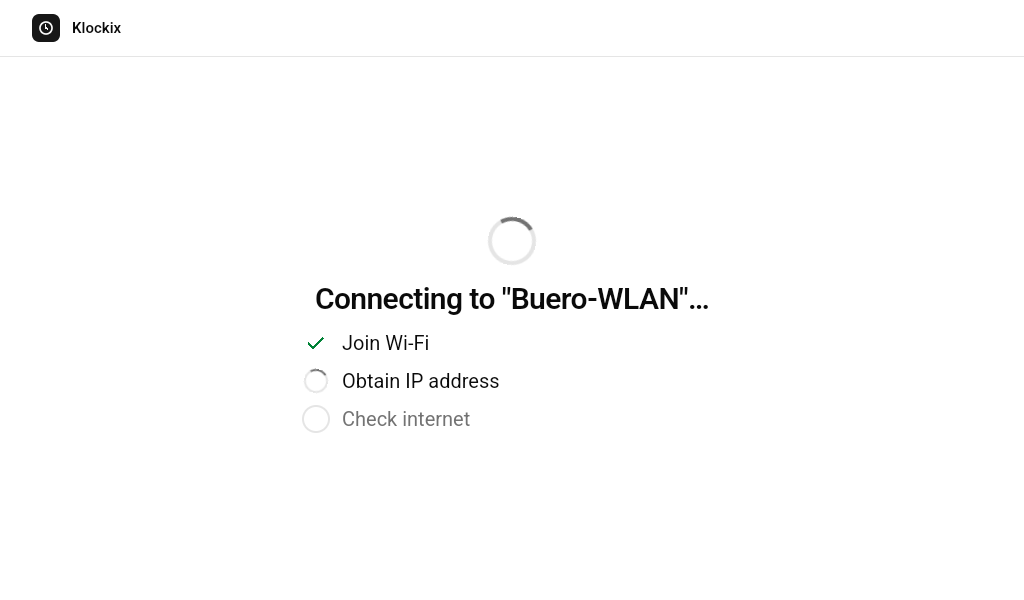
- Wait until “Join Wi-Fi”, “Obtain IP address” and “Check internet” show a tick.
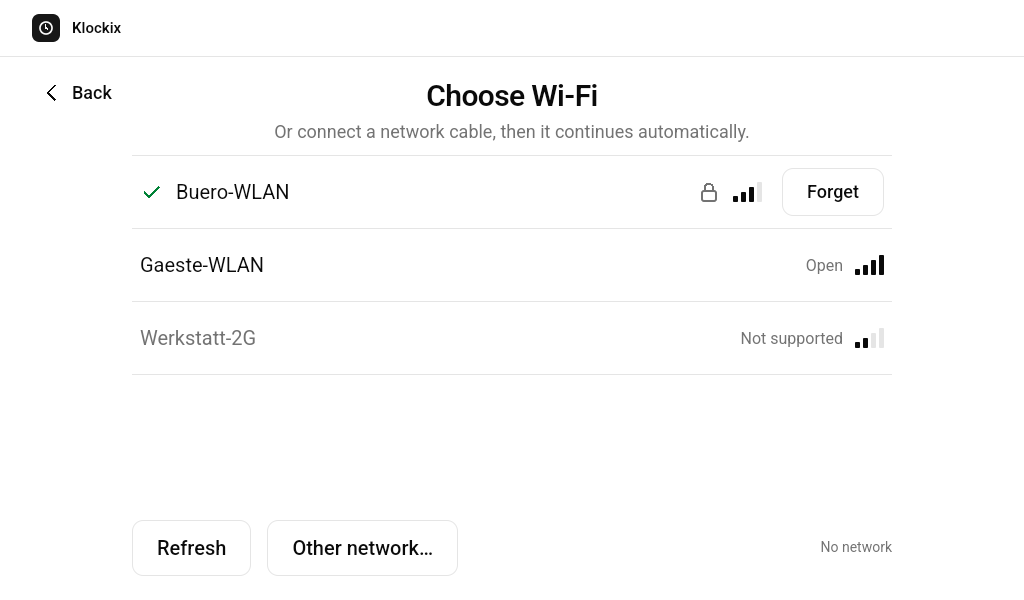
- Networks marked “Not supported” require a user sign-in (802.1X) or use WEP. Use another Wi-Fi or a cable here.
- A hidden network is added with “Other network…”: enter the network name (SSID) and choose “Secured” or “Open”.
- “Refresh” searches again and is then locked for 30 seconds.
- If the device finds no network, the list shows “No networks found”. “Search again” starts the search once more (NET-02).
If the Wi-Fi does not accept the connection, the password is usually wrong (NET-03). Tap “Enter the password again” or “Back to the list”.
Wi-Fi with a sign-in page
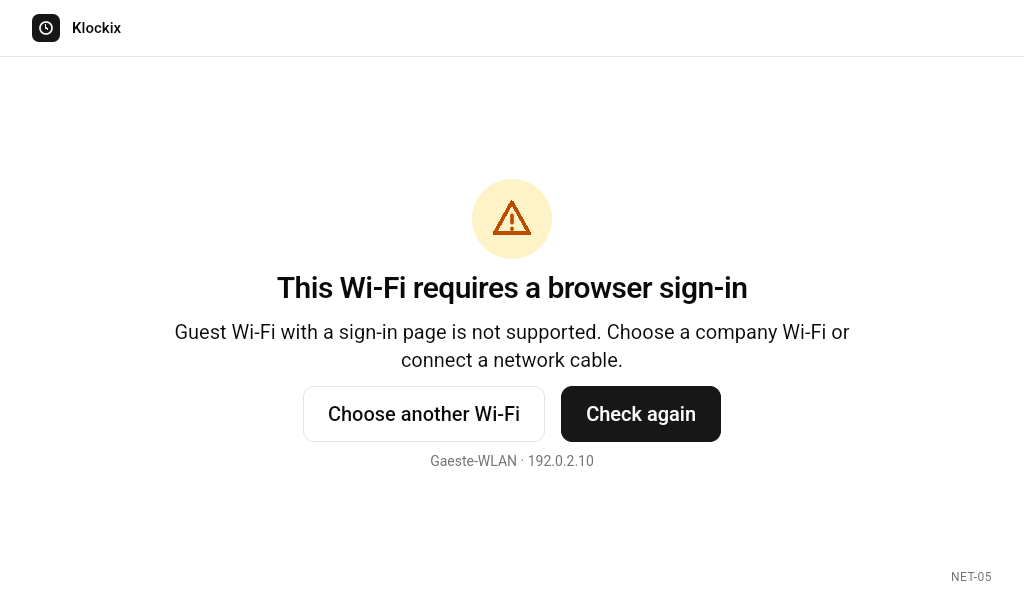
Guest Wi-Fi with a sign-in page in the browser does not work (NET-05). The device then shows “This Wi-Fi requires a browser sign-in”.
- “Choose another Wi-Fi” forgets the network and opens the list.
- “Check again” helps if IT has allowed the device on this network in the meantime.
Internet check
The device checks four items: “Network”, “Internet”, “Time” and “Klockix cloud”. Once all are done, it goes on to the setup path.
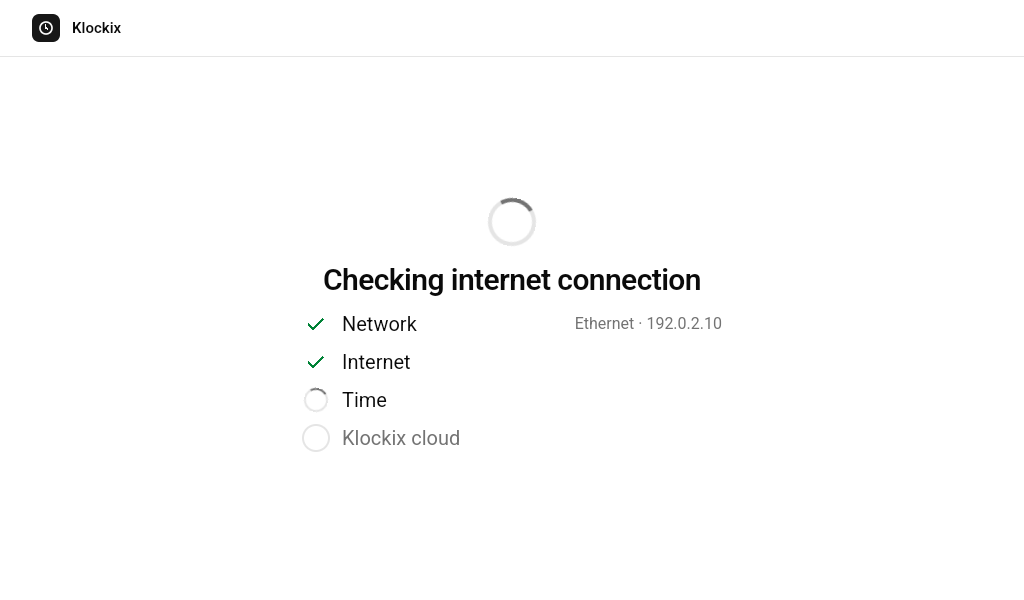
- “Internet” fails: the network is connected, but the internet cannot be reached (NET-04). Setup stops here. Have the firewall checked, then tap “Check again”. On a cable the device also offers “Use Wi-Fi instead”.
- “Time” fails: setup continues. Booking with an API key only works once the time is synchronised (CLK-02).
- “Klockix cloud” fails: only “Connect directly to Odoo” is possible (NET-07). The card “Connect to Fleet Console” is then greyed out.
Firewall and ports
The device only opens outgoing connections. It needs no incoming ones.
| Destination | Port | Purpose |
|---|---|---|
device-api.klockix.com | TCP 443 | Fleet Console (registration, configuration, status report) and updates, also for devices connected directly to Odoo |
*.fsn1.your-objectstorage.com | TCP 443 | files in Hetzner Object Storage: updates, logo, upload of diagnostics packages |
klockix.com | TCP 443 | internet check |
| the Odoo server | TCP 443 or the port of your own server | bookings, employee list, connection test |
time.cloudflare.com, pool.ntp.org | UDP 123 | time (NTP) |
*.de.sentry.io | TCP 443 | crash reports to Sentry (EU region), only with the diagnostics opt-in |
Android also checks on its own whether the network reaches the internet. The server it asks is set by the panel’s Android. If this check fails, the device treats the network as offline too.
The device also needs DNS and an IP address by DHCP on the local network. There is no proxy setting on the device. A proxy that asks for a sign-in in front of Odoo is not supported (ODOO-18).