

Clocking in at the device
Clock in and out with a badge or PIN.
The device books your check-in and check-out straight into Odoo.
Checking in and out
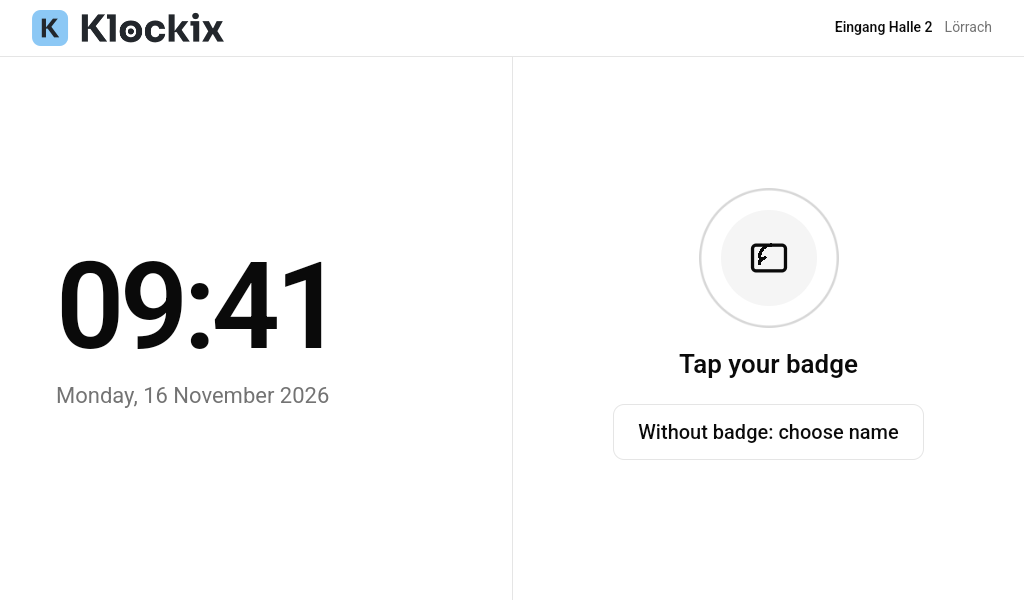
- Hold your badge to the circle marked “Tap your badge”.
- Wait until your name appears.
- Check the heading: “Checked in” (green) or “Checked out” (grey-blue).
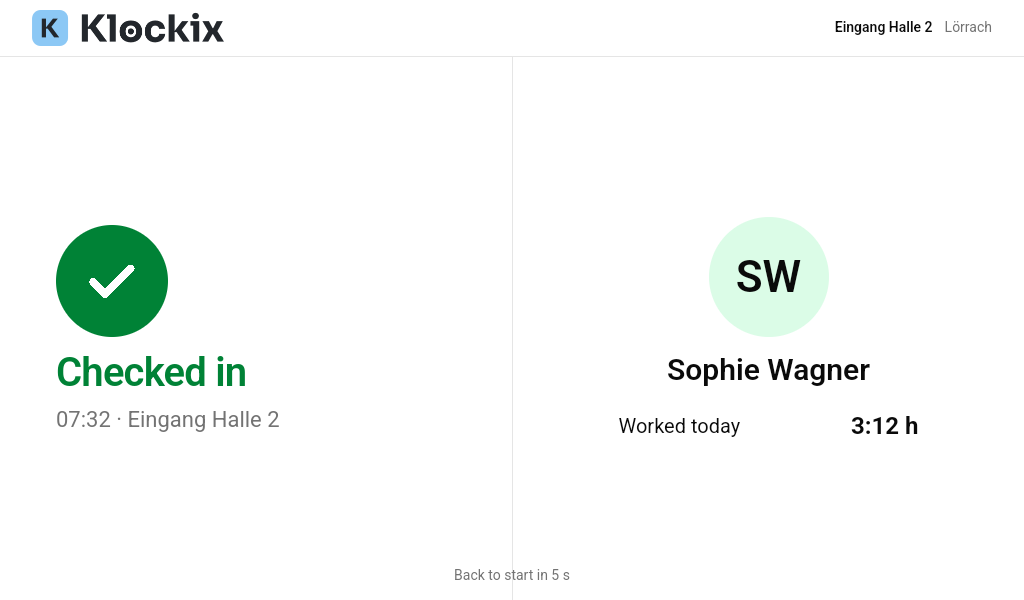
Depending on the settings, the device then shows the hours you worked today and your balance. Both values come from Odoo. Without a network the device still books. The hours are missing then, and the booking reaches Odoo later.
Special messages
- “Already booked at …”: you tapped the same badge twice within a few seconds. The device booked once.
- “Already checked in at …”: in your company a second tap does not check you out. Odoo checks you out automatically.
- “Checked in yesterday at …” when you check out: your check-in is from an earlier day. If you forgot to check out, tell HR.
- “Badge not known”: your badge is not assigned to anyone in Odoo. Contact HR. The characters of the badge ID on screen help them find it.
Without a badge
If your company has switched it on, the start screen shows “Without badge: choose name”.
- Tap it and choose your name.
- Enter your PIN. It is stored with your employee record in Odoo. Ask HR if you do not know it.
After five wrong PINs your name is locked for one minute.
When clocking in does not work
- “Clocking in is currently not possible”: the device cannot book right now. Try again in a minute. If the message stays, tell your manager or IT.
- Dark display: the device is outside its operating hours. Touch it or tap your badge. If booking is blocked then, it shows when booking works again.