

Partner quick start
From the first customer to the first badge in six steps.
You need partner access to the Fleet Console, the customer's Odoo details and a Klockix device. Odoo details means: the address and a technical user with an API key, or the kiosk link. How to create them in Odoo is under Preparing Odoo.
1. Create the customer
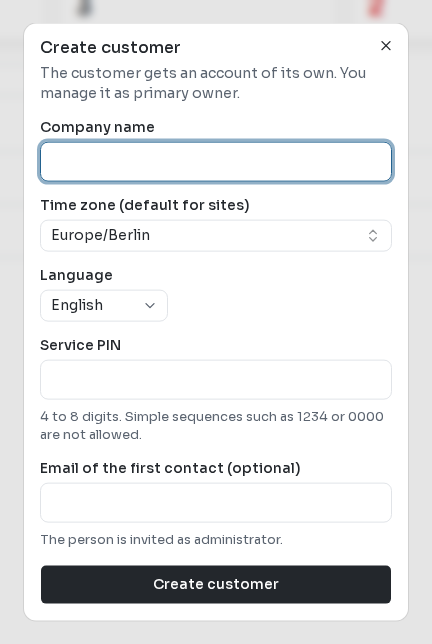
- Open “Customers” and click “Create customer”.
- Enter company name, time zone, language and service PIN.
- Enter the email of the contact at the customer. The person is invited as administrator.
- Click “Create customer”. The console opens the new customer.
2. Create a site
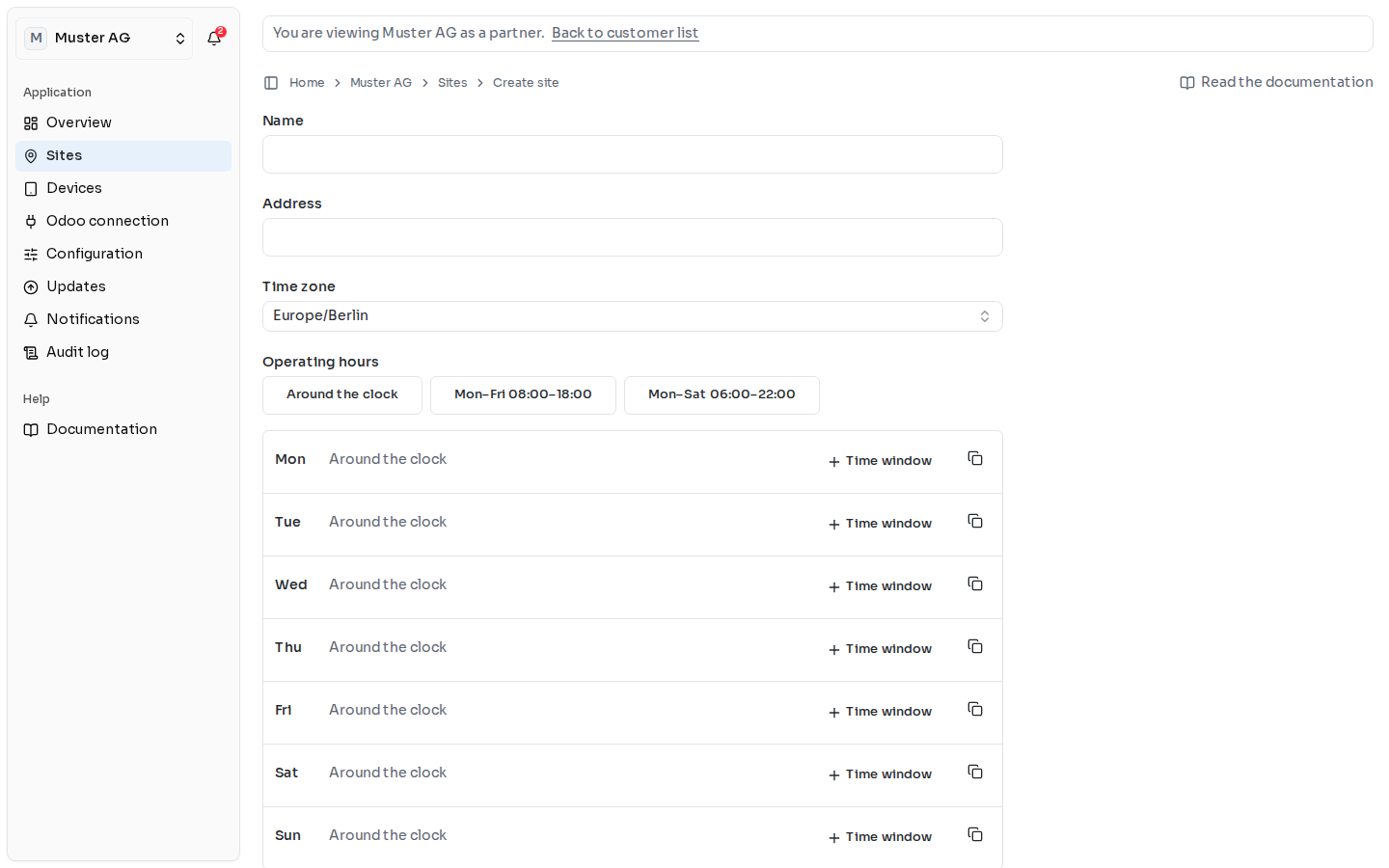
- In the customer, open “Sites” and click “Create site”.
- Enter name and time zone.
- Set the operating hours, for example with the preset “Mon–Fri 08:00–18:00”.
- Click “Create site” at the bottom of the form.
3. Connect Odoo
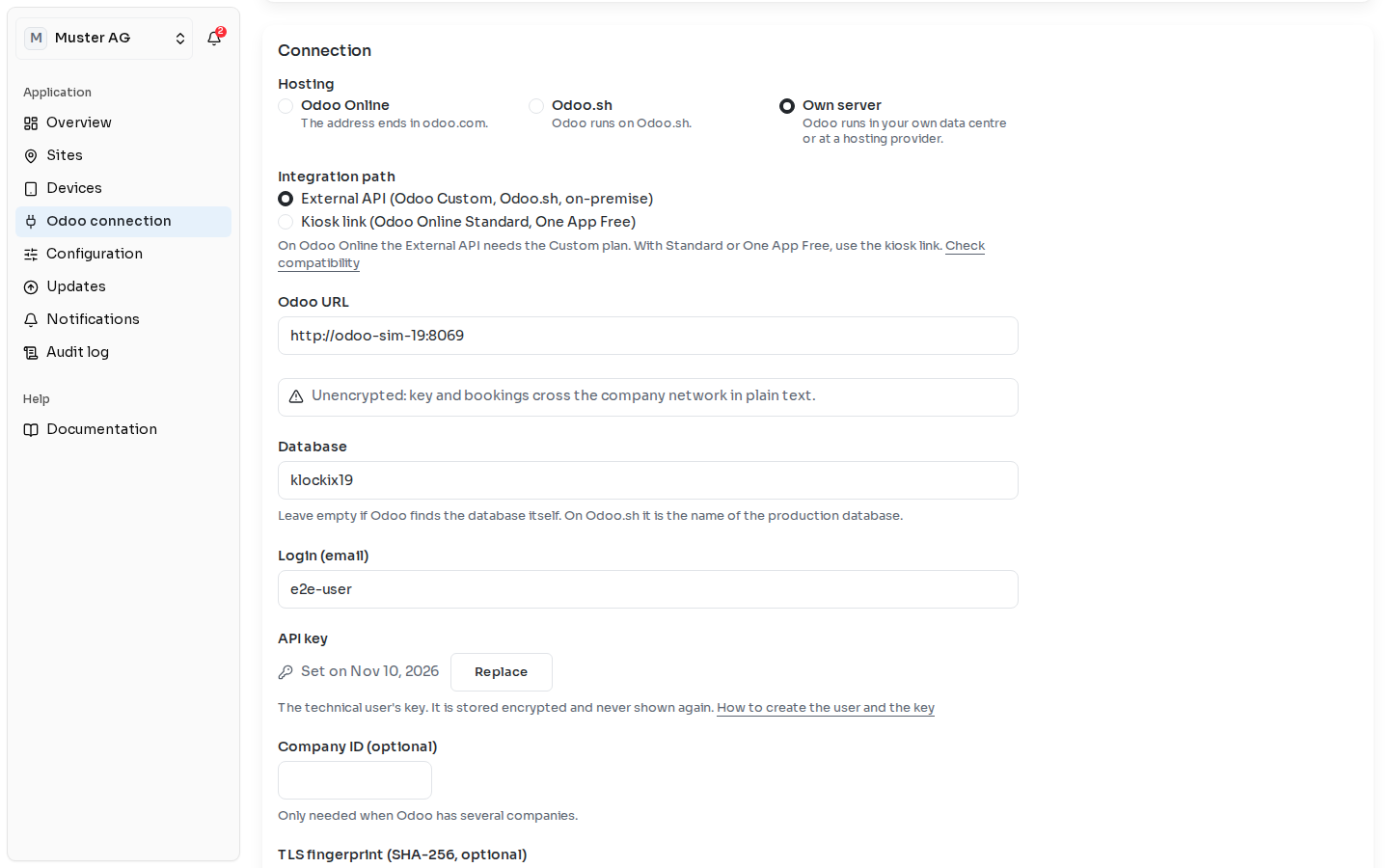
- Open “Odoo connection”.
- Choose the hosting and the integration path: “External API (Odoo Custom, Odoo.sh, on-premise)” with an API key, or “Kiosk link (Odoo Online Standard, One App Free)”.
- Enter Odoo URL, database, login and API key. For a kiosk link, paste only the link.
- Click “Save”. The console tests the connection.
If Odoo sits in the company network, the device is the first to test the connection. Details are under Odoo connection.
4. Check the configuration
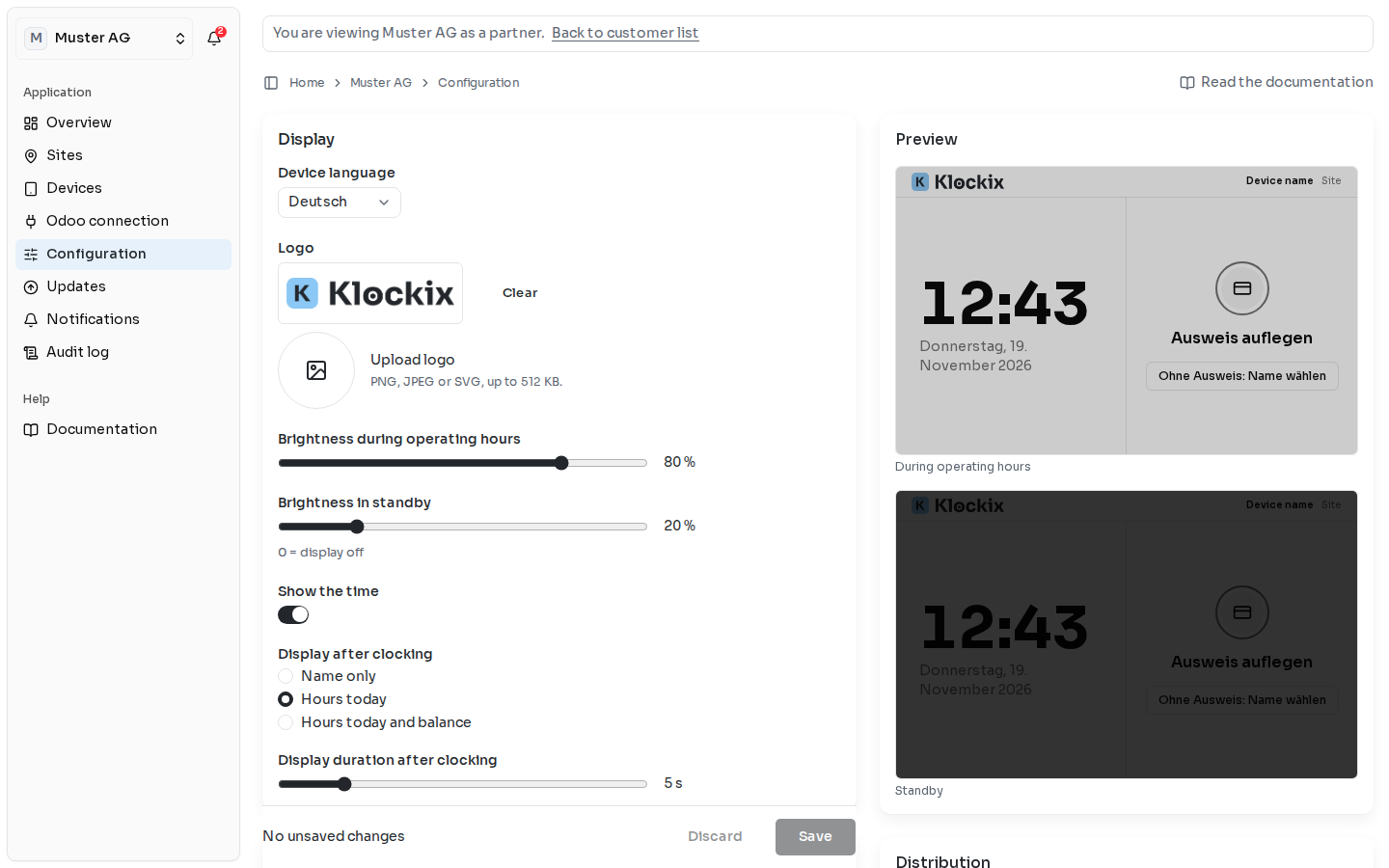
- Open “Configuration”.
- Check “Device language”, the logo and “Display after clocking”.
- Click “Save” if you changed something.
5. Create a registration code
The code is valid for 30 minutes. Create it only when the device is ready.
- Open “Devices” and click “Register device”.
- Choose the site and check the device name.
- Click “Create code”.
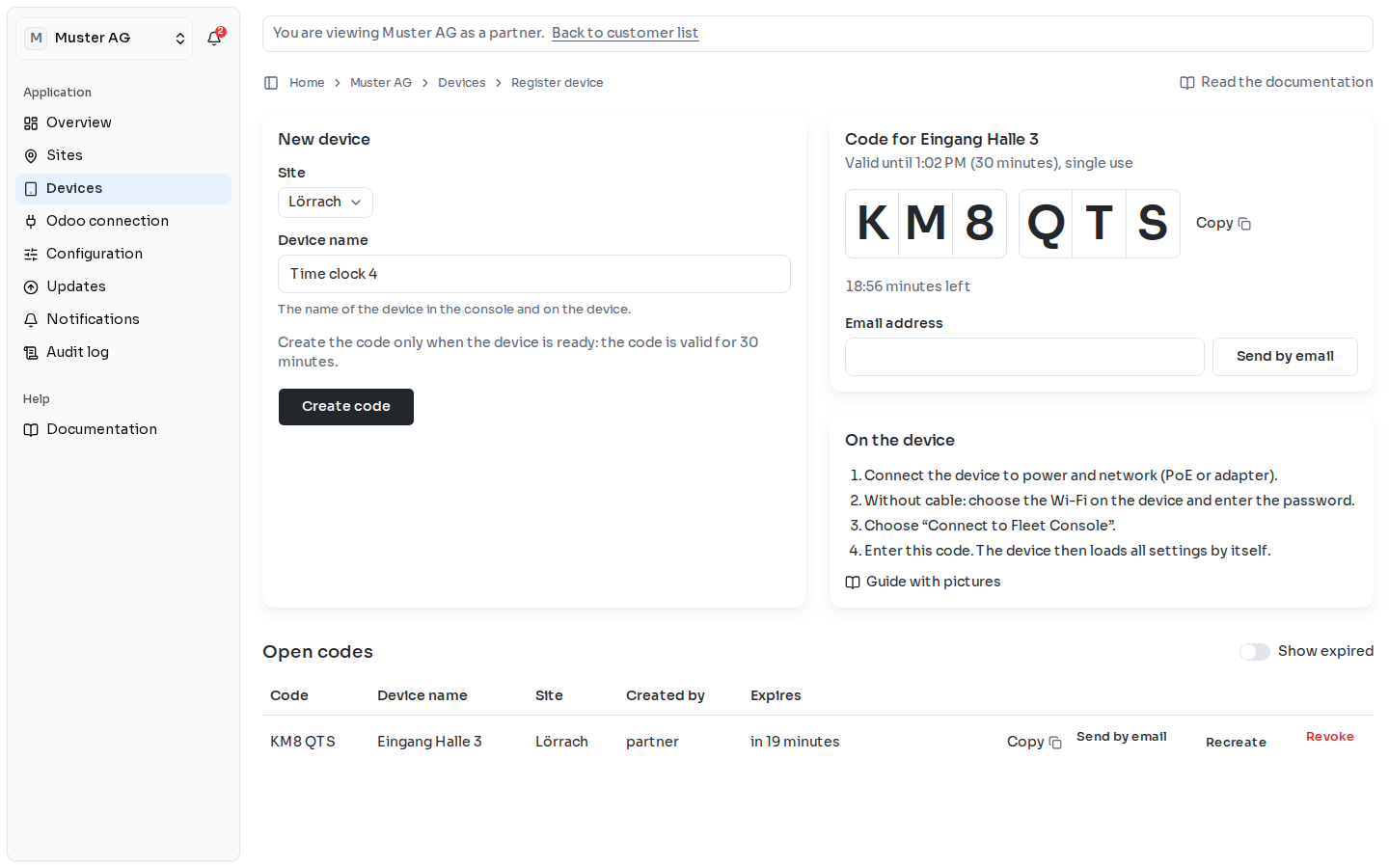
6. Connect the device
- Connect the device to power and network.
- On the device, choose the language and, without a cable, the Wi-Fi.
- Choose “Connect to Fleet Console” and enter the code.
- Wait until the console shows “Device … is connected.” and click “Open the device”.
- In the device details, check the status “Online” and a passed test in the card “Odoo”. If the card shows no test yet, reload the page.
- Tap a badge. The device shows the person's name.
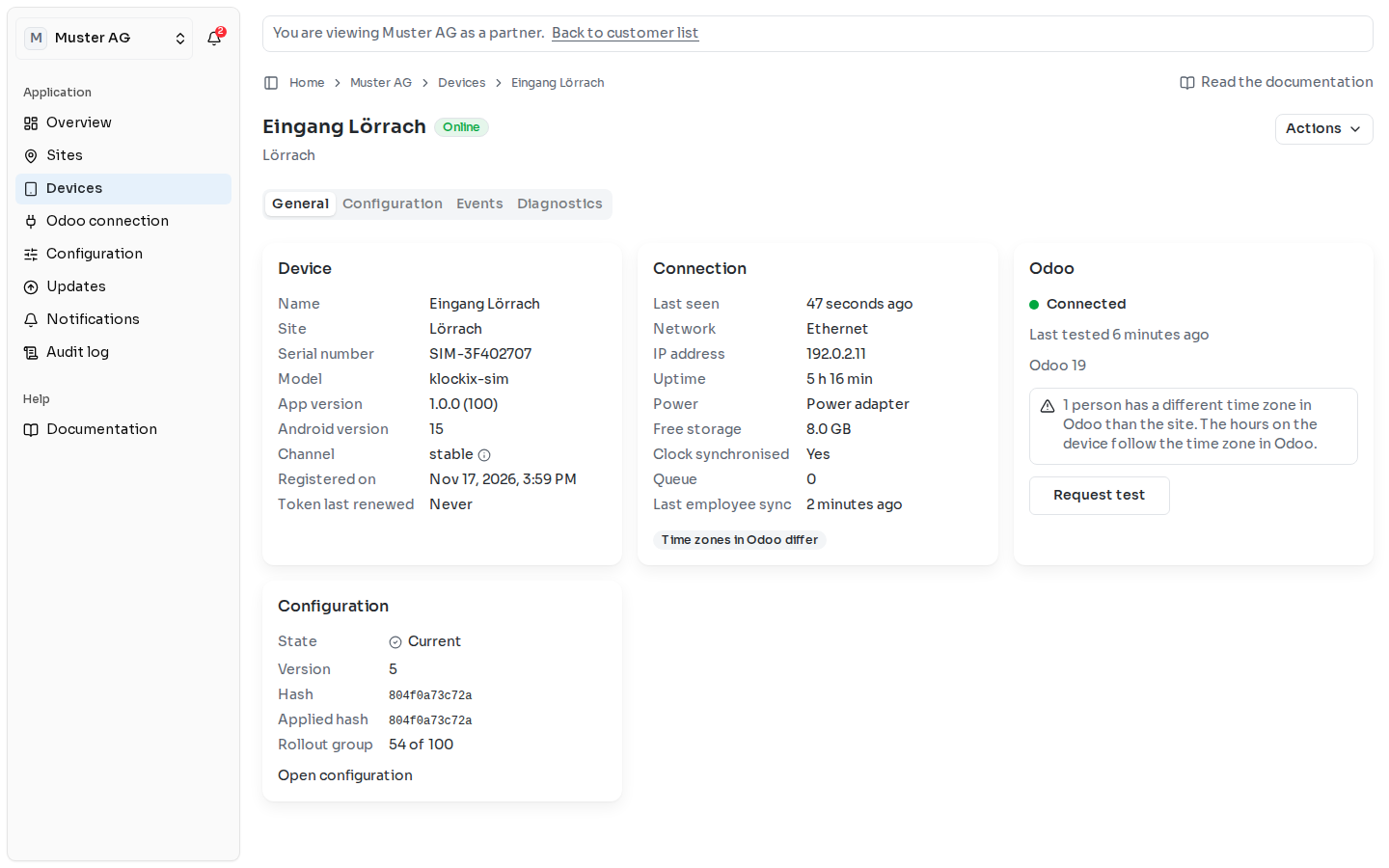
The steps on the device with pictures are under Connecting to the Fleet Console. For a badge to show a name, its number has to be stored with the person in Odoo (Badge IDs).
Next
- Your own sites and devices, for instance in your office, work in your partner account like a customer's (Customers and users).
- A single device, for instance at the hall gate, gets its own values in the device's tab “Configuration” (Configuration).
- If you need help from Klockix, invite Klockix support into the account (Customers and users).
- If the device shows a code, the page Error codes explains it.
Return and recycling
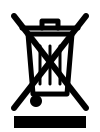
The Klockix terminal is an electrical device and must not be disposed of with general waste. We take back old devices from our business customers and hand them over to a certified recycling company. The return is free of charge for you.
How to return a device
- Register the return by e-mail to [email protected] or by phone at +49 7671 2519821. Please state your company, the number of devices and your sender address.
- Within five working days you will receive a shipping label for sending the devices to Trefzer IT Software & Consulting GmbH, Halbtauen 1, 79674 Todtnau, Germany. For larger quantities we arrange a pick-up.
- Pack the device safely for transport and hand over the parcel.
Before shipping
Remove the device from your device management and reset it to factory settings. You are responsible for deleting the data on the device.
The crossed-out wheeled bin symbol
The symbol on the device and in the quick start guide means: this device must be collected separately from unsorted municipal waste.
Everything about the return is on the page Return and recycling of old devices.