

Technical user and API key
Create a user with the required rights and generate an API key.
To sign in with an API key, the device gets an Odoo user of its own. It needs only two rights and signs in through the browser only once, to create its API key. The labels come from Odoo 19 in English, other versions word some of them differently.
Creating the user
- In Odoo open “Settings” → “Users & Companies” → “Users” and click “New”.
- Enter a name, for example
Klockix Time Clock, and a login, for example[email protected]. - On the “Access Rights” tab, leave the role at “User”.
- Under “Human Resources”, set “Employees” to “Officer: Manage all employees” and “Attendances” to “Administrator”.
- Leave all other apps empty and save.
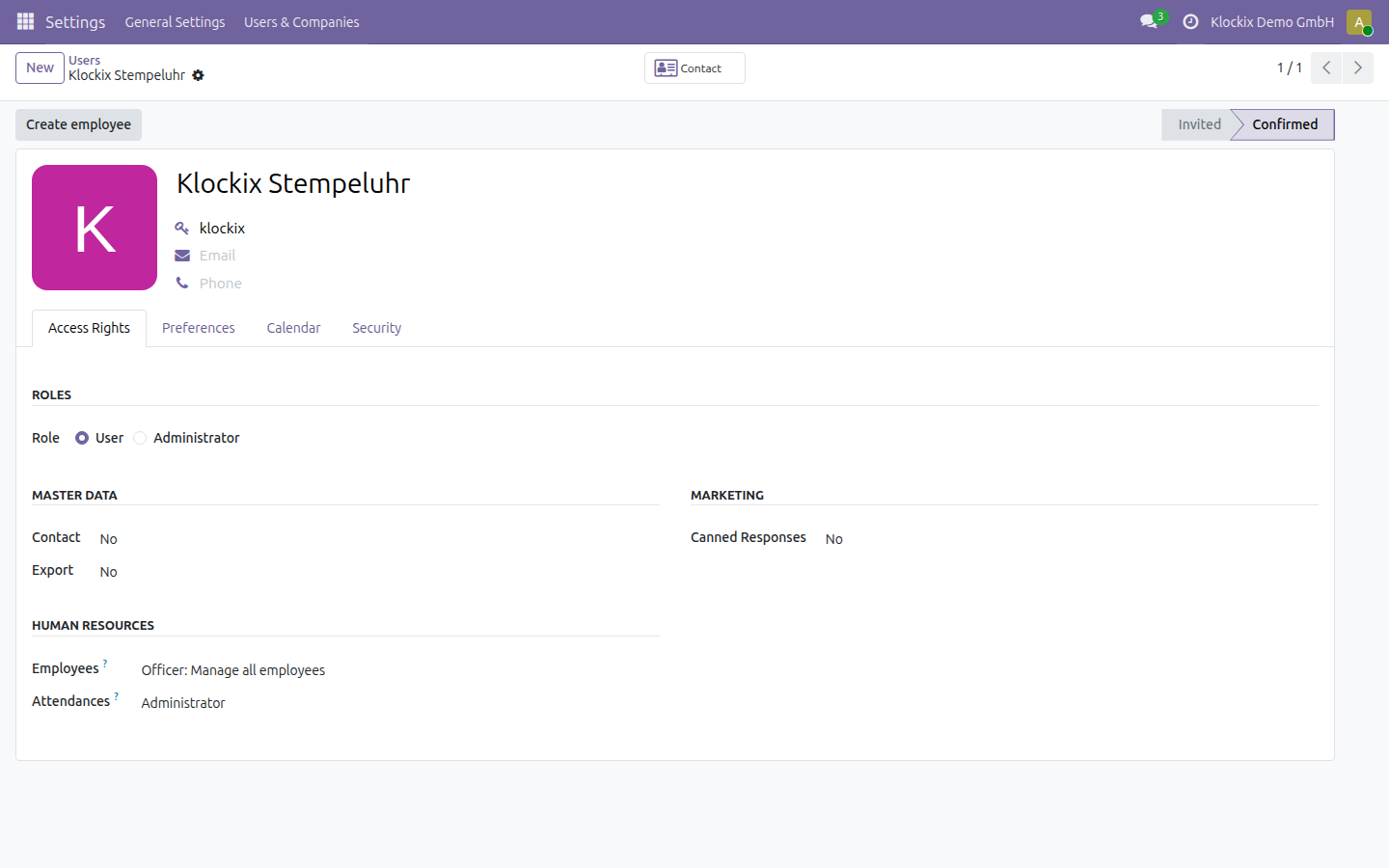
- The Employees level lets the device read badge IDs and PINs.
- The Attendances level lets it create and close attendances for all employees.
- With several companies, allow all companies whose employees clock in at the device.
- Odoo Online counts the technical user as a user in the subscription.
If rights are missing, the connection test reports ODOO-24 or ODOO-26.
Generating the API key
Only the user itself can generate an API key. So you sign in once as the technical user.
- As administrator, open the “Security” tab in the user form, choose “Change password” and give the technical user a password.
- Sign in with the login and this password in a private browser window.
- Click the profile picture at the top right and open “My Preferences”.
- On the “Security” tab, click “Add API Key”.
- At “Access Control”, enter the password and click “Confirm Password”.
- Enter
Klockixas the description. The device recognises its key by this name and reads its expiry date. - Choose the longest duration offered: 3 months in Odoo 18 and 19, 1 month in Odoo 20.
- Click “Generate key” and copy the key at once. Odoo shows it only this one time.
- Click “Done!” and sign out.
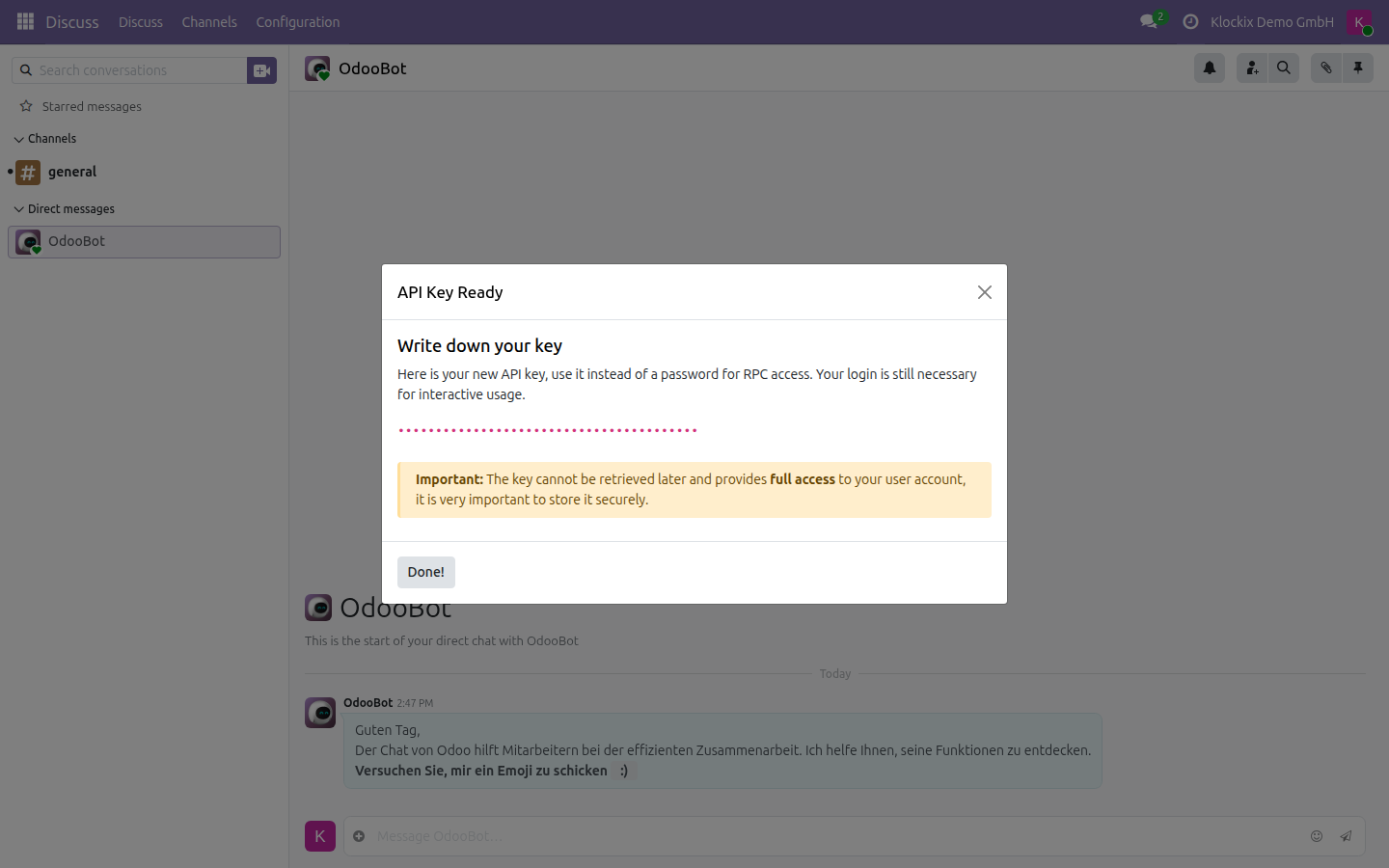
For a device connected to the Fleet Console the partner enters the key in the console. For a directly connected device it goes into the field “API key” on the device.
Expiry and renewal
- In Odoo 17, API keys do not expire.
- From Odoo 18 they do. For a user without administrator rights Odoo allows at most 3 months, in Odoo 20 the form offers at most 1 month. Only an administrator can create a key without expiry. The technical user should not get administrator rights, though.
- 14 and 3 days before the expiry the Fleet Console reports it. A directly connected device shows the notice “API key expires on …” only in the service menu under “Device info”.
- To renew, generate a new key as above, enter it in the Fleet Console or on the device under “Edit Odoo connection”, then delete the old key in Odoo.
- Once a key has expired, the device stores the bookings and sends them as soon as a valid key is entered (ODOO-22).