

Kiosk link
Find the kiosk mode link and know when it stops working.
The kiosk link is the way for Odoo Online with the Standard or One App Free plan. With it the device books through the kiosk mode of Odoo. No technical user is needed.
Copying the link
- In Odoo open “Attendances” → “Configuration” → “Settings”.
- Scroll to the section “Kiosk Settings”.
- At “Attendance Kiosk Url”, click the icon on the right of the field. Odoo copies the link.
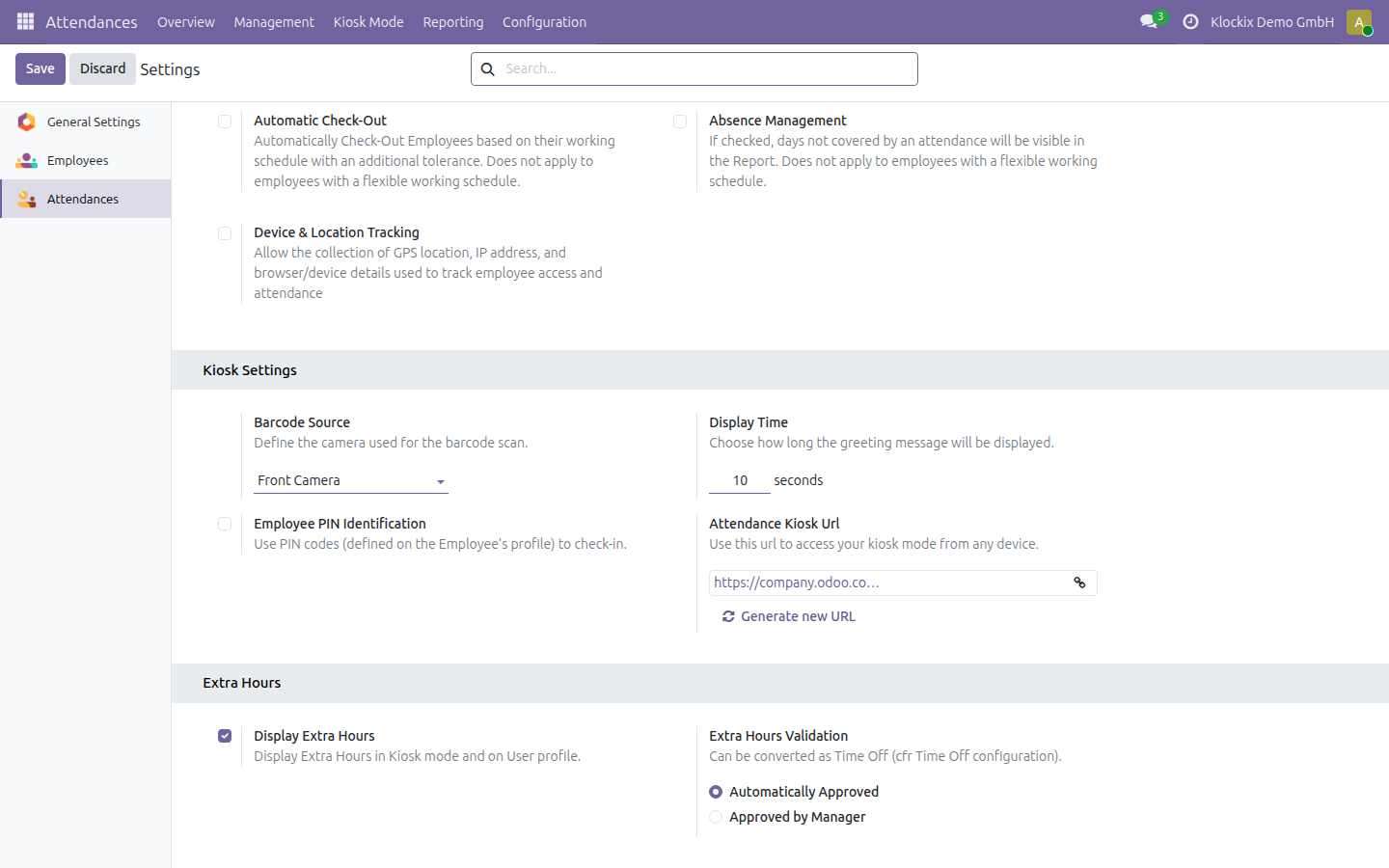
The link looks like https://company.odoo.com/hr_attendance/…. The last part is a key. Whoever has the link can book for any person with a badge ID. So give the link only to the person who sets up the device.
For a device connected to the Fleet Console the partner enters the link in the console. For a directly connected device it goes into the field “Kiosk link” on the device.
When the link stops working
- “Generate new URL” creates a new link. The old one stops working at once.
- Every device with the old link then shows “Clocking in is currently not possible” (ODOO-28) until the new link is entered.
- After an Odoo upgrade, check the link and enter it again if needed.
What is different with a kiosk link
- The device books only while Odoo can be reached. The Odoo server sets the time.
- The device display stays the same. Clock, logo, site and the booking feedback look the same with a kiosk link as with an API key. Odoo's own kiosk page never appears on the device. The service menu shows the active path under “Device info” in the line “Variant”.
- The link applies to one company. With several companies each has its own link, and only employees of that company book at the device.
- Odoo looks up the badge ID exactly as the device sends it (Badge IDs).
- If “Employee PIN Identification” is off, the device asks for no PIN at “Without badge: choose name”.
- With Odoo 17 there is no selection without badge on the device.