

Odoo connection
Store an API key or kiosk link and test the connection on the device.
The device books straight into the customer's Odoo app “Attendances”. You set up the connection once for the company. A site can have its own. What Odoo needs beforehand is under Preparing Odoo.
Which integration path
| Integration path | When | Without network |
|---|---|---|
| External API | Odoo Online on the Custom plan, Odoo.sh, your own server. You need a technical user with an API key (create it). | The device stores bookings and transfers them later with their original time. |
| Kiosk link | Odoo Online Standard and One App Free, whose plans do not allow the External API. You need the link of the kiosk mode (find it). | The device does not book and shows “Clocking in is currently not possible” (ODOO-35). |
Connect with an API key
- Open “Odoo connection”.
- Choose the hosting: “Odoo Online”, “Odoo.sh” or “Own server”.
- Choose the integration path “External API (Odoo Custom, Odoo.sh, on-premise)”.
- Enter the Odoo URL, for example https://company.odoo.com.
- Enter the database. Leave the field empty if Odoo finds it itself. On Odoo.sh it is the name of the production database.
- Enter the technical user's login.
- Paste the API key.
- Enter the company ID only if Odoo has several companies.
- Click “Save”.
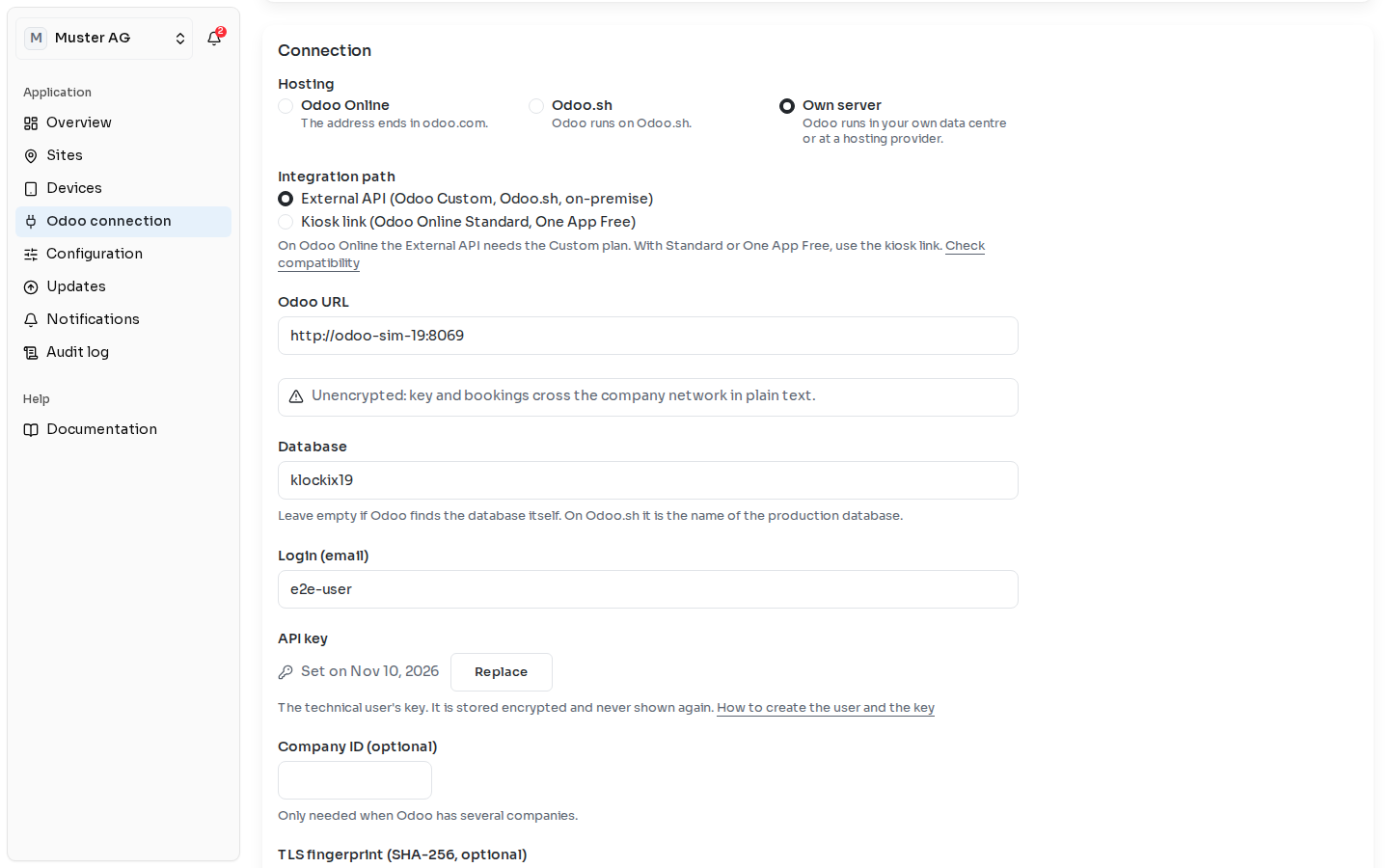
The API key is stored encrypted and never shown again. The field then only shows “Set on” with the date.
Connect with a kiosk link
- Open “Odoo connection”.
- Choose the hosting, usually “Odoo Online”.
- Choose the integration path “Kiosk link (Odoo Online Standard, One App Free)”.
- Paste the whole link from Odoo, for example https://company.odoo.com/hr_attendance/…. The token moves into the field “Kiosk token”.
- Click “Save”.
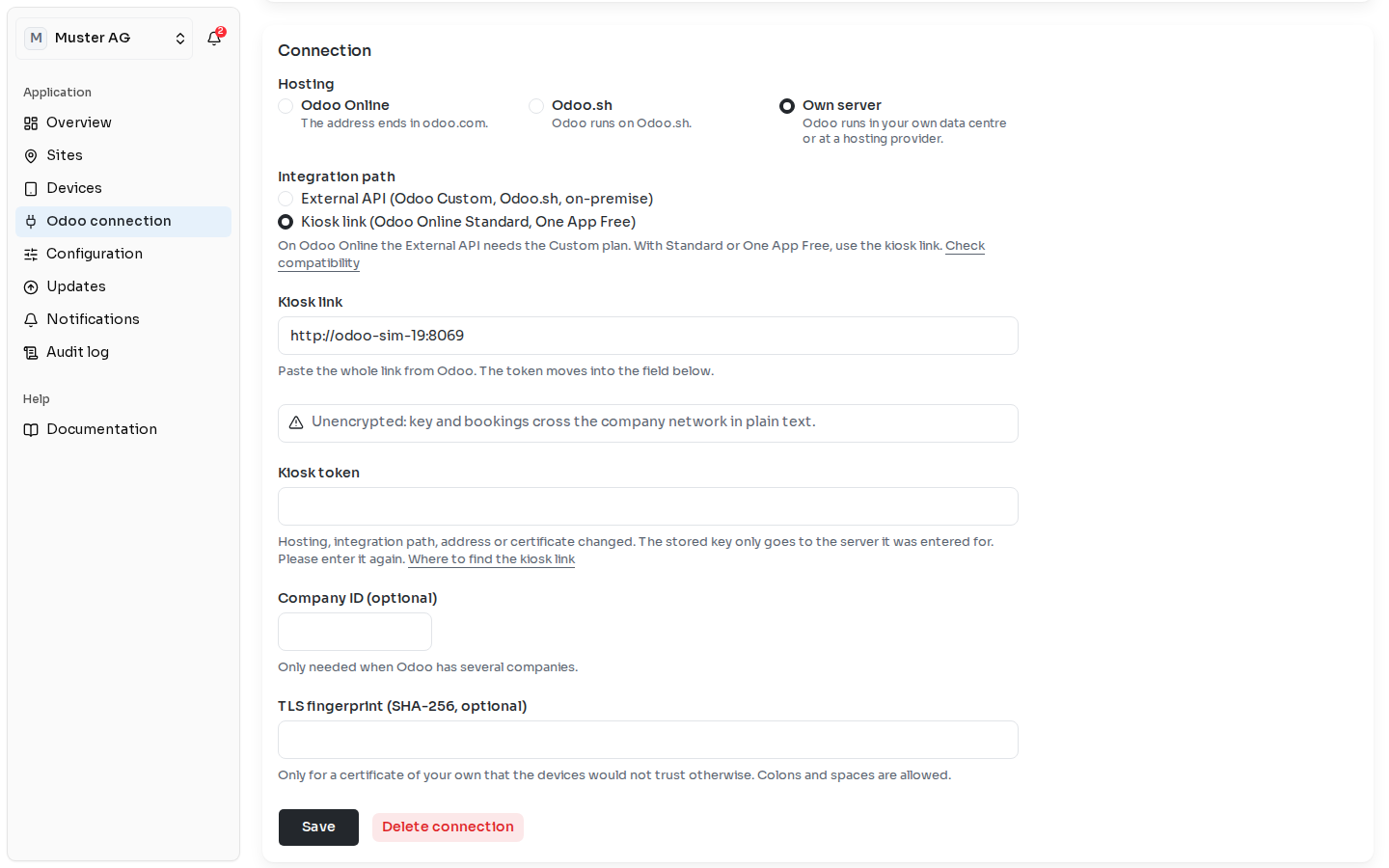
Login and database are not needed with a kiosk link. The token, too, is stored encrypted and never shown again.
What happens on saving
First the console checks the connection in these stages: Address, Connection, Version, Sign-in, Employees, Booking right. With a kiosk link it checks the link itself. If all goes well it reads, for example, “Console test ok: Odoo 19, 12 employees, rights complete.”
If a stage fails, the console shows the error code with an explanation. “Save anyway” stores the connection all the same. The codes are listed under Error codes.
If Odoo sits in the company network, only the device checks it. The console then reports “Console test skipped: only the device checks this address.”
After saving, every device of the account tests the connection itself. This test is the one that counts. Its result shows in the status after up to two minutes.
The console test reads technical details such as Odoo version, database and the technical user's rights, and it counts the employees. It does not read names, badges or attendances. What exactly it reads is under Privacy.
Status
The top of the page shows the state of the connection with a hint on what to do.
| Status | What to do |
|---|---|
| Connected | Nothing. “Checked” names time and device of the last test. |
| Authentication failed | Check login and API key. |
| Unreachable | Check URL, DNS and firewall. |
| TLS error | The certificate is not trusted. Add its fingerprint. |
| API key expiring soon | Create a new key in Odoo and enter it here. |
| API key expired | Create a new key and enter it. |
| Odoo version not supported | Klockix supports Odoo 17, 18, 19 and 20 (Versions). |
| Rights missing | Give the technical user “Employees: Officer” and “Attendances: Administrator”. |
| Module missing | Install the app “Attendances” in Odoo. |
| Odoo plan does not allow access | Use the kiosk link. |
| Kiosk link invalid | Copy the link in Odoo again and enter it. |
| Not tested yet | Wait until a device is connected. |
“Request test” makes the devices test again. It works once a device is connected.
Replace a key
- In the field “API key” or “Kiosk token”, click “Replace”.
- Paste the new key.
- Click “Save”.
If you change hosting, integration path, address or certificate, the console asks for the key again. A stored key only goes to the server it was entered for.
Own server
With “Own server” there is one more field, “TLS fingerprint (SHA-256, optional)”. You only need it for a certificate of your own that the devices would not trust otherwise. Colons and spaces are allowed.
If the server shows a certificate that no known authority confirms, the console asks “Trust this certificate?” with the fingerprint it saw. Compare it with your server's before you click “Trust certificate”. The devices then check exactly this certificate.
An address with http is only allowed for a server in the company network. The console then warns that key and bookings cross the company network in plain text.
A site with its own connection
If a site has its own Odoo, for instance another company in Odoo:
- Open the site and its tab “Odoo connection”.
- Switch on “Separate Odoo connection for this site”.
- Fill in the form as above and click “Save”.
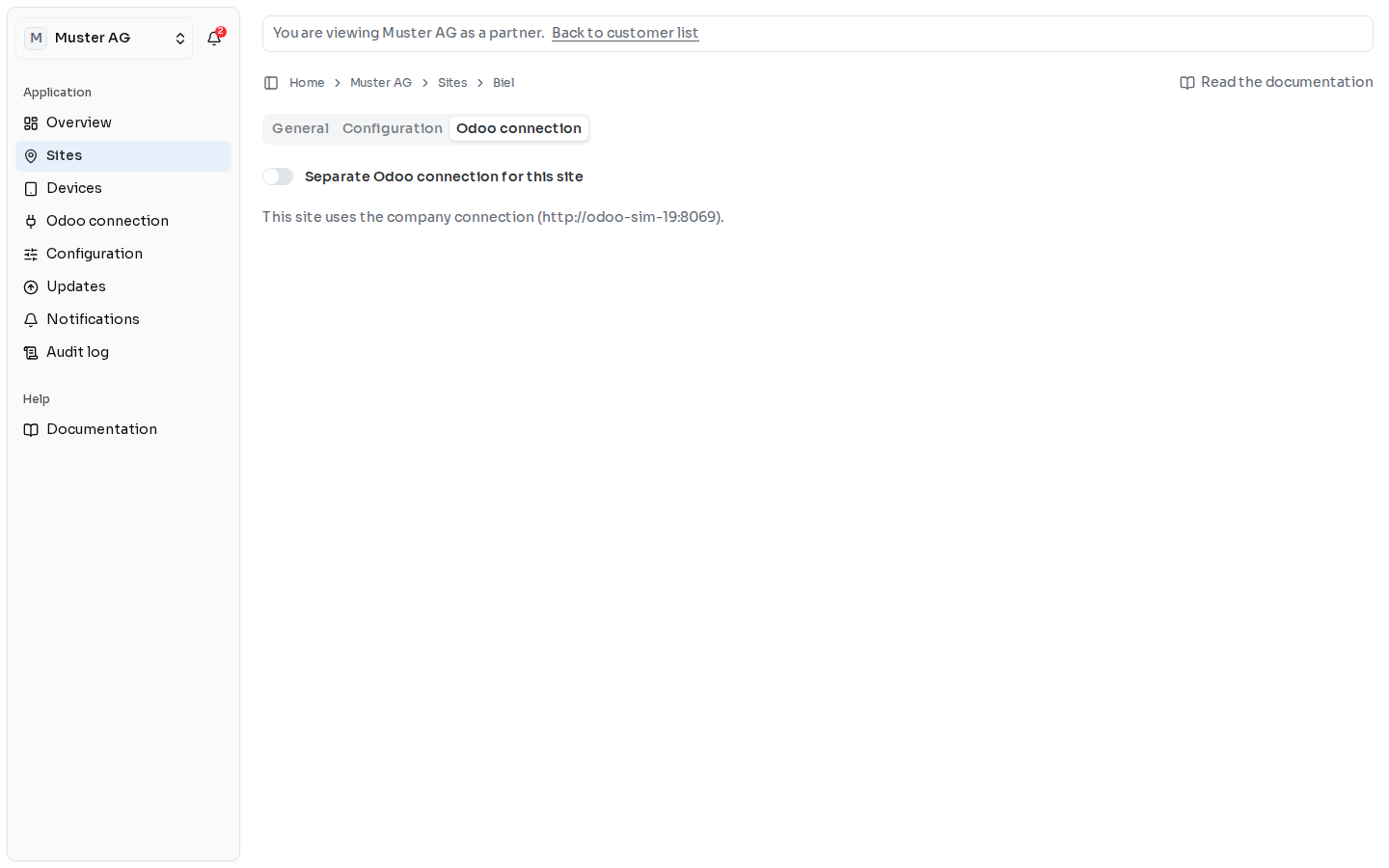
With the switch off, the tab reads “This site uses the company connection” followed by its address in brackets. Switching it off again sends the site back to the company connection. The card “Sites with their own connection” on the page “Odoo connection” lists every site with its own connection.
Employees' time zones
Odoo counts “Hours today” and the balance in each person's time zone, not in the site's. If they differ, the day in Odoo starts at another time than on the device.
In Odoo, set the site's time zone for every person who clocks in at a Klockix device:
- In Odoo, open “Employees” and the person.
- Switch to the tab “Work Information”.
- Choose the site's time zone and save.
Create the working schedule in the same time zone. Someone who clocks in at sites in different time zones gets the time zone of their main site.
The console counts differences. The console test reports them on saving, and the card “Odoo” in the device details shows them all the time, for instance “2 people have a different time zone in Odoo than the site.” It shows no names.
Who may do what
Owners and administrators of a partner or a direct customer set up the connection. A customer with a partner sees status, address and integration path, the login only shortened and the key never. Members of the account only see the status; members of the partner do not see the page.