

Customers and users
Create customers, invite people, primary owner and Klockix support.
Customer list
“Customers” lists every customer of your partner account. Each row shows the devices online out of all, the open alerts and the state of the Odoo connection. Above the list are the totals for all customers.
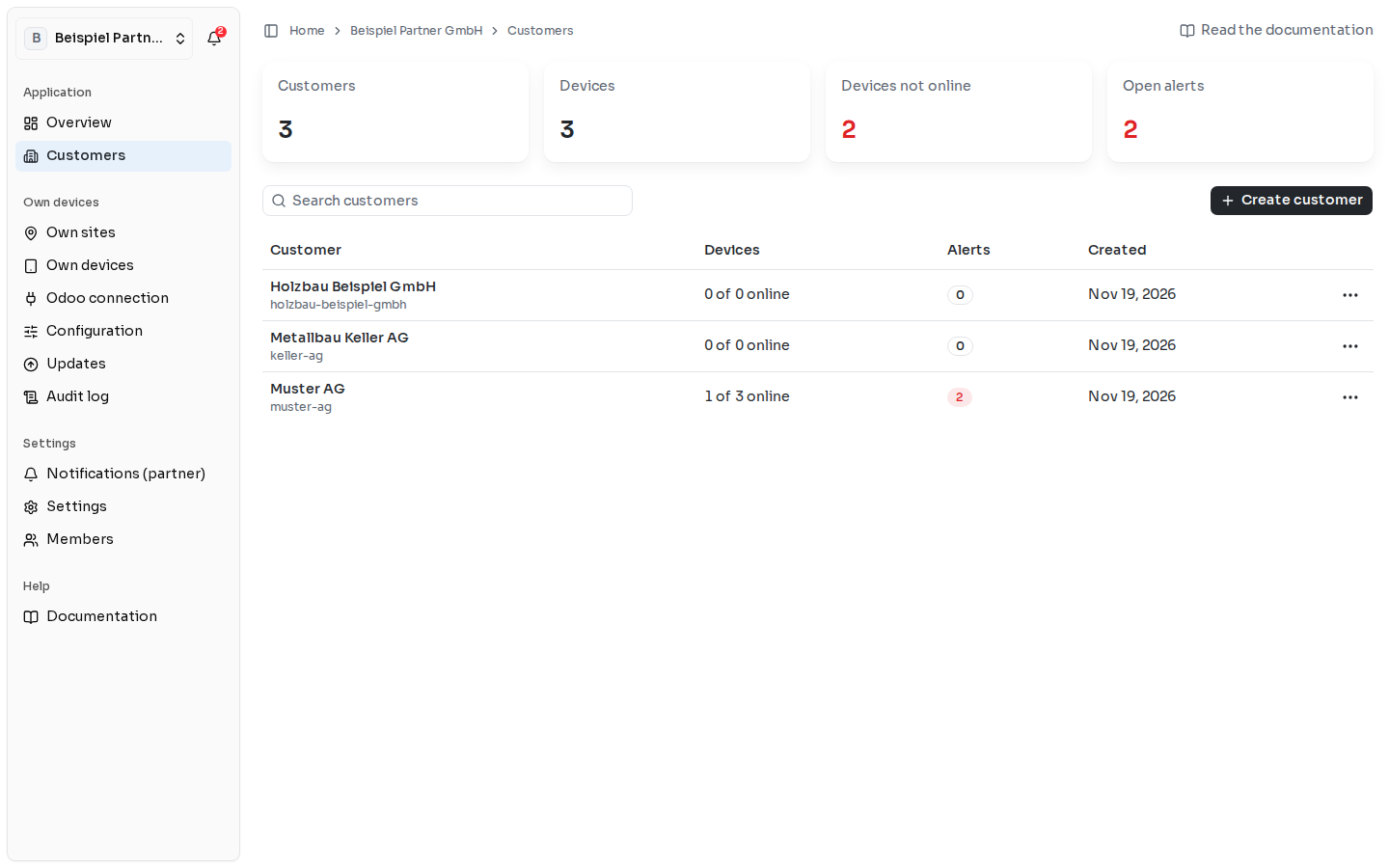
Clicking a row opens the customer. The row menu “Actions” leads straight to “Members” and “Register device”.
Create a customer
- Click “Create customer”.
- Enter the company name.
- Choose the time zone. New sites of the customer get it as a suggestion.
- Choose the language. The customer gets alerts and emails in it.
- Set the service PIN, 4 to 8 digits. It opens the service menu on the device.
- Enter the email of the first contact if you know it already. The person is invited as administrator.
- Click “Create customer”.
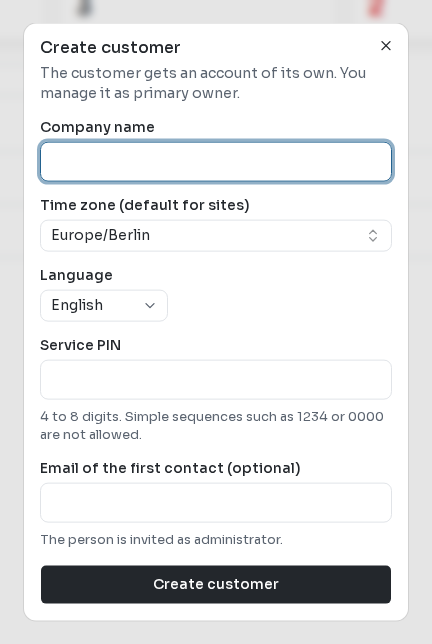
The customer gets an account of its own and you are its primary owner. The console refuses simple PINs such as 1234 or 0000. If the invitation did not go out, invite the person later under “Members”.
Invite people
Everyone with access to an account is listed under “Members”. Open the page from the customer list with “Actions”, “Members”, or in the account under “Settings”.
- Click “Invite Members”.
- Enter the email address and the role.
- Click “Send Invites”.
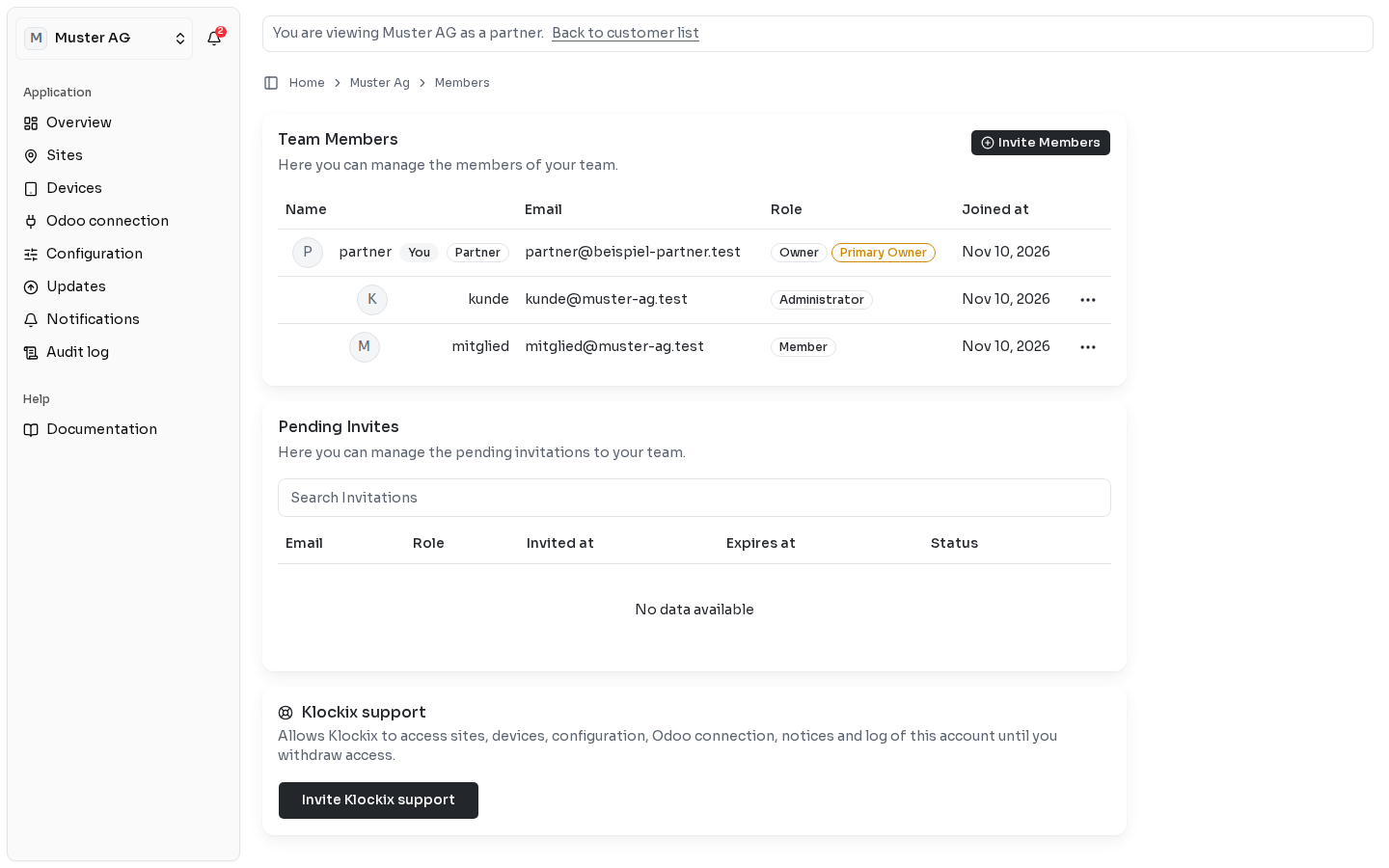
For a customer with a partner the roles “Administrator” and “Member” are on offer. Owners there are the partner's people only. The partner's people carry the label “Partner” in the list. The customer never sees the partner's other customers.
Owners and administrators change roles and remove members. They cannot change anyone with the same or a higher role.
Primary owner
Whoever creates a customer becomes its primary owner. For a customer with a partner, the primary owner is always one of the partner's people. Under “Members”, “Transfer Ownership” hands it over, and only to another person of the partner who is a member of the customer.
When a person leaves your partner account, their customers pass to the primary owner of the partner account. Their memberships with your customers end in the same step. The customer's audit log records the change.
A direct customer without a partner is the owner of its own account.
Invite Klockix support
Klockix support works in an account as a member once you invite it.
- Open “Members”.
- In the card “Klockix support”, click “Invite Klockix support”.
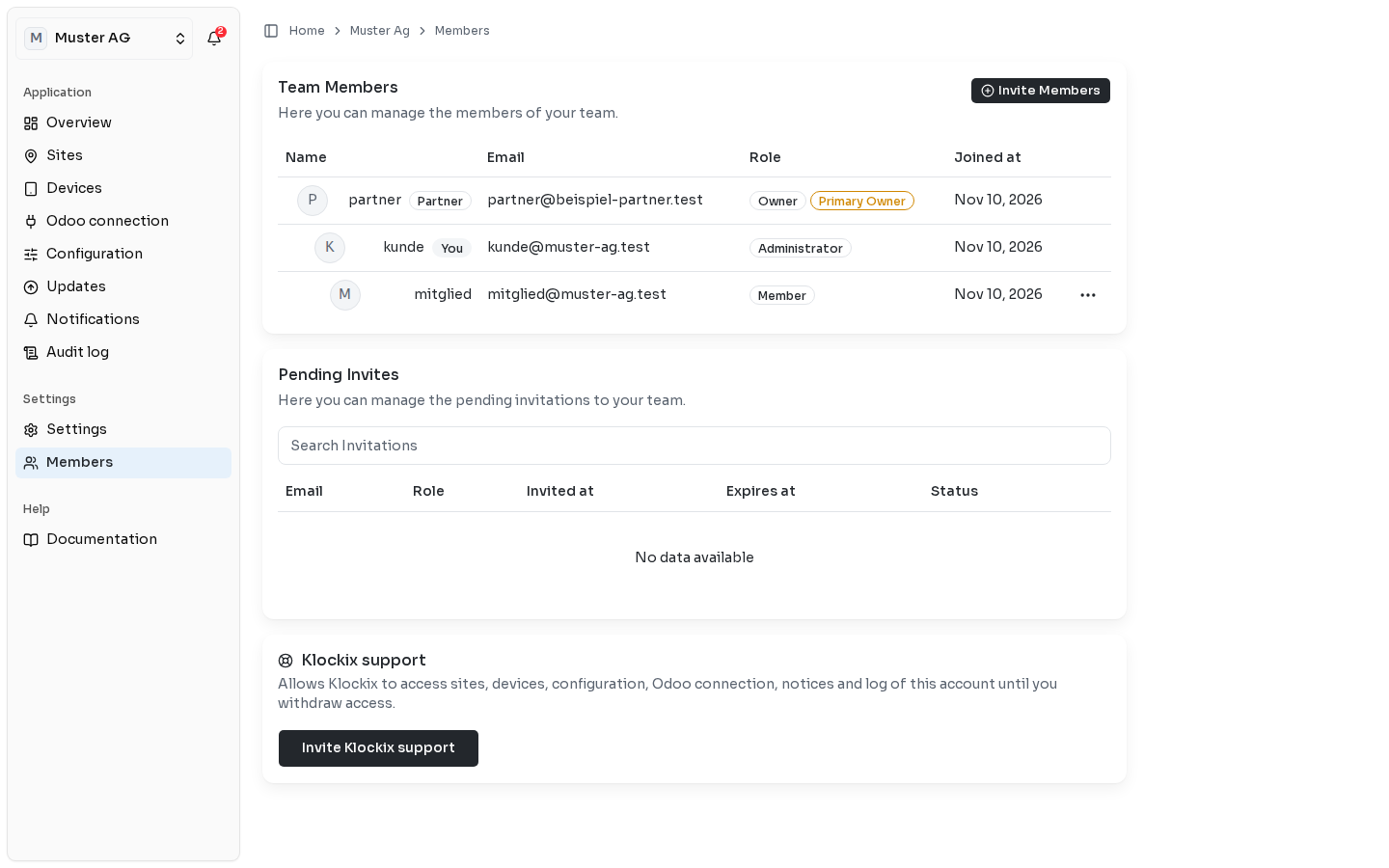
This allows Klockix to access sites, devices, configuration, Odoo connection, alerts and audit log of this account. Support shows up in the members as administrator with the label “Klockix support”. “Withdraw access” ends the access at once. Inviting and withdrawing are in the audit log. Owners and administrators may invite support.
Own sites and devices
Your partner account can have its own sites and devices, for instance for your office. They are in the sidebar under “Own devices” and work like a customer's: sites, Odoo connection, configuration, codes and updates.
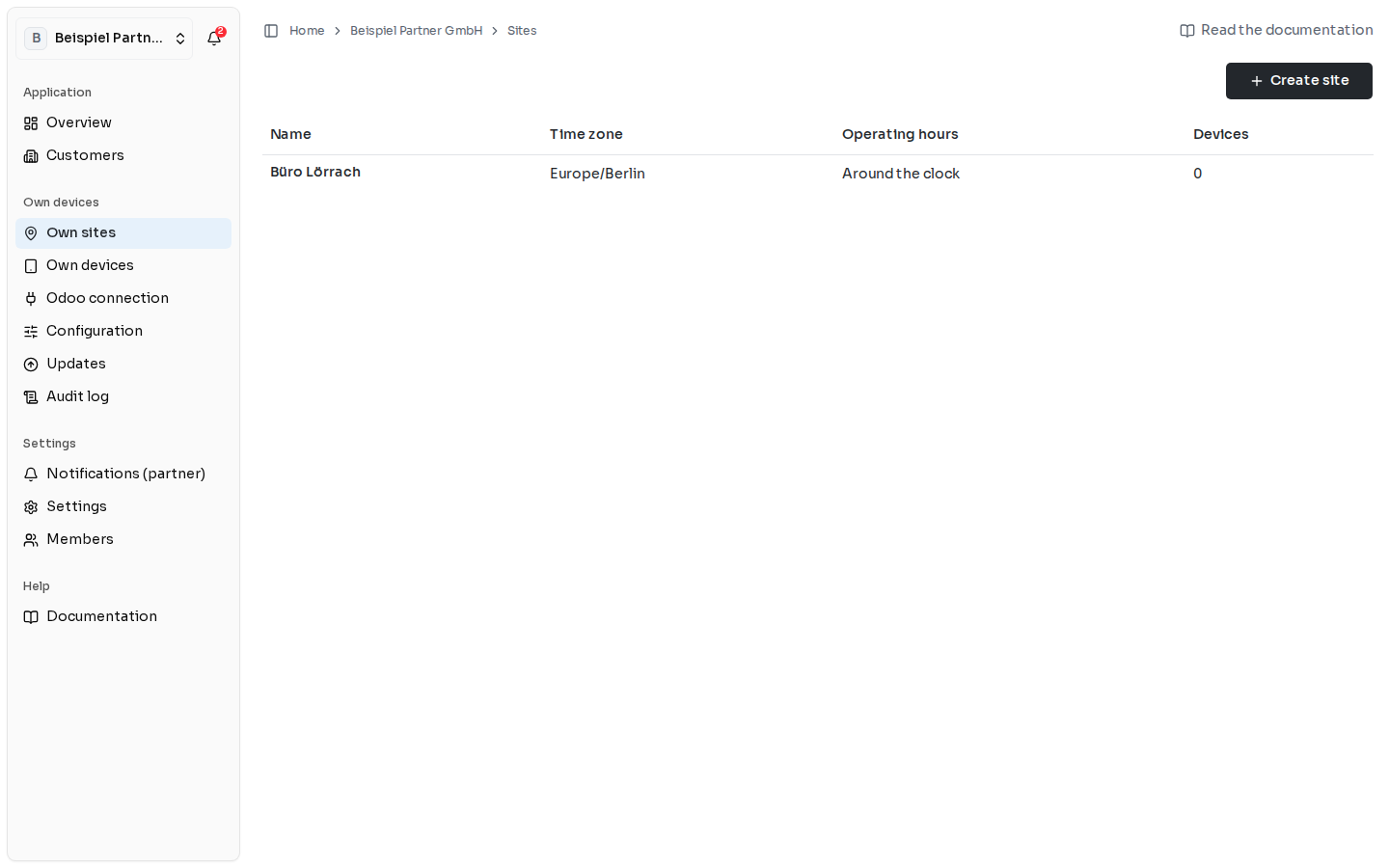
Becoming a partner
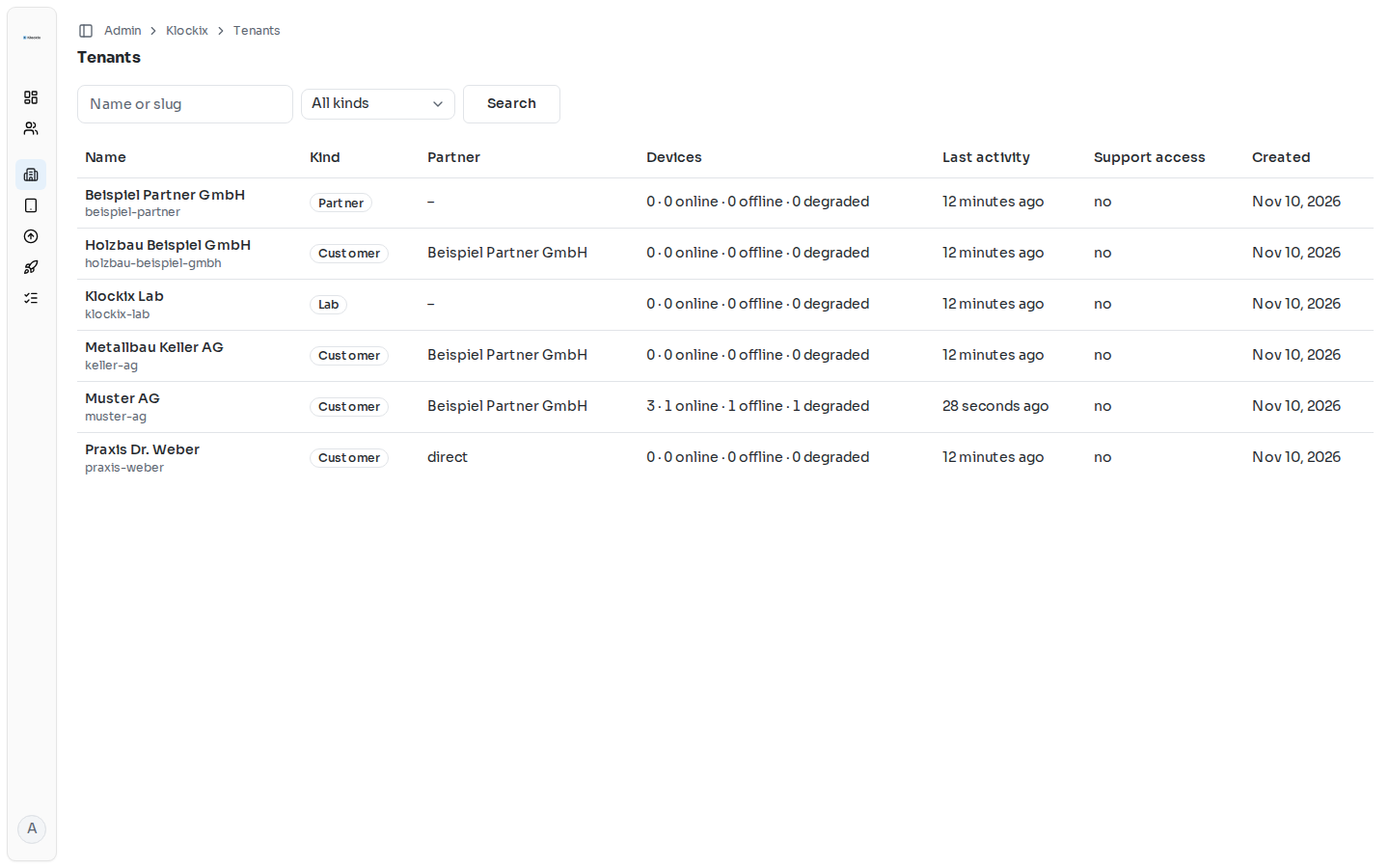
A partner account comes about in two steps. The company signs up and creates its team. Klockix then sets the kind of the account to “Partner” in the admin area. Nobody can switch this themselves.
In the admin area, “Tenants” lists every registered account with kind, partner, devices, last activity and support access.
A tenant's detail page shows the master data and the cards “Kind”, “Partner” and “Danger zone”. It does not show the account's contents: “Access to contents only after an invitation by the customer. Klockix sees metadata only here.”
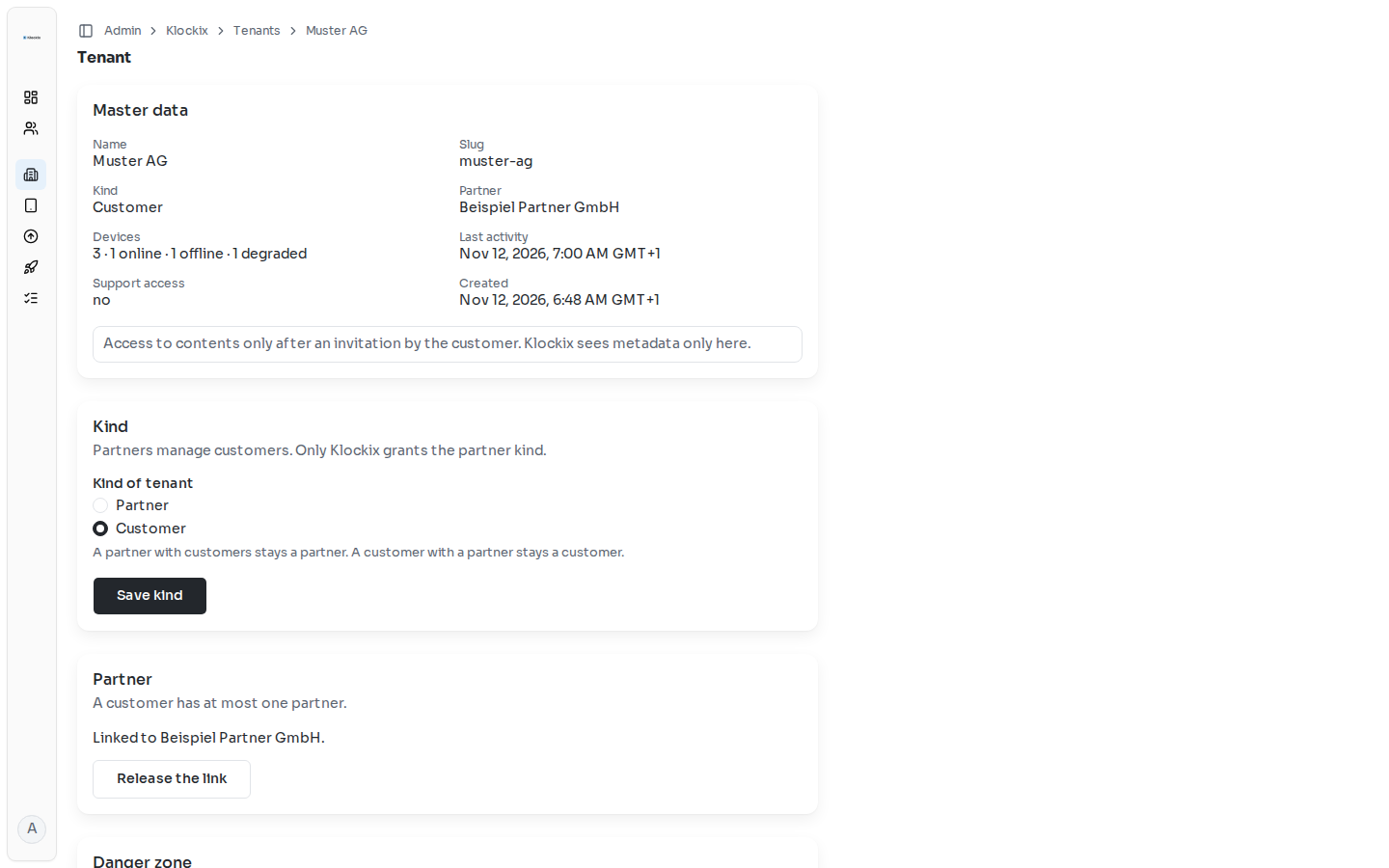
Under “Partner” Klockix links a customer to its partner or releases the link. “Delete Klockix data” in the danger zone asks for the typed name. Active devices and linked customers prevent the deletion. Only super admins can use these actions; support sees the pages without actions.