

Connecting to the Fleet Console
Enter the registration code and wait until the device is ready.
This path needs a registration code from the Fleet Console. Usually the partner creates it (Registering devices). The code has 6 characters, is valid for 30 minutes and for one device only. So create the code only once the device shows the setup path.
Entering the code
- On “How should this device be set up?”, tap the card “Connect to Fleet Console”.
- In “Enter registration code”, tap the 6 characters on the on-screen keyboard. After the sixth character the device sends the code by itself. “Next” is not needed for this.
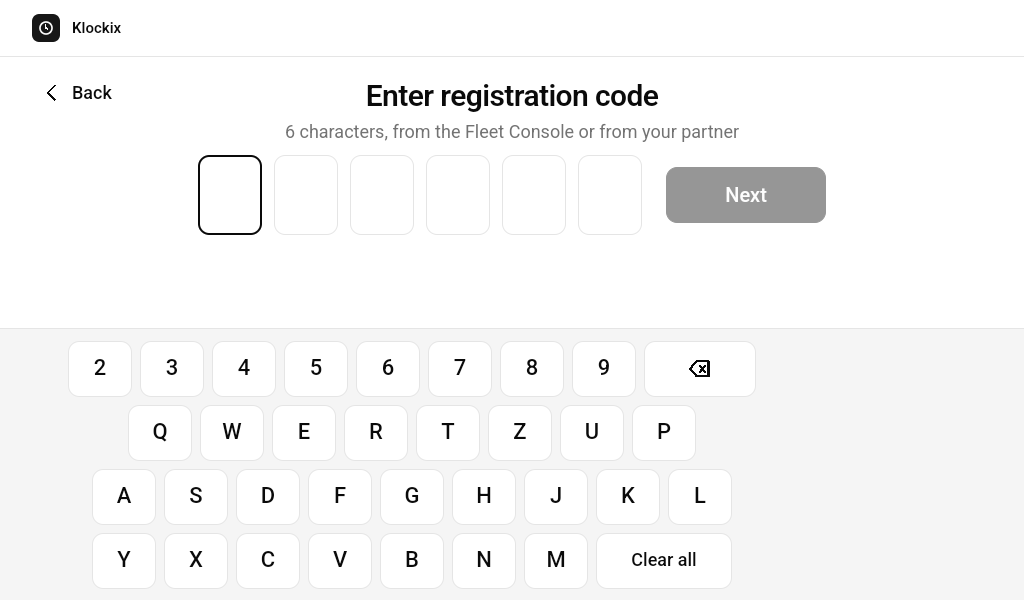
The keyboard only has the characters that occur in a code. The digits 0 and 1 and the letters O and I are missing. The ⌫ key above “Clear all” removes the last character, “Clear all” removes all of them. “Back” returns to the setup path.
Waiting
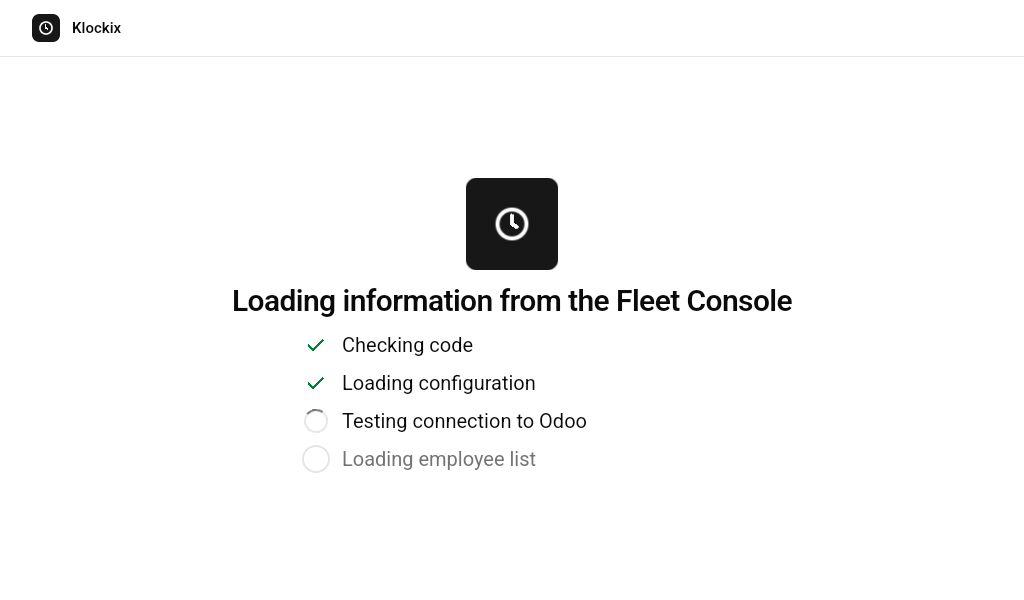
The device shows “Loading information from the Fleet Console” and works through four steps:
- “Checking code”
- “Loading configuration”
- “Testing connection to Odoo”
- “Loading employee list”, with a kiosk link “Checking kiosk connection”
Done
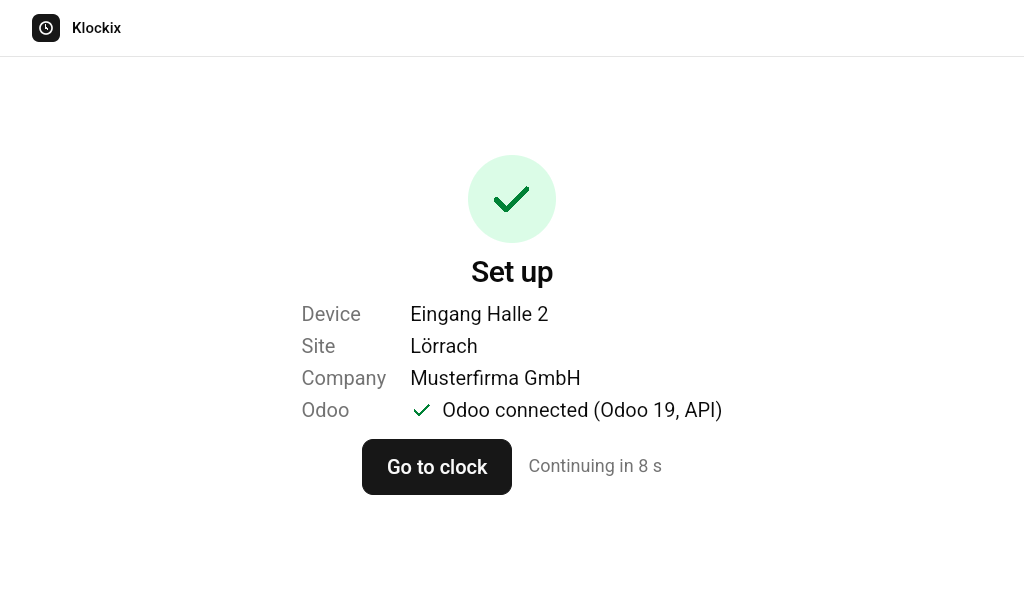
“Set up” shows device name, site, company and the Odoo status, for example “Odoo connected (Odoo 19, API)”.
- Check the details.
- Tap “Go to clock” or wait 8 seconds.
Device name, site and company are also shown later in the service menu under “Device info”. If something is wrong, the partner changes it in the Fleet Console (“Rename”, “Move to another site”).
The device now shows the start screen with “Tap your badge” and is ready. From here on the language from the Fleet Console applies.
Finally, check:
- The time on the start screen. If it is off by whole hours, the site’s time zone in the Fleet Console is wrong.
- Tap a badge whose ID is stored in Odoo (Badge IDs). The device shows “Checked in” or “Checked out” with the name. The booking then appears as an attendance in Odoo.
If it does not work
- “Code not valid” (CODE-02): the code is unknown, expired, already used or revoked. The cells are cleared. Check the code in the Fleet Console or create a new one and enter it again.
- “Too many attempts” (CODE-06): after 5 wrong codes the device locks the entry, first for 60 seconds, longer after further failed attempts. The countdown is shown below the cells.
- “Fleet Console unreachable” (CODE-07): check the network, then enter the code again.
- Step 2 fails (FLEET-03 or NET-07): tap “Try again”. The code has already been redeemed, a new one is not needed.
- Step 3 or 4 fails: the device is set up anyway. It shows the Odoo code and “The Odoo connection is configured in the Fleet Console. The device re-checks it every 5 minutes.” Tap “Next”. The partner fixes the error in the Fleet Console, the meaning of the code is under Error codes.
If the Odoo connection is still missing in the Fleet Console, the device shows “Clocking in is currently not possible” after “Go to clock” (ODOO-36). As soon as the connection is set in the console, the device takes it over by itself.