

Daily operation
What the device shows day to day, also without a connection.
The short guide for employees is under Clocking in at the device. Printed, it fits on one page.
Start screen
The start screen shows time, date, device name, site and, on the right, “Tap your badge”. It shows no status symbols and no warnings. Faults appear in the service menu under “Device info”, and a device connected to the Fleet Console also reports them in the console.
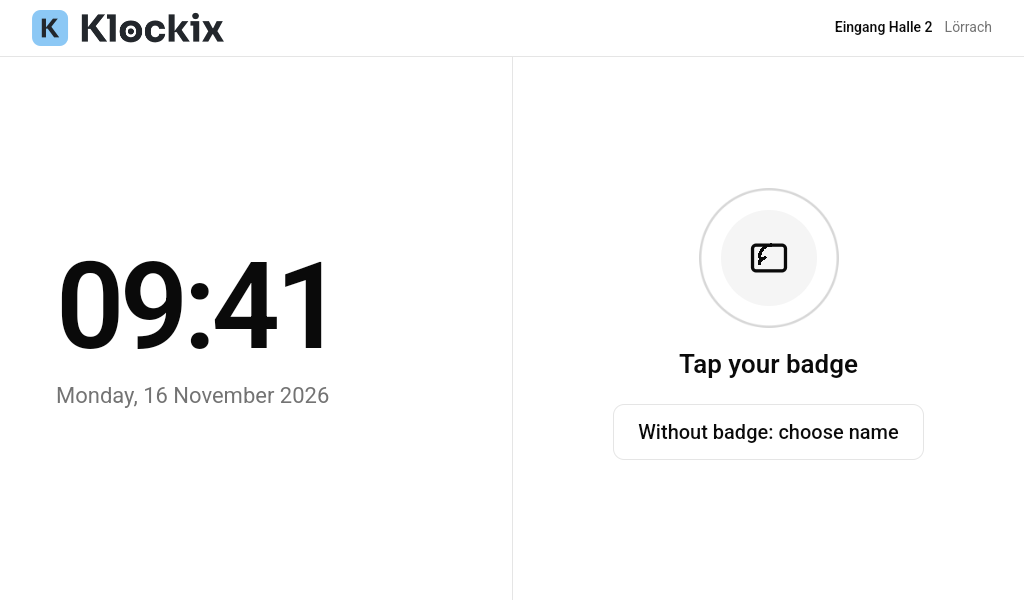
If the device cannot book, a notice “Clocking in is currently not possible” takes the place of the start screen. What to do then is under Troubleshooting.
On devices connected to the Fleet Console, logo, “Show the time” and “Device language” come from the configuration in the console (Configuration). Without its own logo the device shows the Klockix logo.
Booking
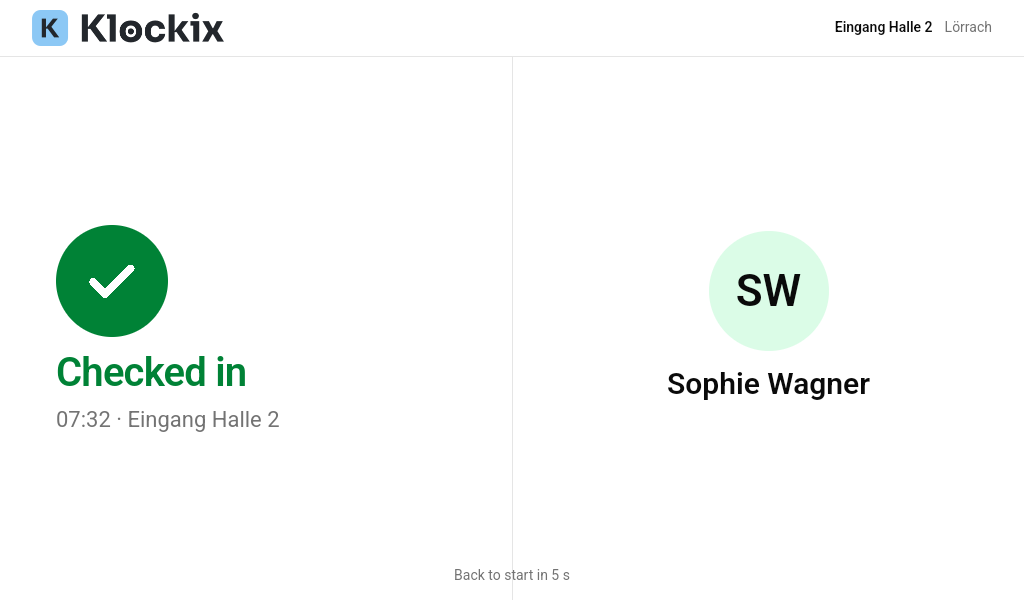
After a tap the device shows name and direction at once: “Checked in” in green or “Checked out” in grey-blue, below them time and device name. The hours follow as soon as Odoo has answered, usually within two seconds.
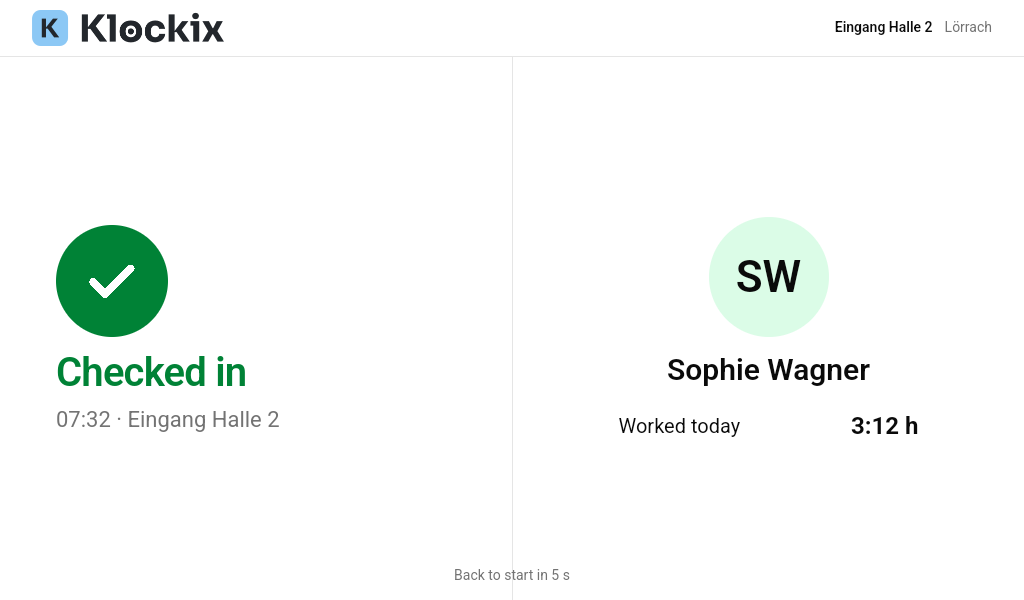
What appears after clocking is set by “Display after clocking” in the Fleet Console: “Name only”, “Hours today” or “Hours today and balance”. The device shows the balance only if overtime is active in Odoo. Odoo calculates both values, the device calculates nothing itself.
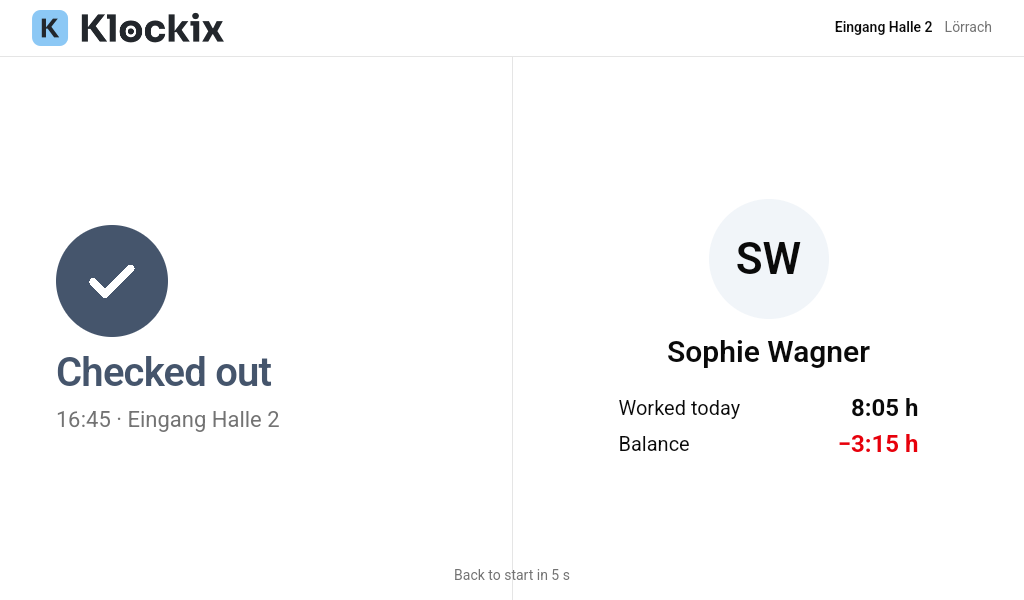
- After 5 seconds the device returns to the start screen. In the Fleet Console, “Display duration after clocking” can be set from 3 to 15 seconds.
- Another badge interrupts the display and books at once.
- “Corrected: checked out” means: Odoo knew another direction, for example because the person checked out in the browser.
- “Checked in yesterday at …” when checking out means: the check-in is from an earlier day.
- “Already checked in at …” appears with Odoo 20 when the company uses single check-in. A second tap then does not check out, Odoo checks out automatically (Odoo versions).
Without a network
With an API key the device also books without a network. The feedback looks as usual, only without hours. The booking waits with the real time and goes to Odoo as soon as the network is back.
How many bookings are waiting is shown in the service menu under “Device info”. If bookings stay stuck, the Fleet Console reports it.
If the employee list is still empty while offline, for example right after setup, the device books anyway and shows “Assignment follows on transfer”. On transfer it assigns the booking to the person. If the badge is not stored with anyone in Odoo even then, the booking counts as rejected in the device info.
With a kiosk link the device books only online. Without a connection to Odoo it shows “Clocking in is currently not possible” (ODOO-35).
Unknown badge
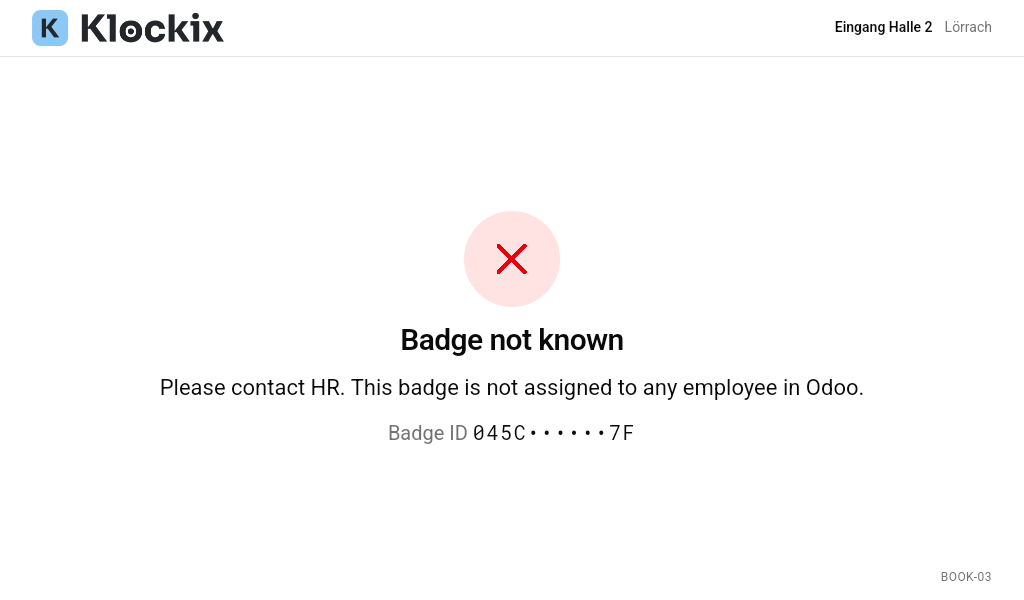
“Badge not known” means: the badge ID is not stored with anyone in Odoo. The device shows the first 4 and the last 2 characters of the ID, so HR can assign it (BOOK-03). After 5 seconds it returns to the start screen.
Tapped twice
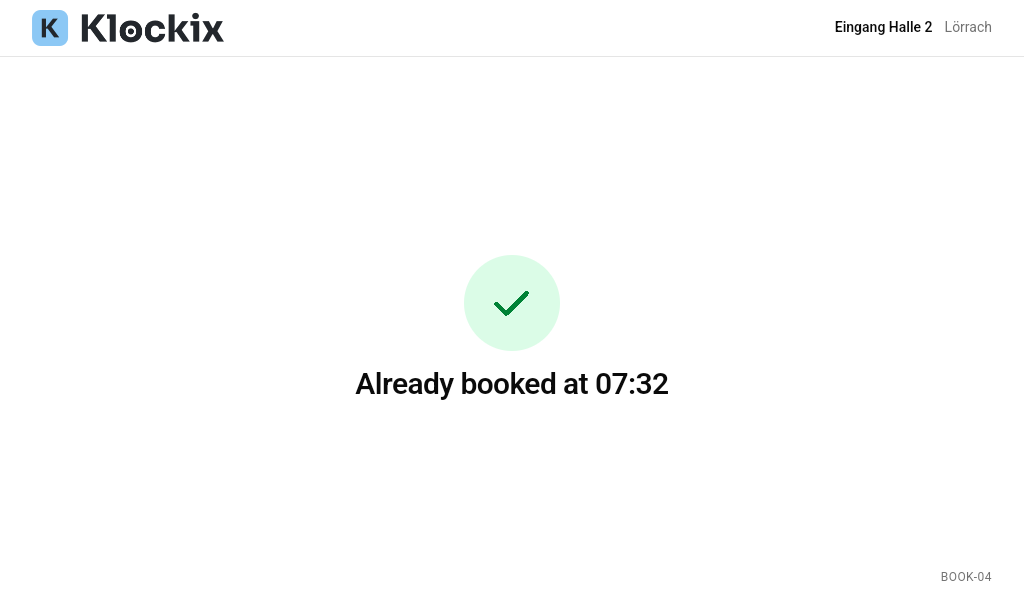
The same badge within a few seconds does not book again. The device shows “Already booked at …” (BOOK-04). The lock lasts 3 seconds by default and applies to this badge only.
Without a badge
If “Selection without badge” is switched on in the Fleet Console, the start screen shows “Without badge: choose name”.
- Tap “Without badge: choose name”.
- Narrow the list with the letters at the top and tap the name.
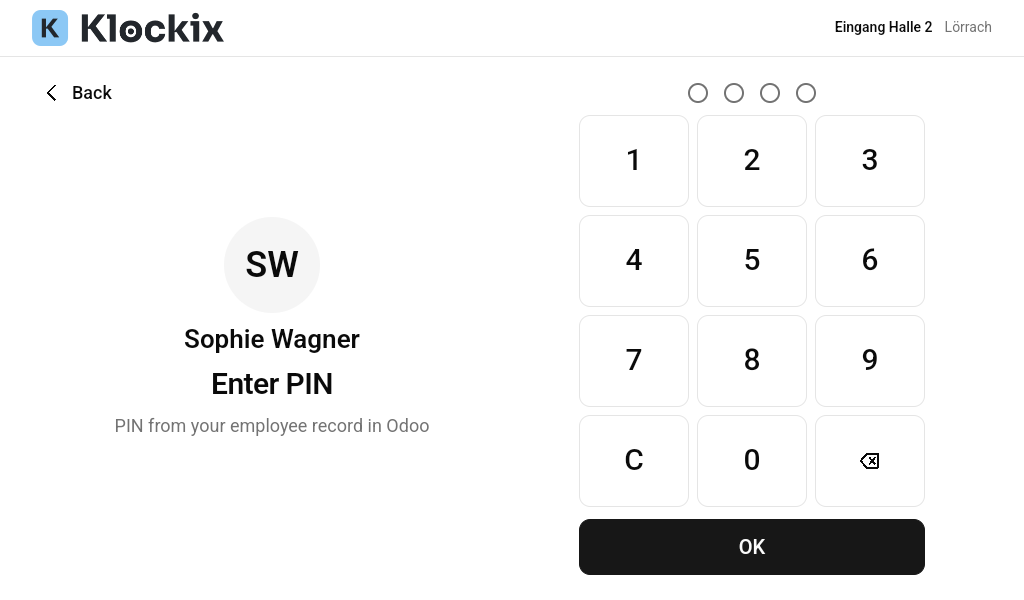
- Enter the PIN from the employee record in Odoo.
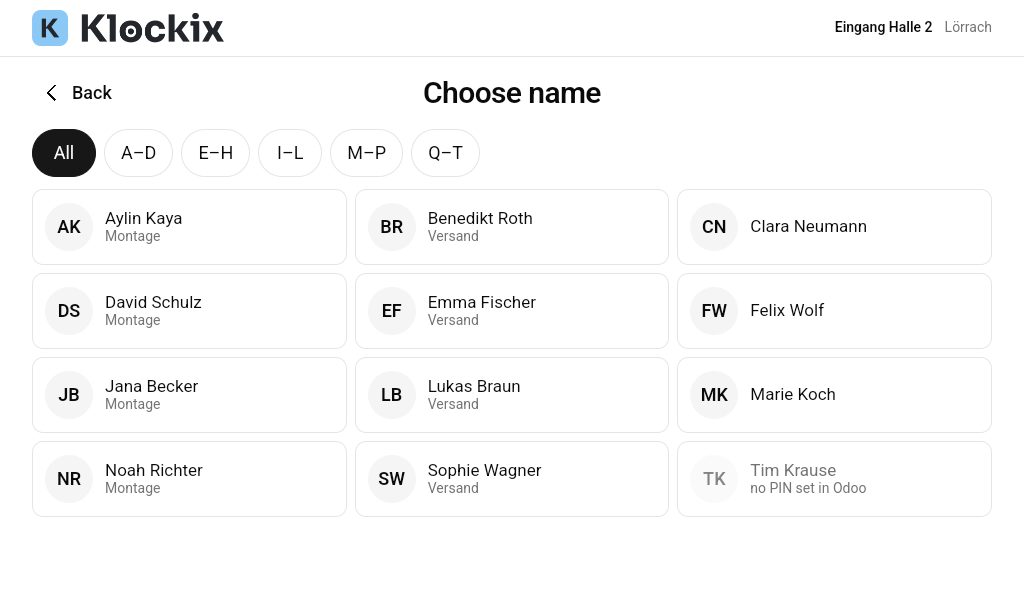
- People without a PIN in Odoo appear greyed out with “no PIN set in Odoo” in the list.
- After 5 wrong PINs the person is locked for 60 seconds.
- With a kiosk link the device gets the names from Odoo. On Odoo 17 there is no such list.
- Devices connected directly to Odoo do not offer the selection without badge.
Operating hours and standby
The Fleet Console sets operating hours per site (Sites). A directly connected device is always active.
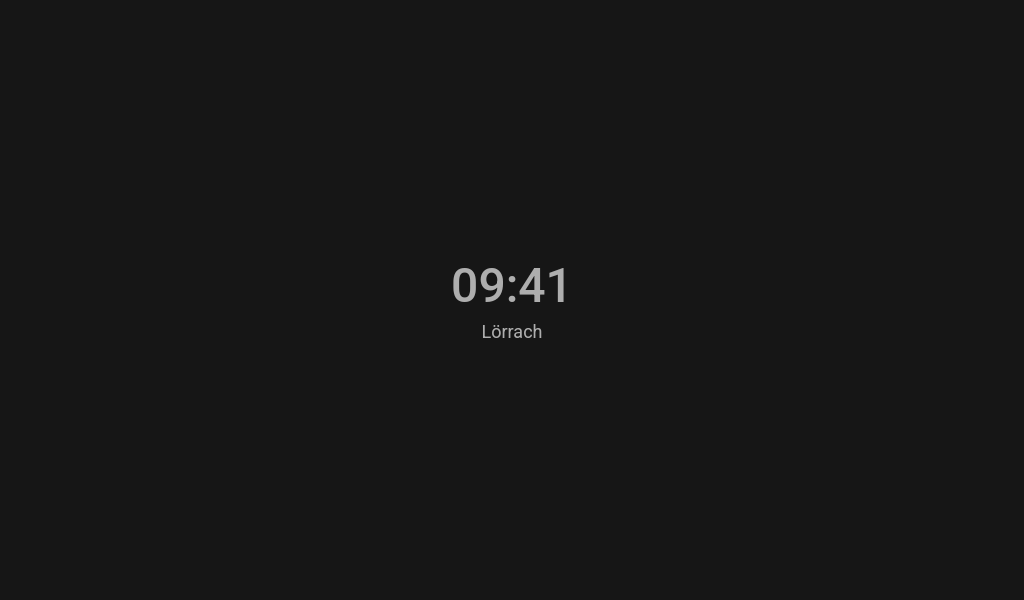
- Outside the operating hours the device dims to the “Brightness in standby” 30 seconds after the last touch or booking. It then shows a small clock and the site. At 0 the display stays black.
- A touch or a badge wakes the device.
- If “Clocking outside operating hours” is set to “Allowed”, a badge books as usual.
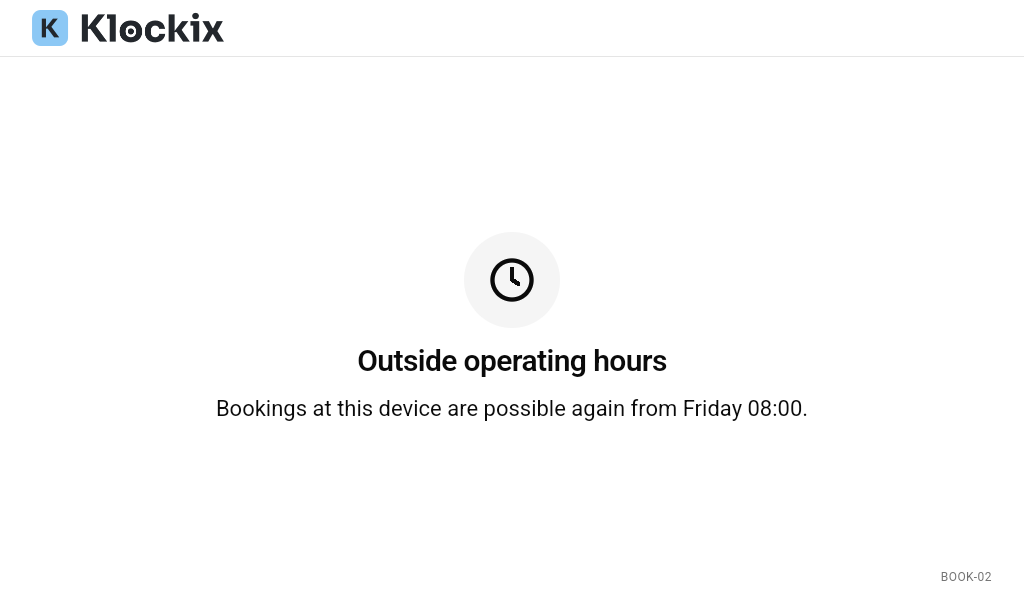
- If it is set to “Blocked”, the device shows “Outside operating hours” for 10 seconds and when booking works again (BOOK-02). It books nothing and stores nothing.
In standby, sync, transfer and updates continue. If the time is not synchronised, the device stays active.