

Managing devices
Device list, status, detail page, diagnostics and disconnecting a device.
Device list
“Devices” lists every device of the account with site, status, when it last reported, network, app version, Odoo light and the state of its configuration. The list reloads every 30 seconds while the tab is open.
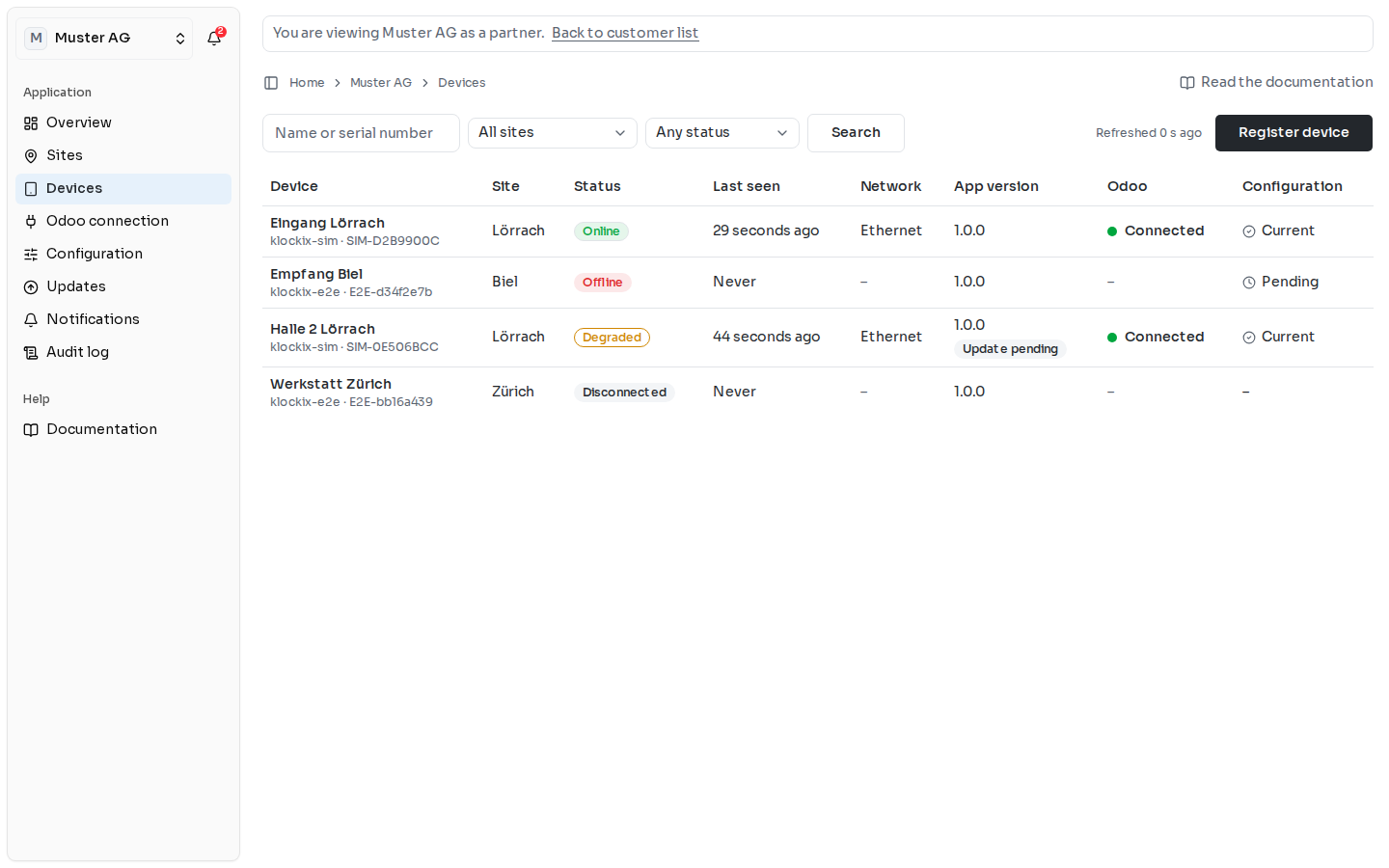
At the top you filter by “Name or serial number”, “Site” and “Status”. The label “Update pending” sits next to the app version when an update is ready for the device. “Own values” shows that the device has configuration values of its own.
Status
| Status | Meaning |
|---|---|
| Online | The device reported in the last 10 minutes, without errors. |
| Degraded | The device reports, but with an error flag, an Odoo problem, an unsynchronised clock or more than 50 waiting bookings. |
| Offline | No report for more than 10 minutes. |
| Disconnected | The device is disconnected from the console. It keeps clocking with its last configuration. |
| Released | The device deleted its connection to the console and to Odoo. |
“Time zones in Odoo differ” and “Update waits for restart” are hints. They do not change the status.
Device details
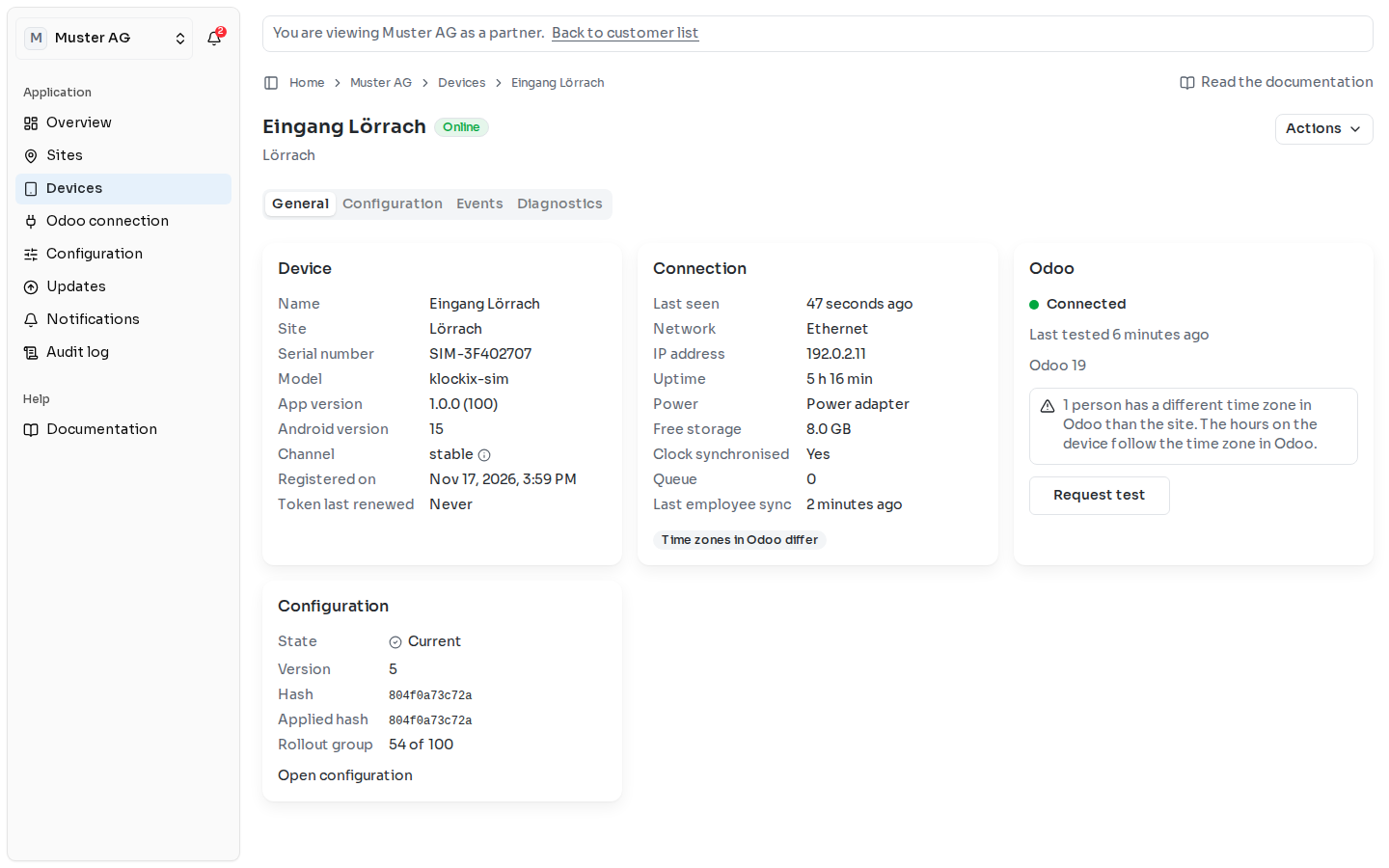
Clicking a device opens its detail page. At the top are name, site, status and the menu “Actions”. Below are the tabs “General”, “Configuration”, “Events” and “Diagnostics”.
| Card | Contents |
|---|---|
| Device | Name, site, serial number, model, app version, Android version, channel, “Registered on”, “Token last renewed”. Klockix manages the channel. |
| Connection | The values of the last report: “Last seen”, network and signal strength, IP address in the local network, uptime, power, free storage, “Clock synchronised”, “Queue”, “Last employee sync” and error flags. |
| Odoo | State of this device's connection, “Last tested” with code, the Odoo version and “Request test”. |
| Configuration | “Current”, “Pending” or “Not applied”, version and hash, “Own values”, rollout group and a pinned version. |
“Queue” counts the bookings still waiting for the transfer to Odoo. “Last employee sync” is when the last successful regular sync of the employee list began. The device syncs the list at its own pace; syncs a booking triggers do not change the field. With a kiosk link it stays empty.
Error flags
| Flag | Meaning |
|---|---|
| Configuration invalid | The device rejected a configuration and works with the previous one. |
| Queue stuck | Bookings do not reach Odoo. |
| Clock not synchronised | The device reaches no time server. With an API key it does not book then (CLK-01). |
| Storage almost full | Little space is left on the device. |
| Reader missing or NFC switched off | The device cannot read badges (NFC-01). |
| Wi-Fi with sign-in page | The Wi-Fi asks for a sign-in in a browser. Use another network or a cable. |
| API key expires soon | Create a new key in Odoo and enter it in the Odoo connection. |
| Odoo unreachable or Odoo sign-in failed | See Troubleshooting. |
| Booking rejected | Odoo turned a booking down (ODOO-31). |
| Bookings refused while offline | With a kiosk link the device does not book without a connection. Someone clocked in during that time. |
Events
The tab “Events” lists what the device reported: start, applied configuration, Odoo tests with code, updates, release. The time is the device's, in the site's time zone. A page shows 25 events; “Older events” pages back. Bookings never show here.
Diagnostics
A diagnostics package holds logs and technical data of the device for troubleshooting. It holds no names. What it reveals about bookings is under Privacy.
- Open the tab “Diagnostics”.
- Click “Request diagnostics package” and confirm the note.
- Wait for the next heartbeat. The device uploads the package.
- Click “Download” in the list.
The device only sends when diagnostics are allowed: in the configuration, with the switch “Allow diagnostics for this device” or on the device. Otherwise the button is locked. Packages are deleted after 30 days. Every download is in the audit log.
Actions
The menu “Actions” sends requests to the device. The device carries them out on its next heartbeat. Until it confirms, the top shows “pending:” with the request.
| Action | What happens |
|---|---|
| Rename | A new name of 2 to 60 characters, unique at the site. |
| Move to another site | The device applies time zone, operating hours, configuration and Odoo connection of the new site. Its own values stay. |
| Fetch configuration now | The device fetches the configuration at once instead of at the next sync. |
| Check for updates | The device asks whether an update is ready. |
| Request Odoo test | The device tests its Odoo connection. |
| Renew token | The device gets new access to the cloud. The old one stops working afterwards. |
| Restart | The device restarts and is unavailable for about a minute. |
| USB debugging for 60 minutes | A technician can connect over USB for 60 minutes. Then the device switches it off itself. The action is logged. |
| Factory reset | The device deletes its app data and starts like new. If bookings are still waiting, it refuses (SVC-04). |
| Release | The device deletes its connection to the console and to Odoo and shows the mode selection again. Bookings it cannot transfer by then are lost. The event log shows how many. |
| Disconnect | The device shows “Disconnected from the Fleet Console” in the service menu and keeps clocking with its last configuration (FLEET-02). |
| Remove from list | Only for disconnected and released devices. The device's events and reports are deleted. |
Factory reset, release and disconnect ask for the typed device name. To connect again, a device then needs a new registration code.
Release a device that moves or goes back. Disconnect a lost device. It still knows the Odoo access, so also create a new API key in Odoo and enter it in the Odoo connection.
Who may do what
Owners and administrators of a partner or direct customer use all actions. A customer with a partner renames devices and sees the diagnostics packages. Members see list and details without the menu.