

Error codes
The codes the device shows, with an explanation and the next step.
When the device shows a code, this page says what it means and what to do.
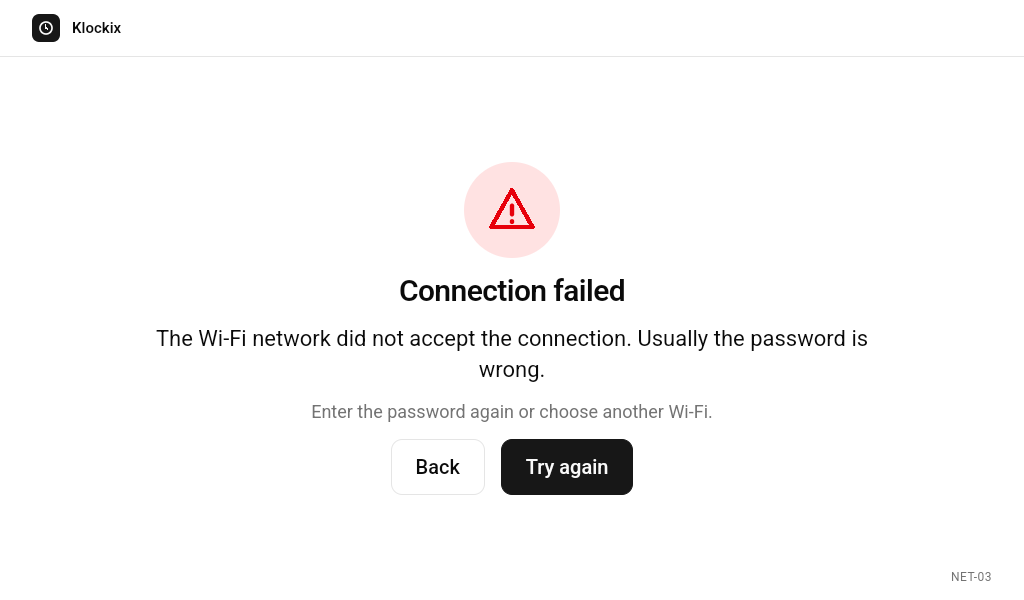
Network
NET-01
| Title | Text | What to do |
|---|---|---|
| No network | The device is not connected to any network. Bookings are stored. | Check the network cable or set up the network again in the service menu. |
NET-02
| Title | Text | What to do |
|---|---|---|
| No Wi-Fi networks found | Move closer to the router or connect a network cable. | Search again. |
NET-03
| Title | Text | What to do |
|---|---|---|
| Connection failed | The Wi-Fi network did not accept the connection. Usually the password is wrong. | Enter the password again or choose another Wi-Fi. |
NET-04
| Title | Text | What to do |
|---|---|---|
| No internet | The network is connected but the internet cannot be reached. The device needs outbound port 443 (HTTPS) and 123 (NTP). | Check again. If it persists, have ports 443 and 123 opened in the firewall. |
NET-05
| Title | Text | What to do |
|---|---|---|
| Browser sign-in required | This Wi-Fi uses a sign-in page. Such networks are not supported. | Choose another Wi-Fi or connect a network cable. |
NET-06
| Title | Text | What to do |
|---|---|---|
| No IP address | The network did not assign an address to the device (DHCP). | Try again. If it persists, ask your network administrator. |
NET-07
| Title | Text | What to do |
|---|---|---|
| Klockix cloud unreachable | Internet works, but the Fleet Console does not respond. "Connect directly to Odoo" is available. | Try again later or have device-api.klockix.com opened on port 443. |
NET-08
| Title | Text | What to do |
|---|---|---|
| Name resolution failed | The network's DNS server does not respond. | Have the network's DNS server checked. |
NET-09
| Title | Text | What to do |
|---|---|---|
| Wi-Fi unavailable | The Wi-Fi module is off or missing. | Use a network cable or contact support. |
NET-10
| Title | Text | What to do |
|---|---|---|
| Network not supported | Enterprise Wi-Fi with user sign-in (802.1X) and WEP are not supported. | Choose another Wi-Fi or connect a network cable. |
Registration code
CODE-01
| Title | Text | What to do |
|---|---|---|
| Invalid character | The code has 6 characters without 0, O, 1 and I. | Correct the code. |
CODE-02
| Title | Text | What to do |
|---|---|---|
| Code not valid | The code is unknown, expired (a code is valid for 30 minutes), already used or revoked. Check in the Fleet Console or create a new code. | Enter the code again or create a new one in the Fleet Console. |
CODE-03
| Title | Text | What to do |
|---|---|---|
| Code expired | The code was valid for 30 minutes. Create a new one in the Fleet Console. | Enter the new code within 30 minutes. |
CODE-04
| Title | Text | What to do |
|---|---|---|
| Code already used | Each code is valid for exactly one device. | Create a new code in the Fleet Console. |
CODE-05
| Title | Text | What to do |
|---|---|---|
| Code revoked | The code was withdrawn in the Fleet Console. | Create a new code in the Fleet Console. |
CODE-06
| Title | Text | What to do |
|---|---|---|
| Too many attempts | Try again in … s. | Wait until the lock has expired. |
CODE-07
| Title | Text | What to do |
|---|---|---|
| Fleet Console unreachable | The code could not be checked. Please check the network. | Check the network and try again. |
Odoo
ODOO-10
| Title | Text | What to do |
|---|---|---|
| Invalid address | Enter an address like https://company.odoo.com. | Correct the address. Unencrypted (http) works only with a server on your own network. |
ODOO-11
| Title | Text | What to do |
|---|---|---|
| Address not found | The server name is unknown. Typo? | Check the spelling of the address. |
ODOO-12
| Title | Text | What to do |
|---|---|---|
| Server not responding | No connection to …:…. Firewall or server down? | Have someone check that the server is running and the firewall allows the connection. |
ODOO-13
| Title | Text | What to do |
|---|---|---|
| Invalid certificate | The server certificate has expired or does not match the address. | Have the certificate renewed. On your own server with its own certificate, confirm the fingerprint. |
ODOO-14
| Title | Text | What to do |
|---|---|---|
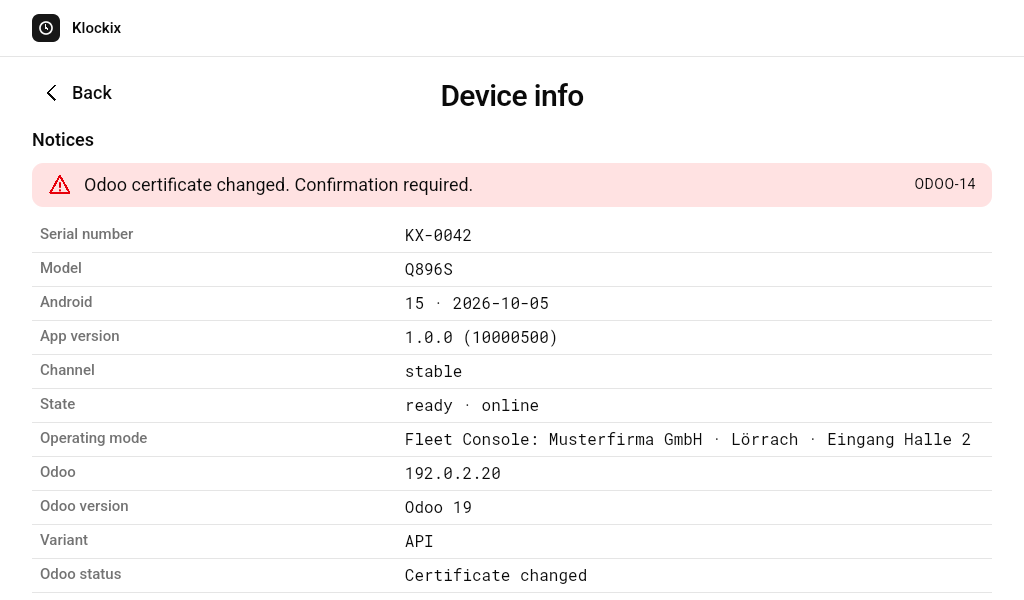
| Certificate changed | The server presents a different certificate than confirmed. Stopped for safety. | Confirm the new fingerprint in the service menu or in the Fleet Console. |
ODOO-15
| Title | Text | What to do |
|---|---|---|
| No Odoo found | No Odoo server responds at this address. | Check the address: it is the one where Odoo opens in the browser. |
ODOO-16
| Title | Text | What to do |
|---|---|---|
| Version not supported | Found Odoo …. Supported: 17, 18, 19 and 20. | Update Odoo to version 17 or newer. |
ODOO-17
| Title | Text | What to do |
|---|---|---|
| Database not found | Enter the database name under "Advanced". | Ask your IT or your Odoo partner for the name. |
ODOO-18
| Title | Text | What to do |
|---|---|---|
| Proxy asks for sign-in | Password protection (basic auth) sits in front of Odoo. Allow the Odoo address without password protection. | Ask your IT to let the device through without the password, for example by its IP address. |
ODOO-20
| Title | Text | What to do |
|---|---|---|
| Sign-in failed | User or API key is wrong. The key is shown only once when created. | Create a new API key in Odoo and enter it here. |
ODOO-21
| Title | Text | What to do |
|---|---|---|
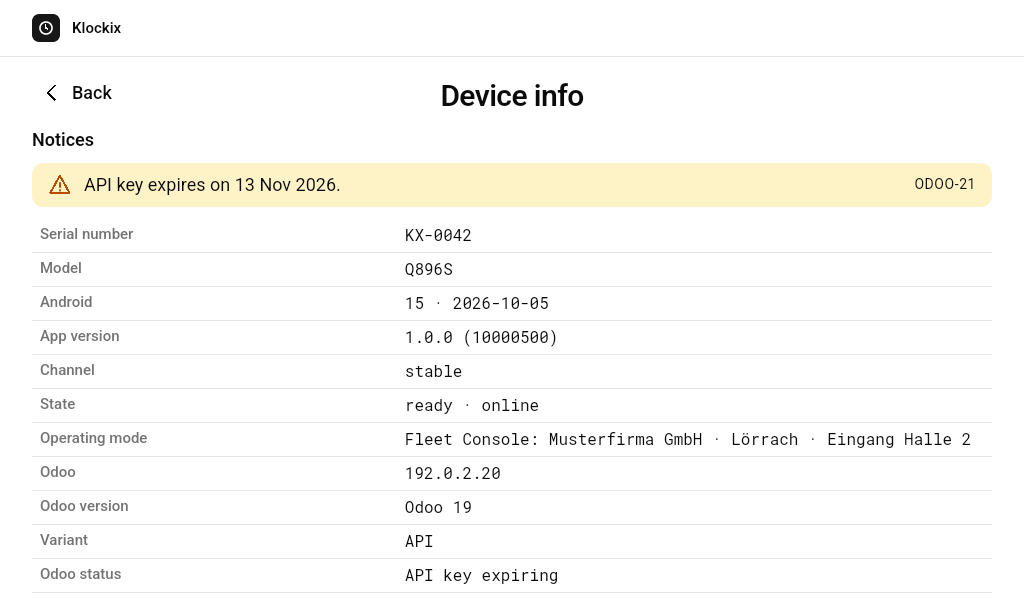
| API key expiring | The API key expires on …. Create a new one in Odoo and enter it here (or in the console). | Odoo shows the new key only once: copy it and enter it right away. |
ODOO-22
| Title | Text | What to do |
|---|---|---|
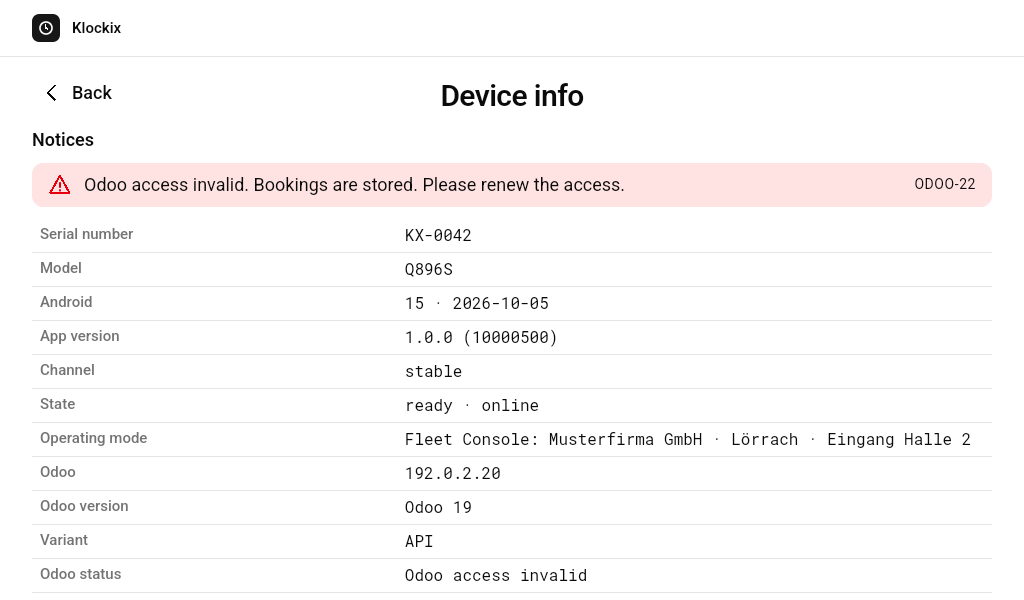
| Odoo access invalid | The API key was deleted or has expired. Bookings are stored until access is renewed. | Enter a new API key in the service menu or in the Fleet Console. |
ODOO-23
| Title | Text | What to do |
|---|---|---|
| API blocked on this plan | Odoo Online Standard and One App Free do not allow API access. Please choose "Kiosk link". | Use the kiosk link or move Odoo to the Custom plan. |
ODOO-24
| Title | Text | What to do |
|---|---|---|
| No permission | The user may not read employees. Grant "Employees: Officer" and "Attendances: Administrator" rights in Odoo. | Grant the user the rights named above in Odoo and test again. |
ODOO-25
| Title | Text | What to do |
|---|---|---|
| Attendances not installed | The Odoo app "Attendances" is not installed. | Install the "Attendances" app in Odoo. |
ODOO-26
| Title | Text | What to do |
|---|---|---|
| Booking not allowed | The user may not create attendances. | Allow the user to create attendances in Odoo. |
ODOO-27
| Title | Text | What to do |
|---|---|---|
| Invalid kiosk link | The link looks like: https://company.odoo.com/hr_attendance/abc123… | Copy the link again in Odoo and paste all of it. |
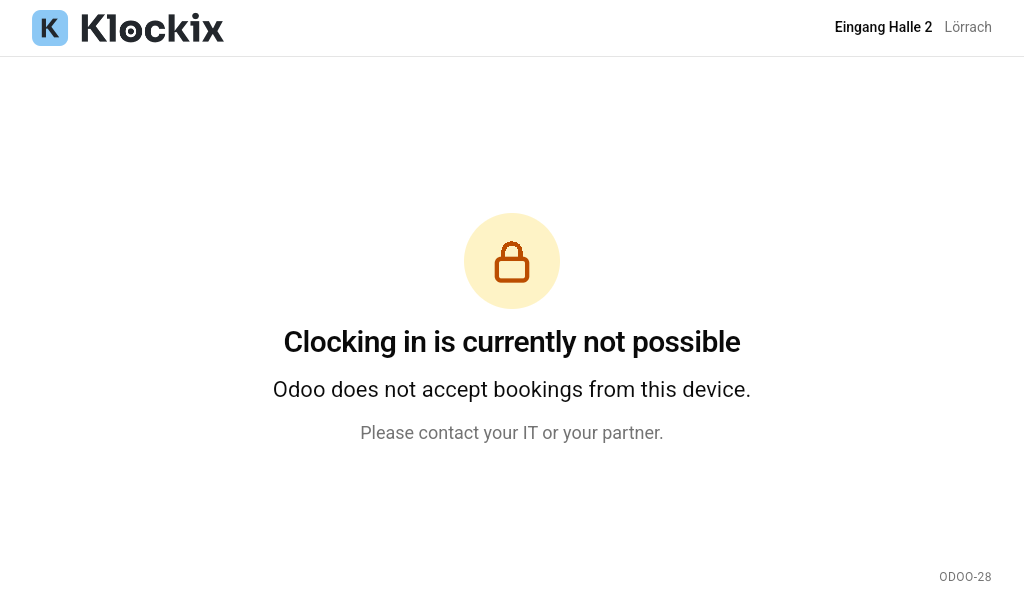
ODOO-28
| Title | Text | What to do |
|---|---|---|
| Kiosk link unknown | Odoo does not know this link. Was it regenerated? | Copy the link again and enter it here. |
ODOO-29
| Title | Text | What to do |
|---|---|---|
| Multiple companies | Choose the company under "Advanced" (or "all"). | If the company is missing from the list, give the user access to it in Odoo. |
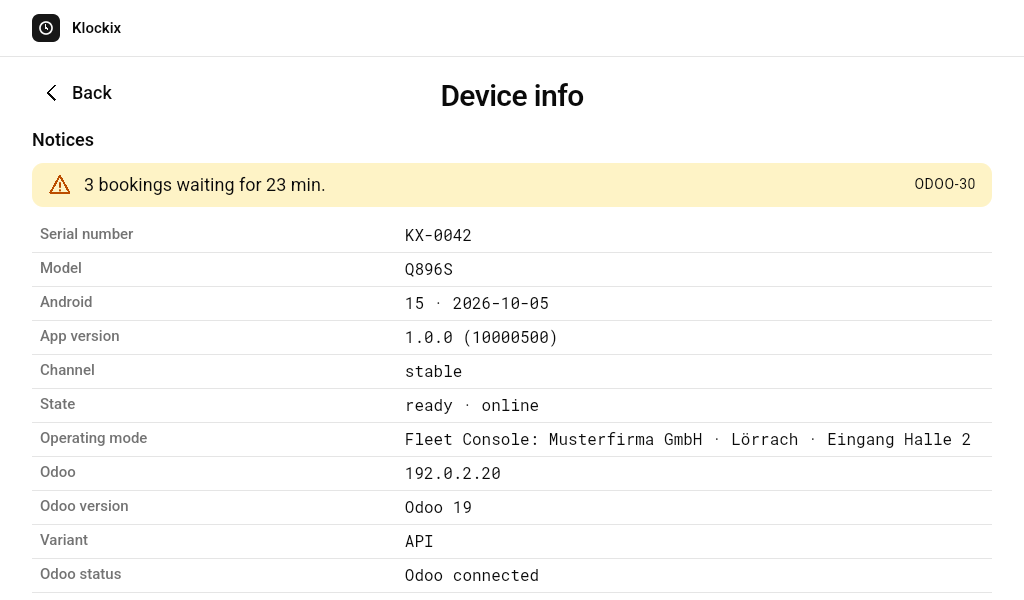
ODOO-30
| Title | Text | What to do |
|---|---|---|
| Odoo unreachable | … bookings waiting. | Check the network. The bookings go out as soon as Odoo can be reached. |
ODOO-31
| Title | Text | What to do |
|---|---|---|
| Booking rejected | Odoo rejected a booking (…). Details in the diagnostics package. | HR checks the attendance in Odoo. |
ODOO-32
| Title | Text | What to do |
|---|---|---|
| No badges assigned | No employee in Odoo has a badge ID yet. | Enter the badge ID for the employees in Odoo. |
ODOO-33
| Title | Text | What to do |
|---|---|---|
| Odoo throttling | Odoo is not accepting requests right now. The device retries automatically. | Wait a minute, then test again. |
ODOO-34
| Title | Text | What to do |
|---|---|---|
| Odoo server error | Odoo answered with an error. The device retries automatically. | Try again later. If the error persists, ask your Odoo administrator. |
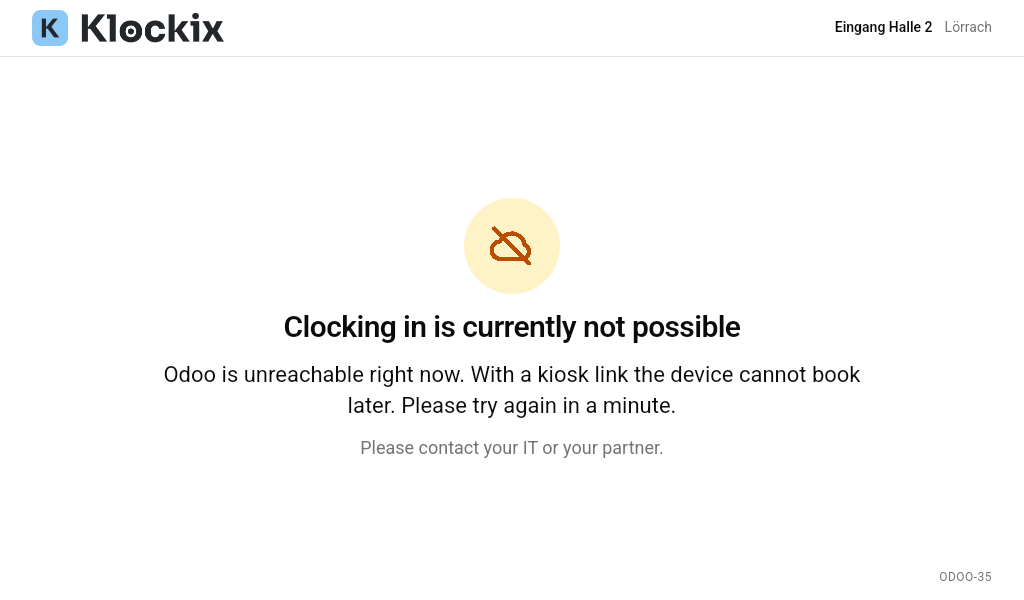
ODOO-35
| Title | Text | What to do |
|---|---|---|
| Clocking in is currently not possible | Odoo is unreachable right now. With a kiosk link the device cannot book later. Try again in a minute or contact your IT or your partner. | Have the network and the connection to Odoo checked. |
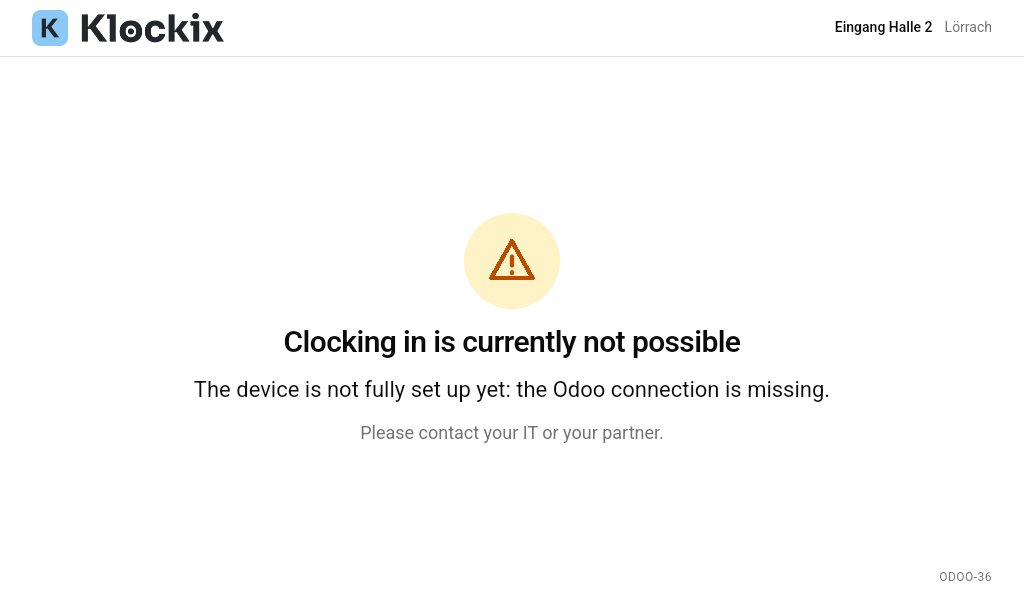
ODOO-36
| Title | Text | What to do |
|---|---|---|
| Clocking in is currently not possible | The device is not fully set up yet: the Odoo connection is missing. Please contact your IT or your partner. | Set up the Odoo connection in the Fleet Console. |
Clock
CLK-01
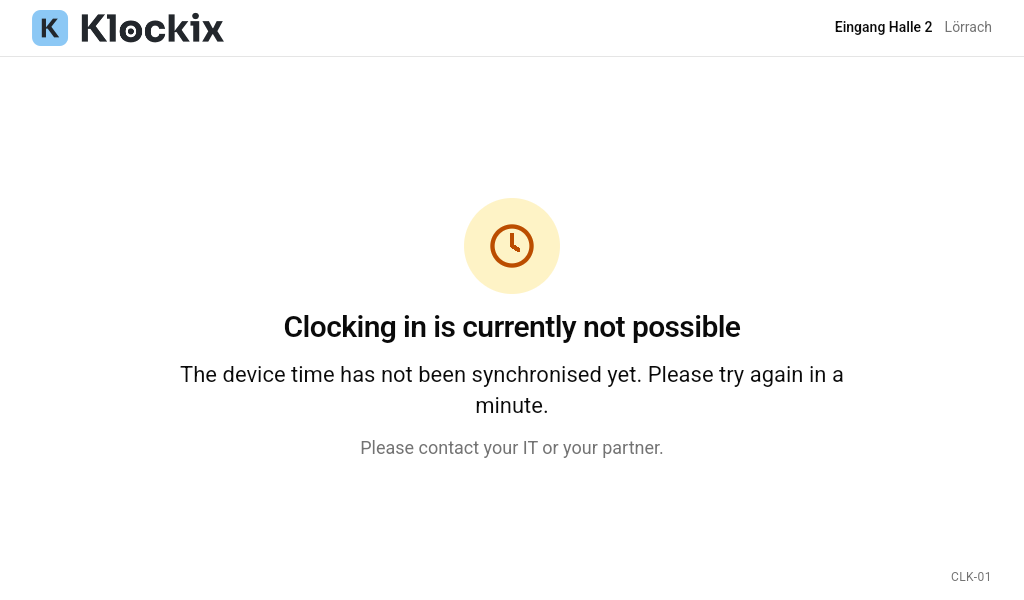
| Title | Text | What to do |
|---|---|---|
| Time not synchronised | Booking not possible until the time server confirms the time. | Check the network and wait a minute. |
CLK-02
| Title | Text | What to do |
|---|---|---|
| Time server unreachable | Port 123 (UDP) is probably blocked. | Open port 123 (UDP) in the firewall or set your own time server in the Fleet Console. |
CLK-03
| Title | Text | What to do |
|---|---|---|
| Unknown time zone | "…" is not valid, UTC applies. | Check the site's time zone in the Fleet Console. |
Updates
UPD-01
| Title | Text | What to do |
|---|---|---|
| Update download failed | Will be retried at the next check. | No action needed. |
UPD-02
| Title | Text | What to do |
|---|---|---|
| Update rejected | The update signature is invalid. It was not installed. | Inform Klockix support. |
UPD-03
| Title | Text | What to do |
|---|---|---|
| Installation failed | …. The previous version keeps running. | Inform Klockix support. |
UPD-04
| Title | Text | What to do |
|---|---|---|
| Update rolled back | Version … was not stable, version … is active again. | No action needed. |
UPD-05
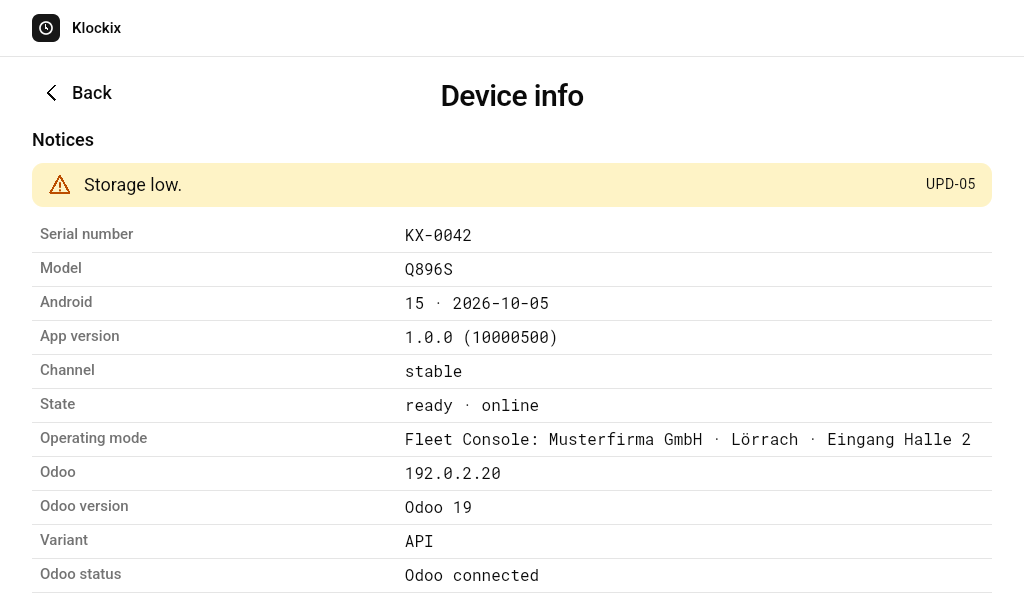
| Title | Text | What to do |
|---|---|---|
| Storage low | Updates are loaded again once space is free. | Inform Klockix support. |
UPD-06
| Title | Text | What to do |
|---|---|---|
| No update | Version … is current. | No action needed. |
Fleet Console
FLEET-01
| Title | Text | What to do |
|---|---|---|
| Fleet Console unreachable | Configuration and status will sync later. Bookings are not affected. | No action needed. If it lasts, check the network. |
FLEET-02
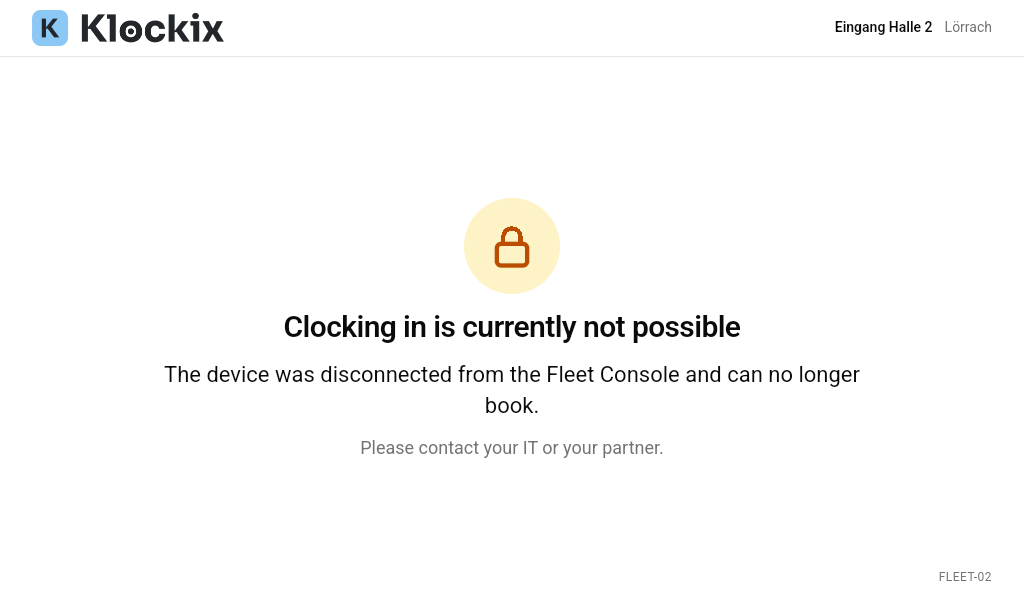
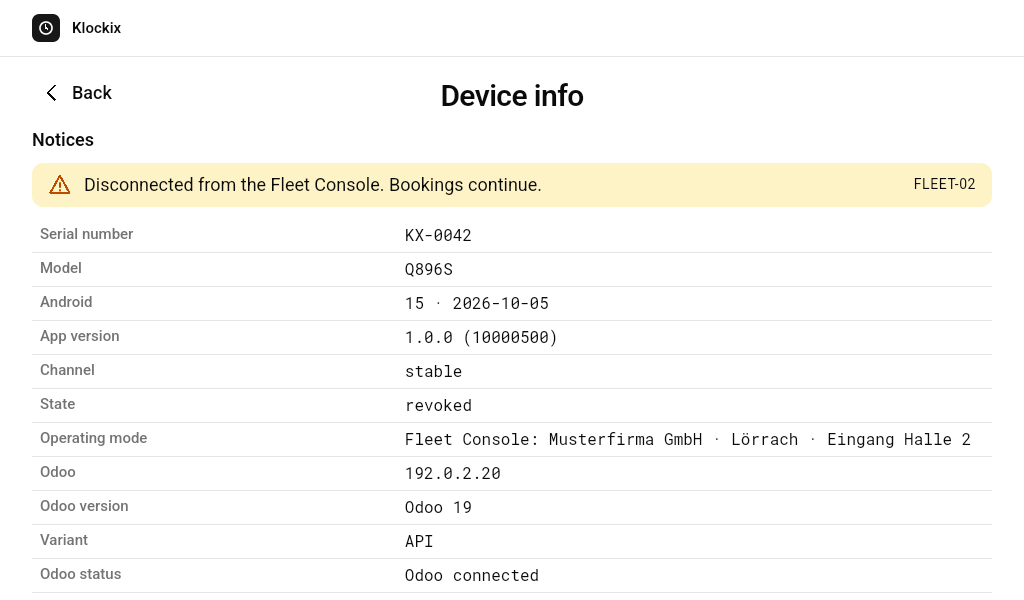
| Title | Text | What to do |
|---|---|---|
| Disconnected from the Fleet Console | The device was removed in the console. It keeps booking with the last configuration. | Enter a new registration code in the service menu. |
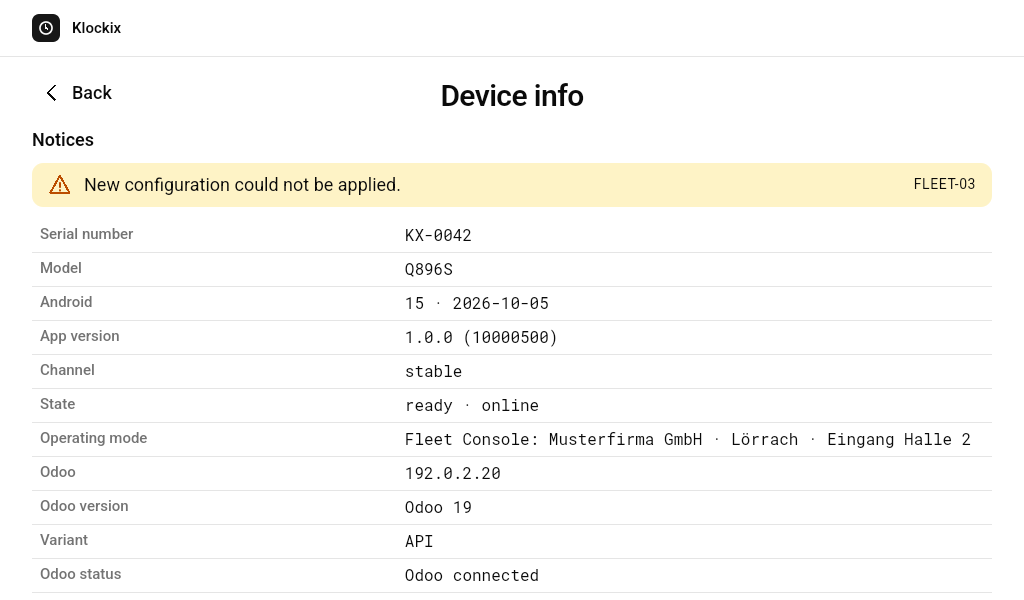
FLEET-03
| Title | Text | What to do |
|---|---|---|
| Invalid configuration | The new configuration could not be applied; the last valid one stays active. | Inform your partner. |
FLEET-04
| Title | Text | What to do |
|---|---|---|
| Logo not loaded | The Klockix logo is shown. | Check the logo file in the Fleet Console. |
Badge reader
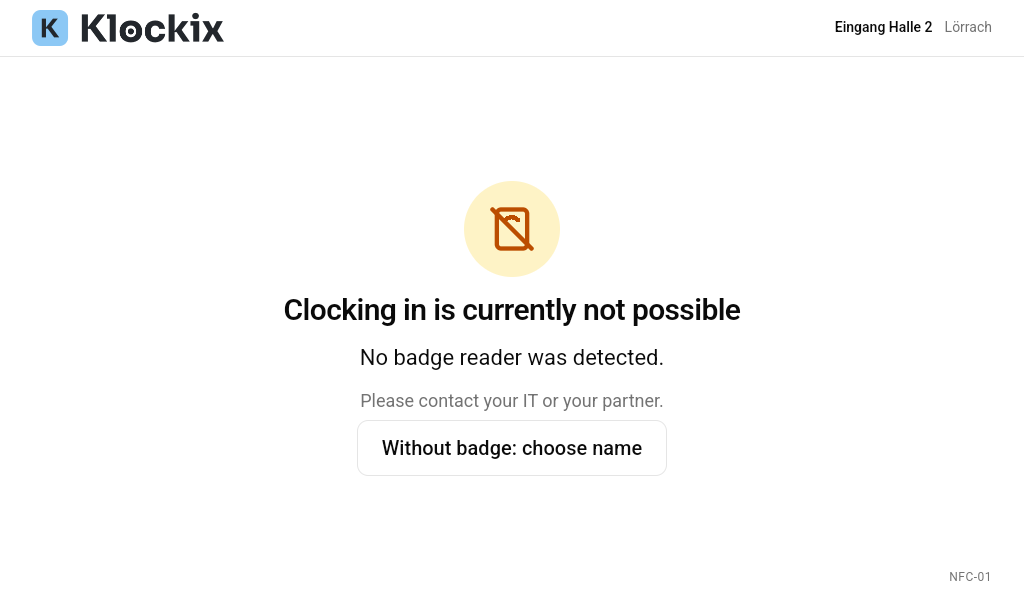
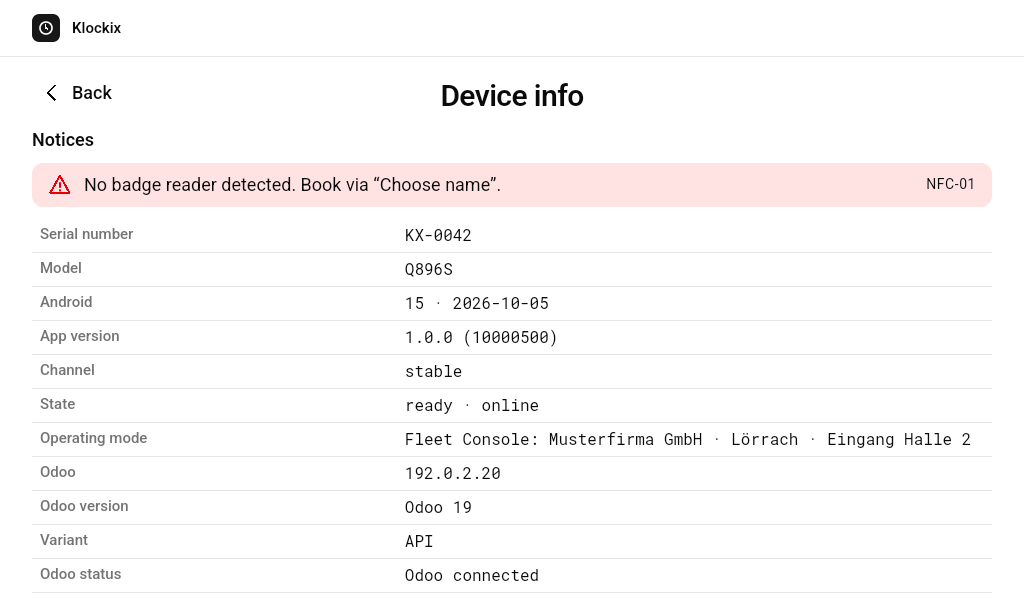
NFC-01
| Title | Text | What to do |
|---|---|---|
| No badge reader | Neither NFC nor USB reader found. Book via "Choose name". | Contact support. |
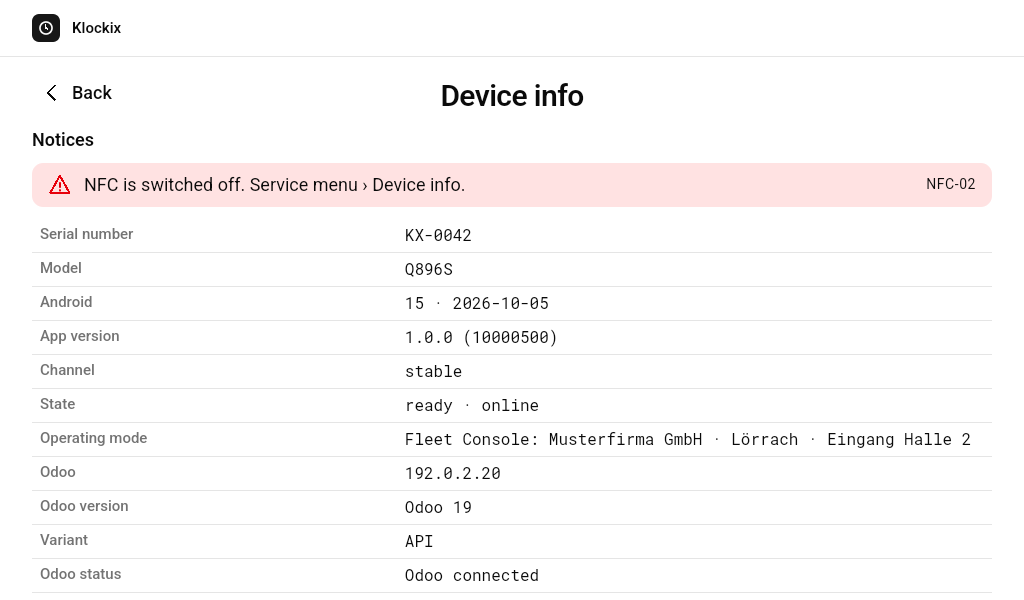
NFC-02
| Title | Text | What to do |
|---|---|---|
| NFC switched off | Please contact support. | Contact support and give the status from Service menu › Device info. |
NFC-03
| Title | Text | What to do |
|---|---|---|
| Reader error | The badge reader was restarted. Please tap again. | Hold the badge still until the tone sounds. |
Service menu
SVC-01
| Title | Text | What to do |
|---|---|---|
| Wrong PIN | – | Enter the PIN again. |
SVC-02
| Title | Text | What to do |
|---|---|---|
| Locked for … s | – | Wait until the lock has expired. |
SVC-03
| Title | Text | What to do |
|---|---|---|
| PIN too simple | Please choose a different PIN. | Choose another PIN with 4 to 8 digits, not 1234, 2580 or one digit repeated. |
SVC-04
| Title | Text | What to do |
|---|---|---|
| Reset blocked | … bookings are still waiting to be sent. | Connect the device to the network and wait until the bookings are sent. Then reset again. |
SVC-05
| Title | Text | What to do |
|---|---|---|
| Diagnostics not allowed | The diagnostics package was not sent. Neither the Fleet Console nor the device allows sending it. | Allow diagnostics in the Fleet Console, or turn on “Allow sending diagnostics” at the device in the service menu under “Diagnostics”. |
Bookings
BOOK-01
| Title | Text | What to do |
|---|---|---|
| Booking not possible | Odoo is unreachable. With a kiosk link the device cannot book later. | Tap again later. |
BOOK-02
| Title | Text | What to do |
|---|---|---|
| Outside operating hours | Bookings possible from … …. | Book during operating hours. |
BOOK-03
| Title | Text | What to do |
|---|---|---|
| Badge not known | Please contact HR. | Ask HR to assign the badge in Odoo. |
BOOK-04
| Title | Text | What to do |
|---|---|---|
| Already booked at … | – | No action needed. |
BOOK-05
| Title | Text | What to do |
|---|---|---|
| PIN not recognised | Please try again. | Enter the PIN again. |
BOOK-06
| Title | Text | What to do |
|---|---|---|
| Connection interrupted | Check in Odoo whether the booking arrived before tapping again. | If the booking is missing in Odoo, tap again. |