

Troubleshooting the device
What to do when the device cannot record a clocking.
Every error on the device has a code, small at the bottom right of the screen. Its meaning is under Error codes.
Clocking in is currently not possible
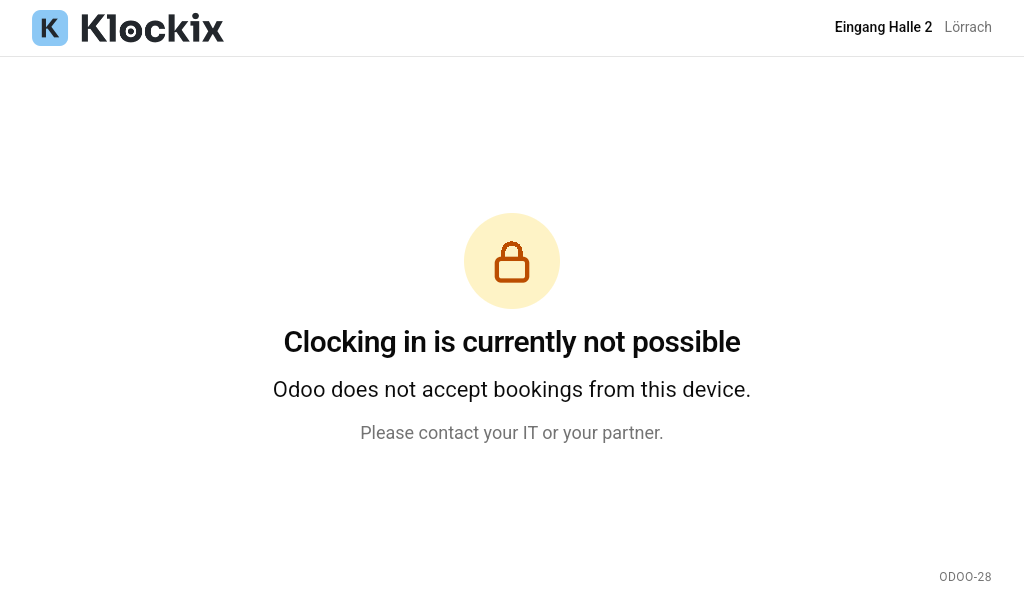
If the device cannot book, a notice “Clocking in is currently not possible” with one sentence about the cause replaces the start screen. A badge tapped then books nothing, the device plays an error tone. Once the cause is fixed, the start screen returns by itself.
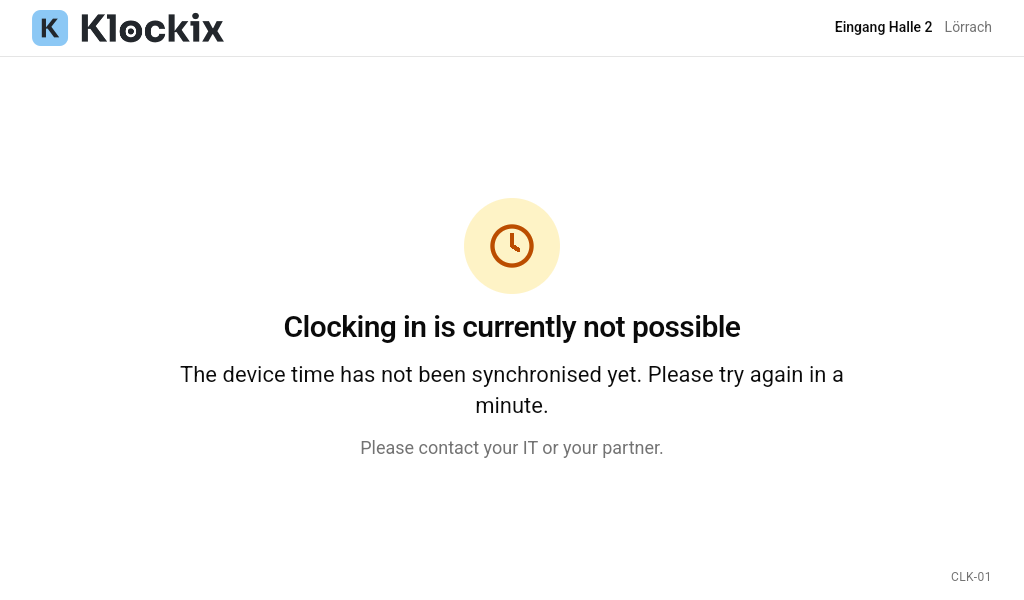
Time not synchronised
“The device time has not been synchronised yet.” (CLK-01) With an API key the device only books with a confirmed time, so that no wrong times end up in Odoo.
- Wait one minute. The sync usually works by itself.
- If the notice stays, check the firewall: UDP 123 to the time servers must be open (Firewall and ports).
Odoo unreachable with a kiosk link
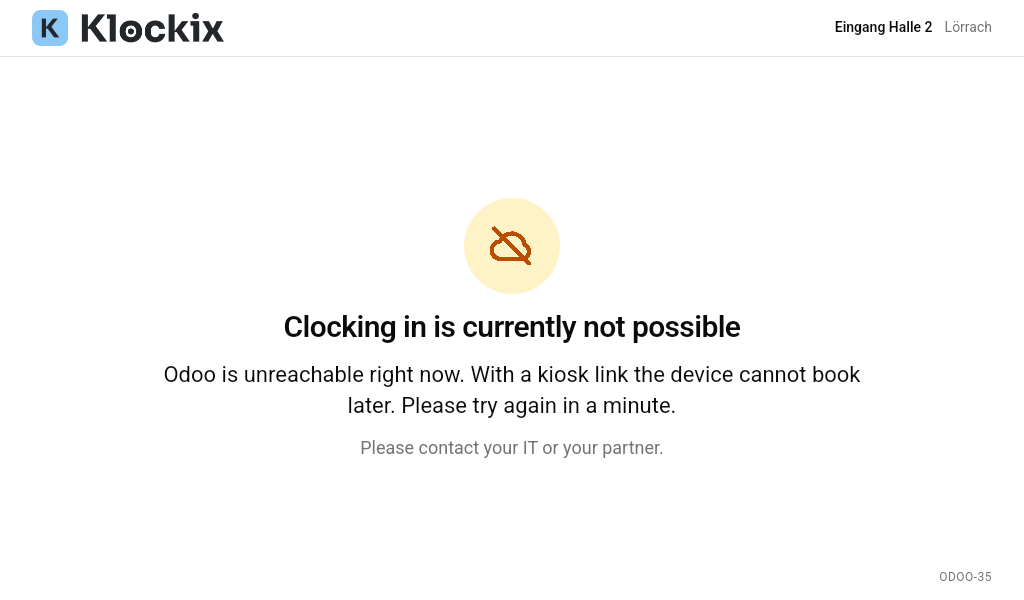
“Odoo is unreachable right now. With a kiosk link the device cannot book later.” (ODOO-35) The device checks every 30 seconds whether Odoo answers again.
- Have the network and Odoo checked.
- If the connection broke during a booking, the device also shows “Connection interrupted” (BOOK-06). Then check in Odoo whether the booking arrived before the person taps again.
Odoo connection missing
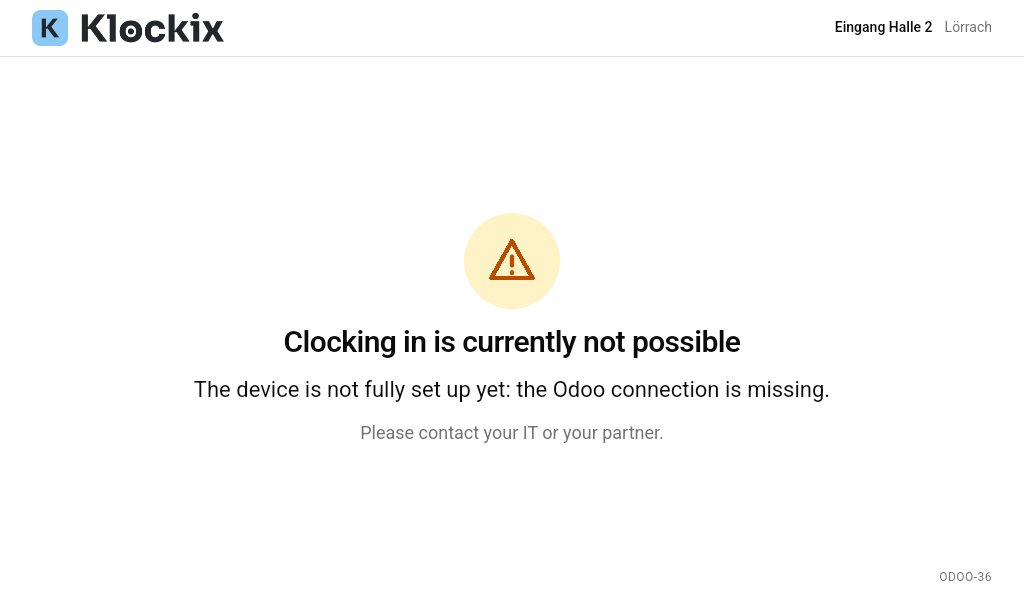
“The device is not fully set up yet: the Odoo connection is missing.” (ODOO-36) The partner sets the Odoo connection in the Fleet Console (Odoo connection). The device takes it over by itself.
Disconnected from the Fleet Console
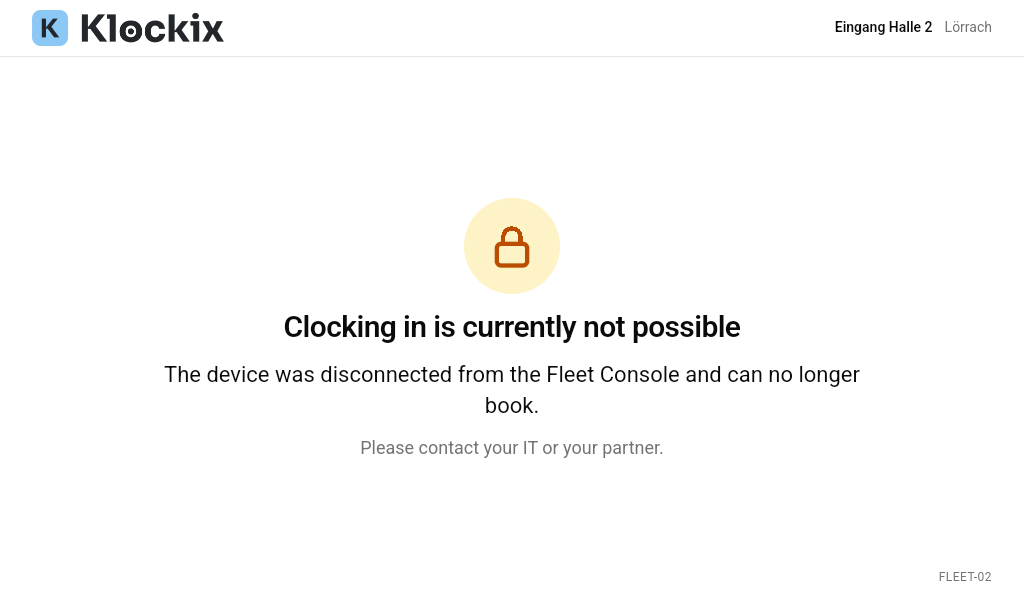
“The device was disconnected from the Fleet Console and can no longer book.” (FLEET-02) This notice only appears when the device also lacks the configuration or the Odoo access. With a valid configuration a disconnected device keeps booking.
- In the service menu choose “Enter registration code” and enter a new code from the Fleet Console.
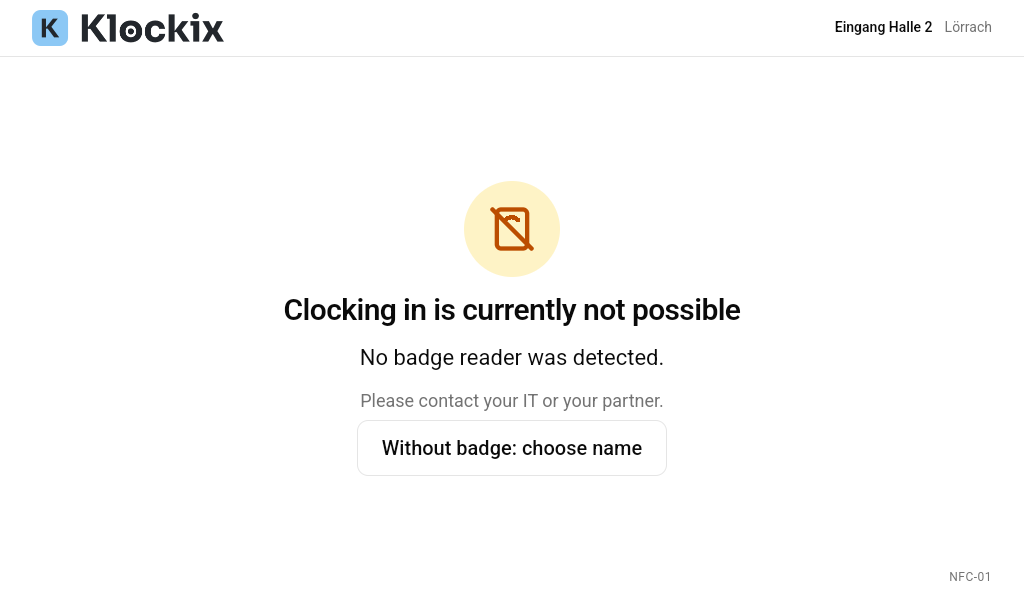
No badge reader
“No badge reader was detected.” (NFC-01, NFC-02) Inform Klockix support through the partner. If “Selection without badge” is on in the Fleet Console, the notice offers “Without badge: choose name”, which keeps booking possible.
Odoo does not accept bookings
“Odoo does not accept bookings from this device.” (ODOO-28, ODOO-22) With a kiosk link this usually means: the link was regenerated in Odoo.
- Copy the new link from Odoo (Kiosk link).
- For a device connected to the Fleet Console the partner enters it in the console. For a directly connected device it goes in the service menu under “Edit Odoo connection”.
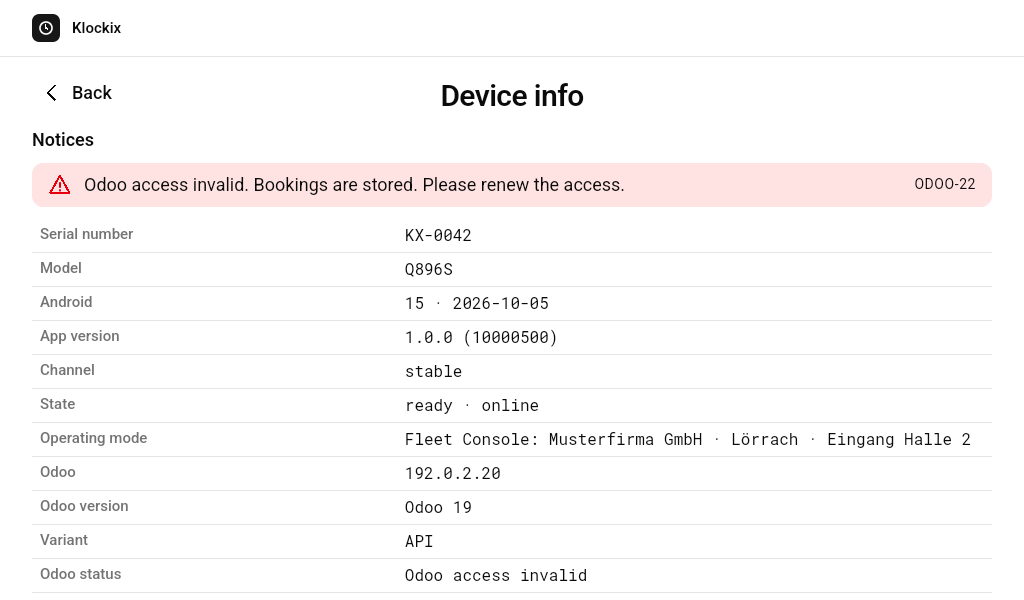
With an API key, invalid access does not lock the device. It stores the bookings and shows the notice only in the device info, see below.
Notices in the device info
Faults during which the device keeps booking appear only in the service menu under “Device info”, block “Notices”. A device connected to the Fleet Console also reports them to the console.
| Notice | Code | What to do |
|---|---|---|
| “Odoo certificate changed. Confirmation required.” | ODOO-14 | Bookings wait. Check the new fingerprint with IT and confirm it in the service menu or in the Fleet Console. |
| “Odoo access invalid. Bookings are stored. Please renew the access.” | ODOO-22 | Create a new API key in Odoo and enter it in the Fleet Console or in the service menu. |
| “No badge reader detected. Book via “Choose name”.” | NFC-01 | Inform support. |
| “NFC is switched off. Service menu › Device info.” | NFC-02 | Inform support. |
| “Disconnected from the Fleet Console. Bookings continue.” | FLEET-02 | Enter a new registration code in the service menu. |
| “… bookings waiting for … min.” | ODOO-30 | Check network and Odoo. The bookings go out as soon as Odoo can be reached. |
| “API key expires on ….” | ODOO-21 | Create a new key in time (API key). |
| “New configuration could not be applied.” | FLEET-03 | The last valid configuration stays active. Inform the partner. |
| “Storage low.” | UPD-05 | Updates are loaded again once space is free. Inform support. |
The list is ordered by urgency, the most important notice comes first.
Error screen
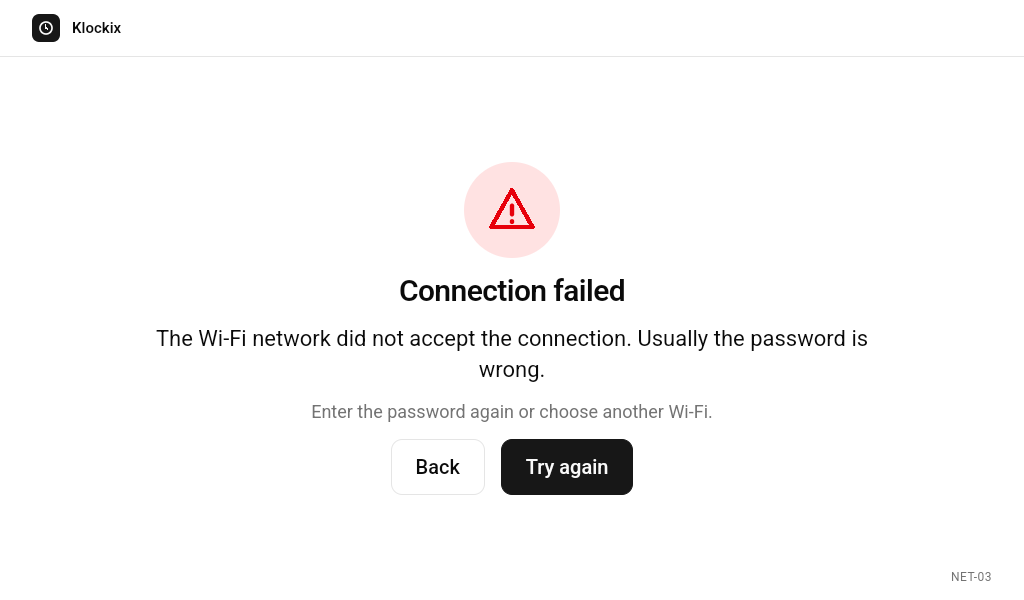
During setup the device shows errors on a screen of their own: title, text, what to do and the code. The buttons fit the situation, for example “Enter the password again” and “Back to the list” after a wrong Wi-Fi password.
After an update
After an update the device restarts and shows the start screen. In the first 5 minutes it checks the new version and returns to the previous one by itself if there are problems (Updates).
If the device hangs after an update or keeps restarting:
- Disconnect the device from power and connect it again.
- If it shows the start screen afterwards, wait 10 minutes. During this time it can still return to the previous version.
- If the app does not start, inform the partner. Klockix then installs the previous version by cable or replaces the device.
Device offline in the Fleet Console
- Check power and network at the device.
- With an API key the device keeps booking offline and sends the bookings later.
- If the service menu opens, “Device info” shows network, clock and queue.