

Registering devices
Create and send a registration code, revoke open codes.
A device joins the console with a registration code. You create the code in the console and enter it on the device. The device then loads configuration and Odoo connection by itself.
The code is valid for 30 minutes and once only. Create it only when the device is switched on and in the network.
Create a code
- Open “Devices” and click “Register device”.
- Choose the site.
- Check the device name. The console suggests “Time clock 1”, “Time clock 2” and so on. The device carries this name in the console and on the device.
- Click “Create code”.
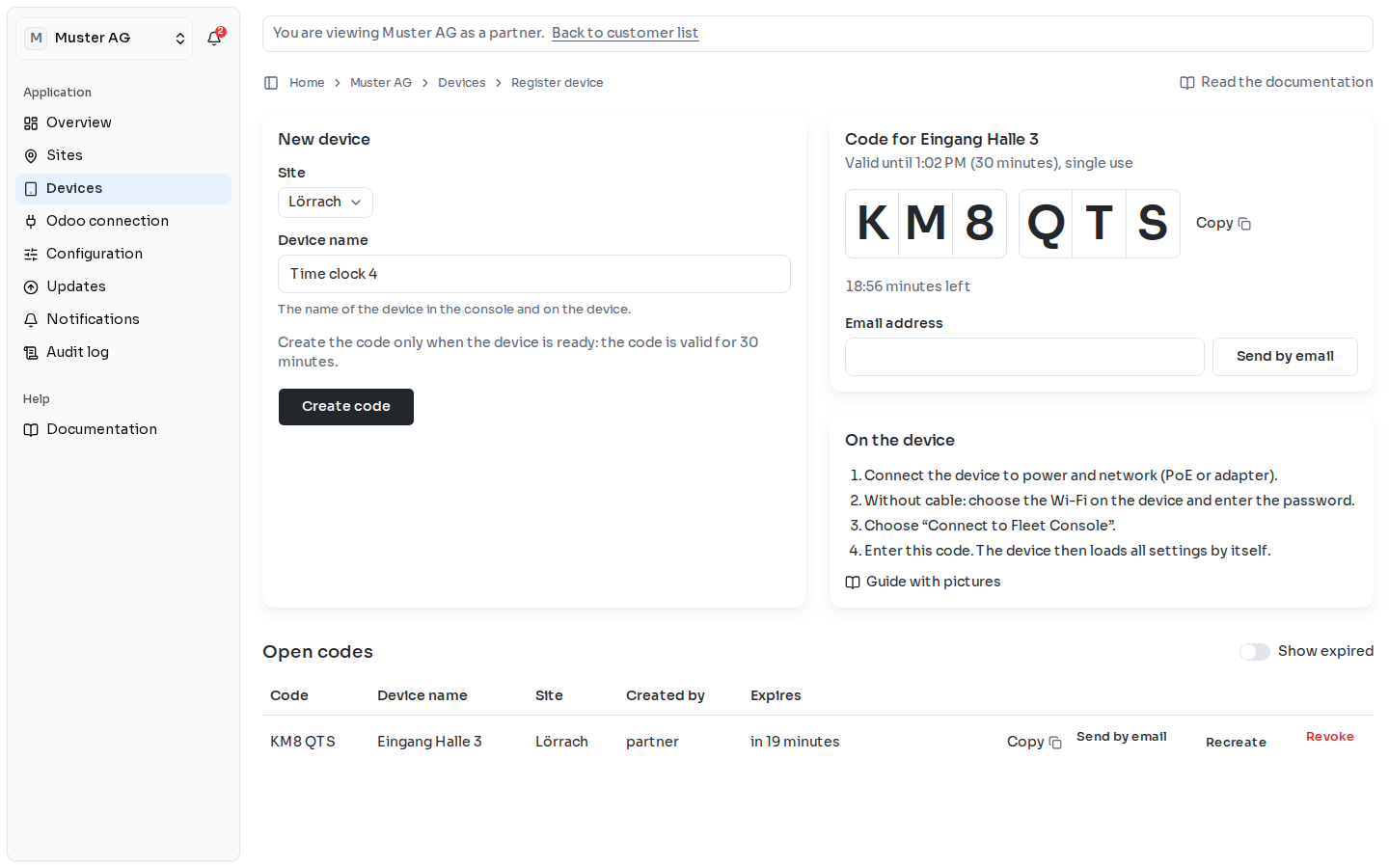
The code shows in large letters, for instance “ABC 234”. Below it reads “Valid until … (30 minutes), single use” with a countdown. “Copy” puts it on the clipboard. Once it has expired, click “Create new code”. Site and name stay.
If the site has no Odoo connection yet, the console reports “This site has no Odoo connection yet.” You can set up the connection first or choose “Create a code anyway”. The device then connects and shows “Clocking in is currently not possible” with the note “The device is not fully set up yet: the Odoo connection is missing.” until one is set up (ODOO-36).
Send the code by email
If someone else stands at the device, send them the code.
- Enter the email address under “Send by email”.
- Click “Send by email”.
The email is called “Your Klockix registration code”. It holds the code, device and site, how long it is valid and the steps on the device, in the customer's language. That is German, English, Spanish, French, Italian or Dutch. Each account sends at most 20 code emails per hour.
On the device
As soon as the device accepts the code, the console shows the green card “Device Time clock 1 is connected.” with the link “Open the device”. The page checks this every five seconds.
The steps on the device are on the page under “On the device”:
- Connect the device to power and network (PoE or adapter).
- Without cable: choose the Wi-Fi on the device and enter the password.
- Choose “Connect to Fleet Console”.
- Enter the code.
The full guide with pictures is under Connecting to the Fleet Console. If the device reports “Code not valid”, the code is wrong, expired, used already or revoked (CODE-02). Create a new one.
Open codes
At the bottom of the page, “Open codes” lists all codes nobody has entered yet, with device name, site, who created them and when they expire.
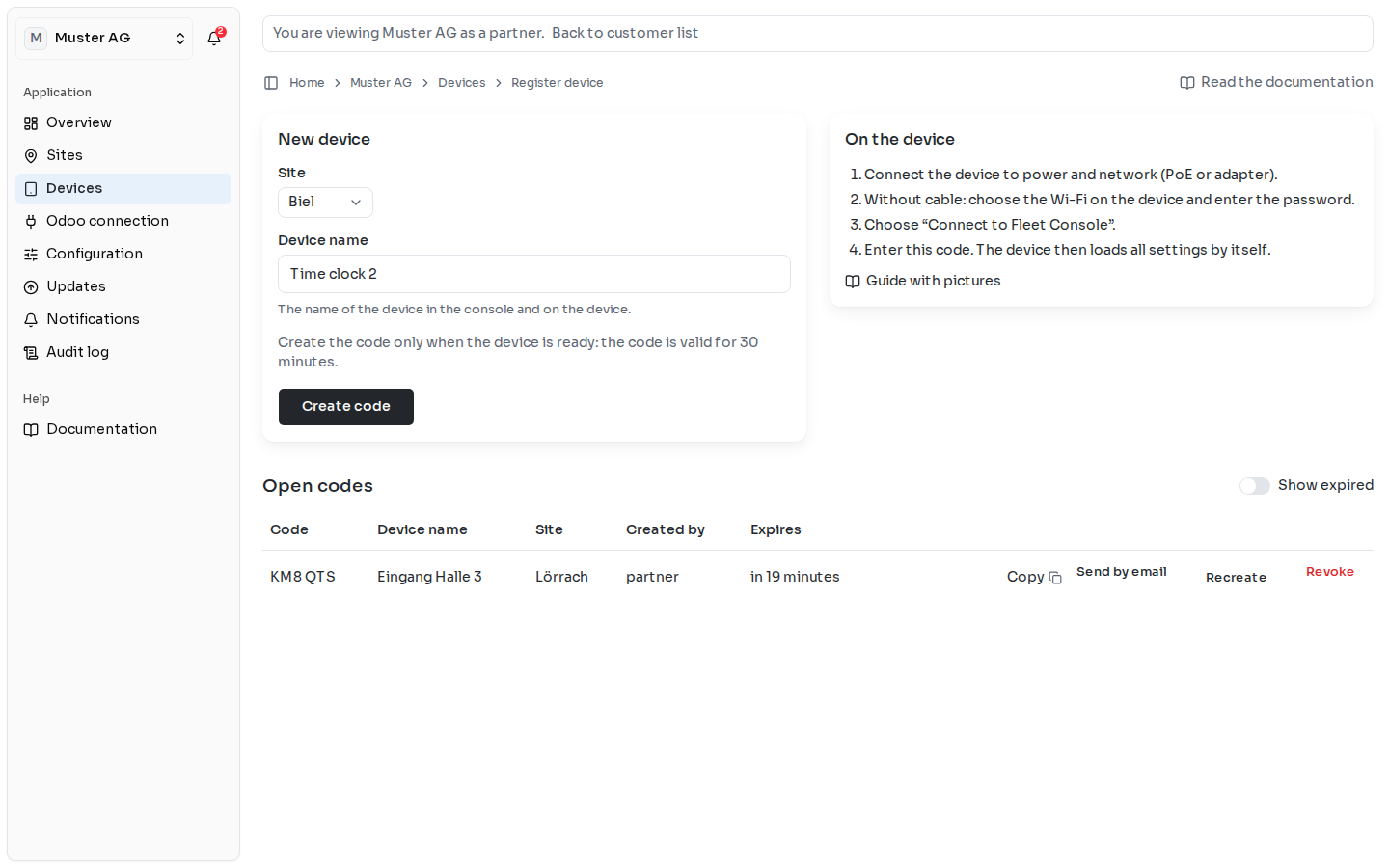
Each row offers “Copy”, “Send by email”, “Recreate” and “Revoke”. A revoked code cannot be used any more. “Show expired” adds the expired codes of the last 30 days. An account has at most 50 open codes.
Who may do what
Owners and administrators of a partner or direct customer create, email and revoke codes. A customer with a partner sees the open codes. Members do not see the page.