

Factory reset
What a factory reset deletes and how to set the device up again.
Factory reset
- Open the service menu and tap “Factory reset”.
- Confirm the notice “All data on the device will be deleted.” with “Yes, continue”.
- Drag the slider “Slide right to confirm” all the way to the right.
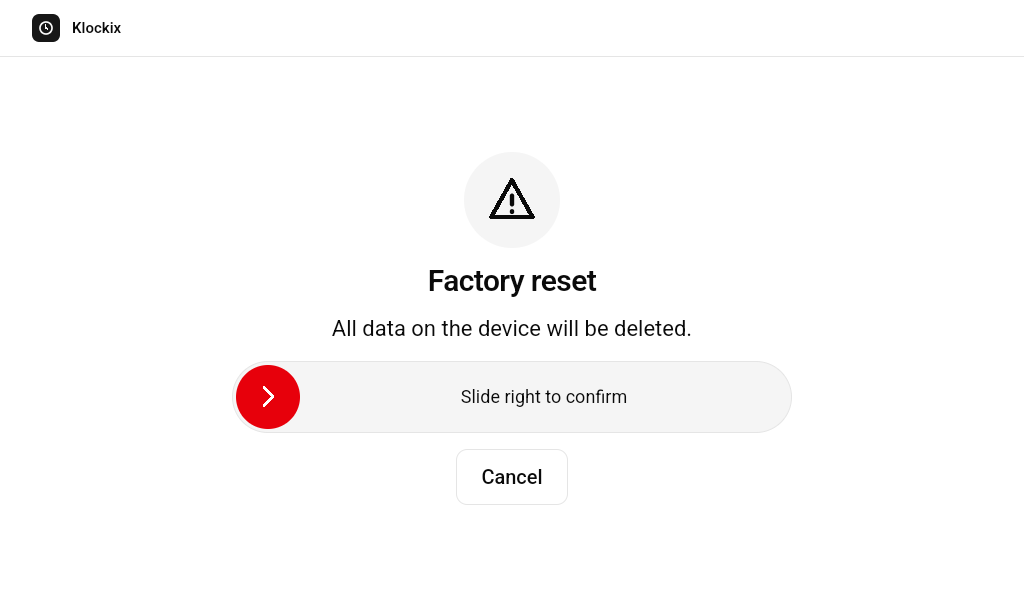
If bookings are still waiting, the device blocks the factory reset and shows “Reset blocked” with the number of bookings (SVC-04). Restore the network, wait until the bookings have been sent and reset again.
On a device connected to the Fleet Console the partner can also trigger the factory reset from the console. The block for waiting bookings applies then as well.
What is deleted
- configuration, Odoo access, service PIN and recovery code
- employee list and bookings
- device log, diagnostics opt-in and the diagnostics package in the “Download” folder
- the Wi-Fi networks that were set up on the device
- the link to the Fleet Console: the device signs off there if it has a network
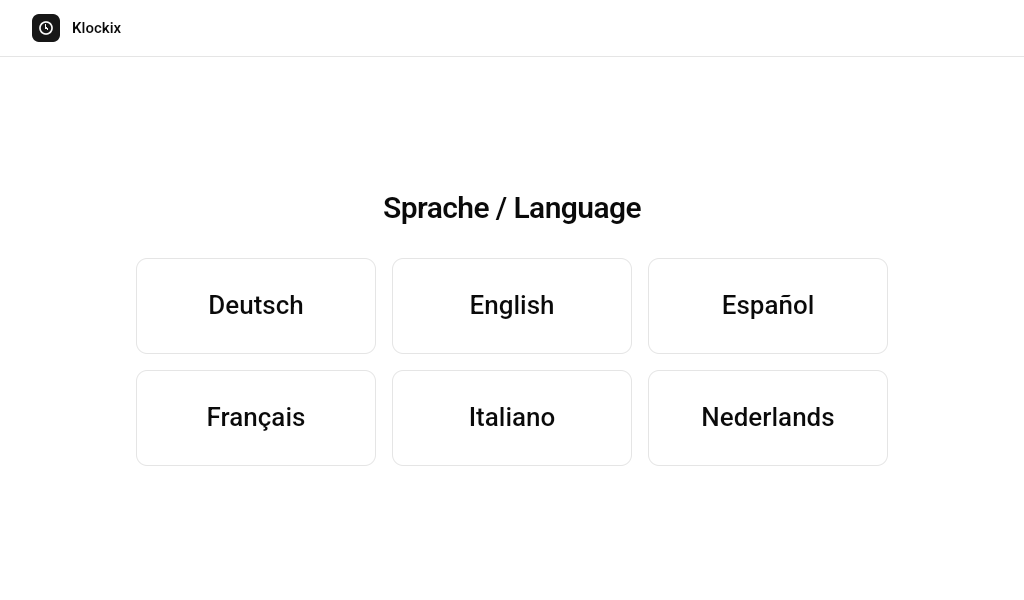
The Android settings stay. Afterwards the device starts with the language choice.
Setting up again
After the factory reset, setup starts from the beginning, see Unboxing and mounting from “First start”. The Fleet Console needs a new registration code.
If the device moves to another customer, follow this order:
- Check that no bookings are waiting.
- Reset the device, on the device or from the Fleet Console.
- Create a registration code at the new customer and link the device as under Connecting to the Fleet Console.
Forgotten service PIN
Connected to the Fleet Console: the partner sets a new service PIN in the console (Configuration). The device takes it over at its next sync, within two minutes when online.
Connected directly to Odoo:
- Tap the top-left corner five times.
- Instead of the PIN, enter the 8-digit recovery code from the setup.
- Set a new PIN and repeat it.
- Write down the new recovery code. Only then does the service menu open.
If someone cancels before that, the old PIN and the old code stay valid.
If the recovery code is lost as well, nothing on the device helps any more. The device then goes to Klockix through the partner and is reset there. Bookings still waiting on the device are lost.
If the device cannot be reset
If bookings are waiting that can never be sent, for example because the old Odoo has been shut down, the device blocks the factory reset and the switch to the Fleet Console. There are two ways out:
- In the service menu under “Edit Odoo connection”, repair the connection or replace it with a new one. If it leads to another Odoo, the device sends the waiting bookings to the old connection for up to one minute, the rest is lost (Service menu).
- Hand the device to Klockix through the partner.
For a device connected to the Fleet Console, “Release” in the console helps: the device tries for one minute to send the bookings, then deletes its connection and reports to the console how many bookings it discarded.