

Choosing the setup path
Fleet Console or straight to Odoo: which path fits when.
After the internet check the device asks “How should this device be set up?”.
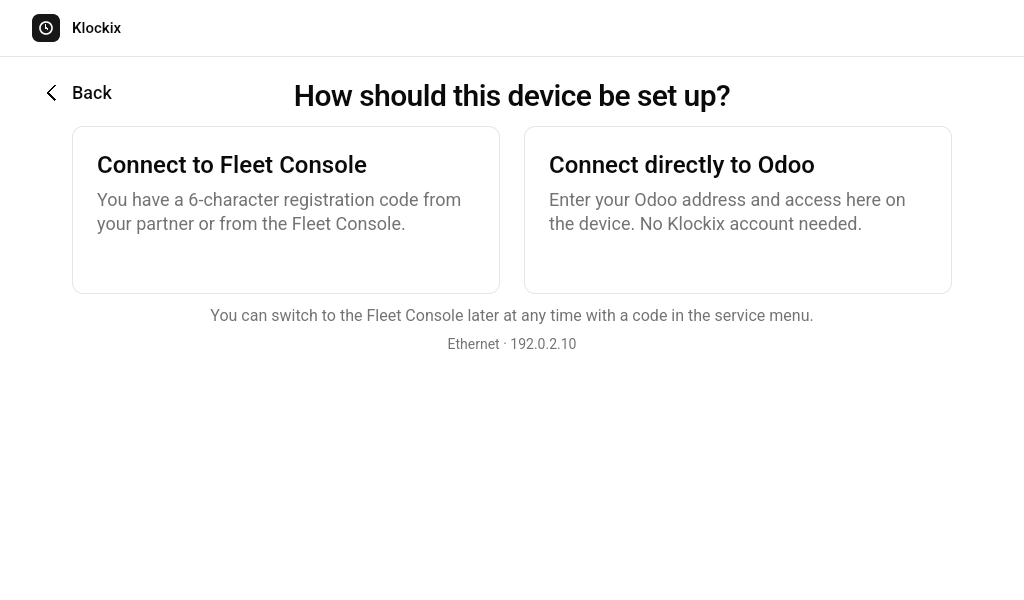
- Tap “Connect to Fleet Console” if you have a registration code. Continue under Connecting to the Fleet Console.
- Otherwise tap “Connect directly to Odoo”. Continue under Connecting directly to Odoo.
If the Klockix cloud cannot be reached, the Fleet card is greyed out and shows “Cloud unreachable” (NET-07).
Which path fits
| Topic | With Fleet Console | Directly to Odoo |
|---|---|---|
| Account | access to the Fleet Console, usually through the partner | no Klockix account |
| Odoo access | entered once in the console, for the company or per site | entered on the device |
| Service PIN | from the console | set on the device, with a recovery code |
| Settings | in the console: operating hours, logo, “Display after clocking”, sound, “Device language”, “Selection without badge” | fixed values: always active, Klockix logo, hours worked today, no selection without badge; language in the service menu |
| Faults | messages in the Fleet Console, by email if wanted | only on the device in the service menu |
| Remote maintenance | Odoo test, diagnostics package, update check, restart and factory reset from the console | none |
| Updates | automatic | automatic |
A directly connected device can be linked to the Fleet Console later: service menu, “Enter registration code”. It then deletes the local Odoo data (Service menu).